Backup of the automations
 Carlos Sahuquillo
·
9 mayo, 2023
·
11 min de lectura
Carlos Sahuquillo
·
9 mayo, 2023
·
11 min de lectura
Ep. 52 · escúchalo
0:00 /
Idioma:CastellanoEnglish
Today I wanted to talk to you about how important backups are for the automations, scenes and everything else we have in Home, and how to make them both in HomeKit, through the Home app and third-party apps, and in Home Assistant.
You already know that I really love tinkering, I spend my life testing devices, changing automations, creating shortcuts to make some automation a bit more advanced, maybe I do it with Controller for HomeKit for that whole advanced notifications thing, as we’ve already mentioned on some occasion.
Sometimes I’m not happy with the automations from HomeKit and then I migrate them to Home Assistant, because you already know I spend my life going back and forth like that, with one foot in each camp between Home Assistant and HomeKit. And, obviously, not all these tests go well on the first try, I wish they did, but on many occasions I leave the system a bit unstable or I break something that was working fine and then it’s hard for me to replicate it, and stuff like that.
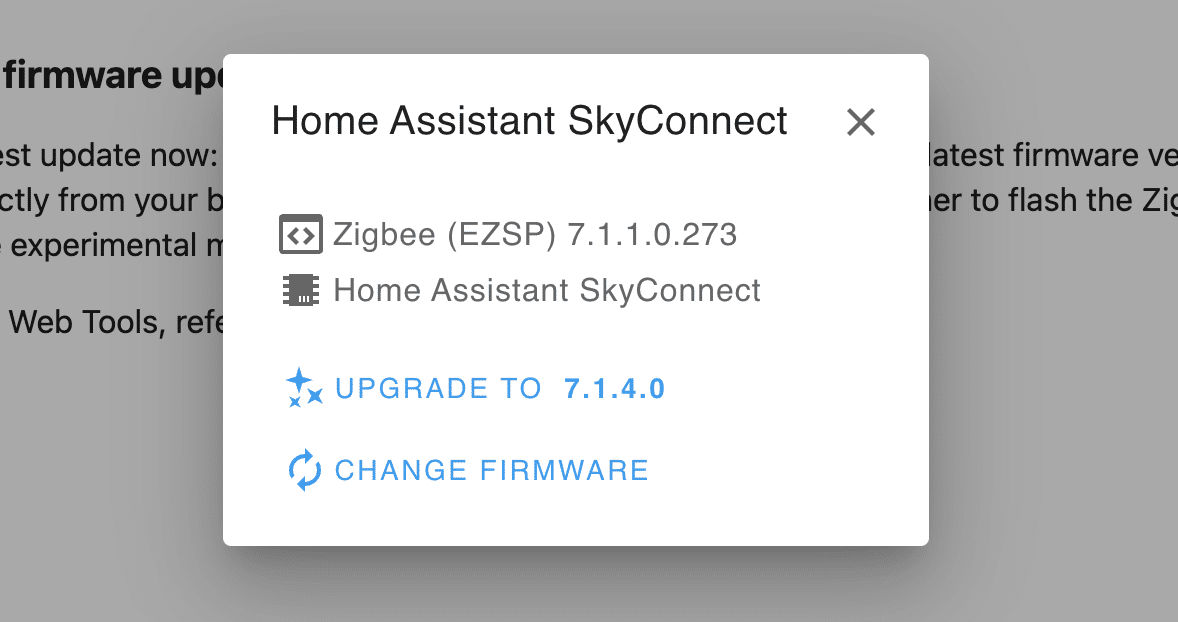
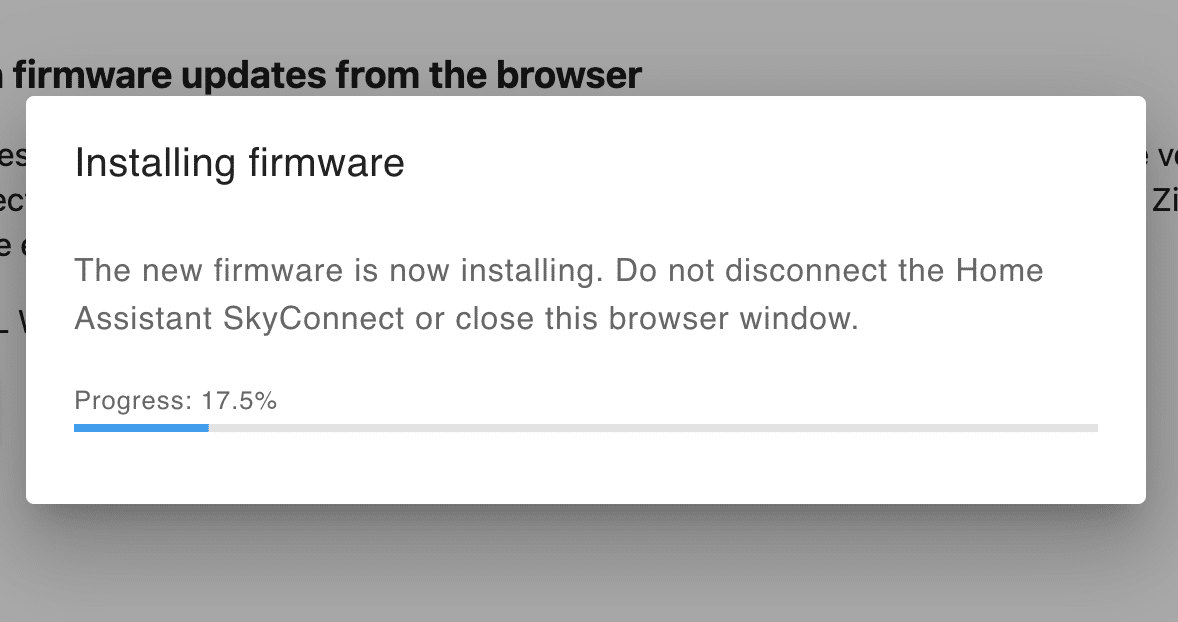
For example, with the Matter and Thread tests… you have no idea what a mess I’ve had over the last few weeks with that, sometimes I’d remove the ZigBee dongle, leave only SkyConnect in Only-Thread mode, meaning without ZigBee support, just to see if it recognized all my Thread-connected devices, then I’d flash the SkyConnect and put it in multi-protocol mode so this single dongle would recognize both ZigBee and Thread devices, or I’d remove ZigBee2MQTT and leave only ZHA… I think I tried every combination documented on the SkyConnect page and the forums, plus a bunch more combinations I made up on the fly, but before arriving at the setup I have right now, which I already told you about the other day, where I have both devices, the Sonoff ZigBee 3.0 for all the ZigBee devices and SkyConnect for everything that’s Thread devices and to act as a Matter border-router and so on.
Backup from HomeKit
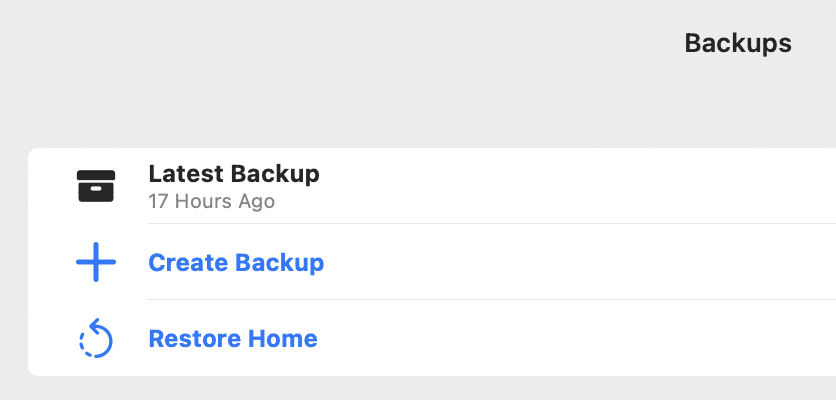
Unfortunately these backups don’t work equally well in HomeKit and in Home Assistant. To start with, you can’t make a backup from the Home app. Apple tells you that everything’s synced in iCloud, that if your phone breaks or you switch it and so on, you’ll have all your automations, devices there and everything, and yes, that’s great, but that doesn’t mean there’s a backup, it just means the information is synced across devices, which I think is fantastic, but if you delete an automation, you have nowhere to go to restore it — it doesn’t even end up in that iCloud recycle bin or anything like that, it’s gone from everywhere the moment you delete it, same as if you delete a device from the Home app, whether on Mac, iPad, or phone — wherever you do it, you delete a device and it’s gone everywhere because it’s synced. However, with third-party apps like Controller for HomeKit, which I’ve already told you about a few times, you can make backups that are honestly very interesting, and well, I know Controller for HomeKit costs money and I know that a few months ago I was telling you about the other one, Home+ v5, which also cost money and was supposedly the cure-all — by the way, for those of you who bought Home+ v5 back then, you can also make backups from that app — but it’s true that lately I’ve been leaning more on Controller for HomeKit for that whole advanced notifications thing, so well, I’m going to tell you about it for this app. The thing is, the most common scenario is having deleted an automation by mistake, for example, I don’t know, we’ve done some test and then couldn’t figure out how to go back, or we’ve made some kind of blunder without meaning to, we’ve deleted a scene, an automation, and we have to make it again from scratch. From Controller for HomeKit you can restore not just those automations, but also, for example, scenes, or rooms, devices, etc. It’s true that HomeKit, the standard, doesn’t allow you to back up the devices themselves — meaning when you do it from Controller for HomeKit, what you’re actually saving is all the settings, device names, etc., but not the device itself, so if you remove it from Home, for example, well, we’d have to go back to the device, say the typical little button to pair it again, we press the button and once it’s paired again within the Home app or Controller for HomeKit, then we can restore the backup and it restores the name we had, all the associated automations, the rooms, etc.
And from Home Assistant?
From Home Assistant, well, it’s just as simple — I mean, surely everyone who has Home Assistant will have the add-on installed, one of the most famous ones, which is Home Assistant Google Drive Backup, which makes your backups, well, in Google Drive. It’s super cool because you can also tell it, for example, how many backups you want it to store in Google Drive and locally — you can say, for example, 3 and 3, so that when it’s time to make a fourth scheduled backup at whatever time you’ve set, it wipes out the oldest one and always keeps 3, so it doesn’t take up space over time. But the most important advantage it has over HomeKit backups, which we just talked about, is that it’s a full, integral backup, so to speak — it’s almost like a snapshot of the system. So for example on the NUC, whether I was tinkering with the underlying operating system, which is a kind of stripped-down Linux, or whether I was, say, deleting automations and so on, I can restore my backup and what it does is a complete backup and restore — meaning it leaves the system exactly as it was right when you made that backup, even with the same logs it had. So well, that can be a bit tricky when you’re looking for something and you see there’s a gap of several days in the dates because you restored a backup. Honestly, that backup is really great because, for example, like I was telling you before, if I was tinkering with the devices and there was some problem, some blunder or whatever, I’d just plug the devices back into the USB port they were in before, restore the backup, restart the device, and everything goes right back to exactly how it was when you made that backup, and it’s super convenient — I mean, you don’t have to do absolutely anything, no restoring or pairing devices, nothing, it’s practically automatic. In Home Assistant, you shouldn’t confuse this backup with the backup that Home Assistant itself makes, which they built in several months ago — if you go to settings, system, you’ll see a section called backups, and for example, when the operating system updates or when we update some add-on, some plugin, it gives you the option to make a backup, and these are the backups that pile up here. I’ve sometimes seen some friend who had like a gazillion backups here because he was using the Google Drive one I mentioned before and had no idea the system was also making its own backups on the side. Well, so we do a bit of housekeeping there, some cleaning up, and delete a bunch of them, because this system can’t be turned off — I mean, the only thing we can do is, when there’s a new add-on, if it gives us the option to create a backup before updating the add-on, well, uncheck that box, because since we already have the other backup, we don’t need the system backup. But like I said, they can be complementary — there might be people who are interested in this one and don’t want the Google one because, I don’t know, because they don’t have a Google account, or because they don’t want to upload anything to their Google account since it’s already full, or because they simply want to have local backups made by Home Assistant, well, then they don’t even need to install the other add-on, and this backup works just as well. Well, so as you can see, it’s possible to create backups of device settings, automations, device groups and so on, so you can feel a bit more at ease, but if you’re a HomeKit user, don’t think everything’s safe in iCloud, because we can end up quite upset if we delete an automation or a scene, since as you can see, it’s not easy to restore.¿Necesitas ayuda con tu domótica?
Te ahorro tiempo, dinero y disgustos. Sesiones de consultoría desde 60€.
Carlos Sahuquillo
'Haga lo que haga en la vida, siempre compito' - Jacques Villeneuve Reserva una sesión →
Sigue leyendo
Ver todo el blog
Entradas relacionadas
1 octubre, 2026 · Domótica
Leer
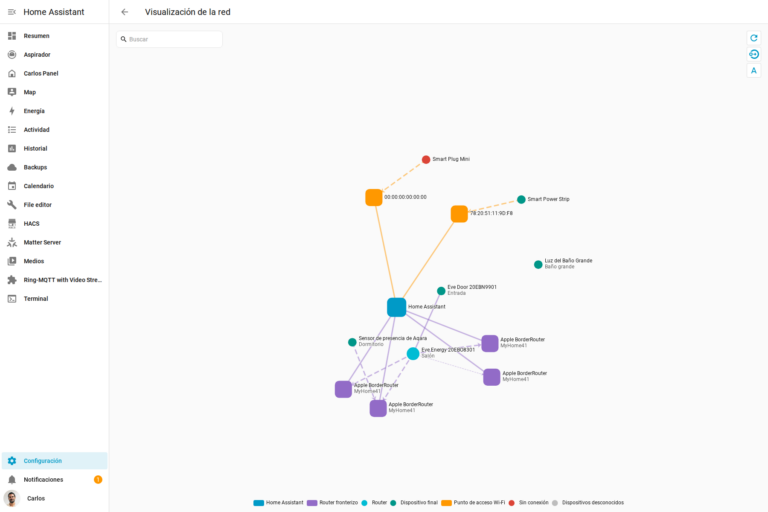
How to spot issues in a Matter device
I opened Home Assistant's new Matter and Thread map to check which routes my devices are using and see just how useful…
Ep. 113 · escúchalo
0:00 / 14:08
17 septiembre, 2026 · Domótica
Leer
HomeKit with AI in iOS 27
Apple released iOS 27 on September 14th and, as it does every year, I'm going through what's changed in the Home app…
Ep. 112 · escúchalo
0:00 / 12:44

3 septiembre, 2026 · Domótica
Leer
Webhooks and workflows in Controller for HomeKit
Kicking off Season 4. I'm picking back up the automation for the sensor that kept running out of batteries that I told…
Ep. 111 · escúchalo
0:00 / 13:12
0 comentarios