Automations and productivity with Power Automate
 Carlos Sahuquillo
·
28 febrero, 2025
·
14 min de lectura
Carlos Sahuquillo
·
28 febrero, 2025
·
14 min de lectura
Ep. 92 · escúchalo
0:00 /
Idioma:CastellanoEnglish
You already know that I’m a huge fan of automations and having the House act on its own. I’m always trying to automate everything I possibly can so that, for example, the lights don’t turn on every day at 7pm, or even every day at sunset, but rather if there’s someone home or we’re in the area and the house is too dark, the lights turn on… regardless of the time, so if it suddenly gets very cloudy because a storm’s coming, the lights turn on. This really annoyed my little kids because they couldn’t play hide-and-seek in the dark, so I created a Scene called ‘Play in the dark’ that, when active, ignores however many lux there are in the house. Yeah, you can see the silly things we do for our kids.
When I say I’m a huge fan of automations I’m obviously not just talking about Home automations. I like fighting for however long it takes to replace any manual, low-value work with an automation on my devices. When I told you years ago about NFC stickers to trigger scenes or automations at home, I also gave you the example of my car’s infotainment system, the navigator, which, whenever my phone connected via Bluetooth and I played a certain playlist on shuffle, would always play the same first song. After that, shuffle worked fine, but the first song was always the same… which made me hate that song, and I’d end up removing it from the playlist, only to start hating a different first song. So I put an NFC sticker where I leave my phone when I get in the car, and that sticker triggered an Apple Shortcut that played the playlist via Bluetooth on shuffle… and surprisingly, it worked well that way.
I also have Shortcuts and Automations in other areas of my life: my Apple Watch face changes on its own depending on the Focus Mode I have set, so during weekends I don’t get some complications like the calendar one showing my next meeting or the time of my next alarm. There are some location-based automations too, like the one that turns on a SIM-card-enabled outlet powering my apartment’s router when I enter the Valencian Community, or the church arch I’ve set up on my Apple Watch to upload my workouts to a bunch of different social networks for that whole «who’s got the bigger one» measuring contest.
But today I wanted to tell you about some automations I have in my workflows, and others I’m currently working on. So, I don’t know if you listen to Joan Boluda from Marketing Online, but the guy has a thousand things automated through Zapier. In one of his courses, he explains how to run an AI-powered blog that searches every morning for the most relevant and up-to-date articles on a topic, generates a summary, expands it into a WordPress post, publishes it… and then blasts it out to every social network. Without a single click, all automatic. Obviously, an AI-generated article isn’t worth much—I never use it for the blog articles or the podcasts—but as a proof of concept it’s interesting. Joaquín Rios, from the podcast El Garaje de Cupertino, now also publishes another automated podcast using his own voice… yes, it’s his voice, but it lacks the feelings and passion we sometimes convey with our voice—it’s not the same to say «I’ve made an automation for…» as it is to say «Okay okay okay, you’re not going to believe the stuff I just did.» As listeners, it doesn’t land the same way for us… but hey, that 5-minute podcast of Joaquín’s gives you a quick brush-stroke on a topic, and by using Joaquín’s voice, it still feels more personal than a neutral automated voice.
The thing is, these past few days I’ve run into a pretty specific need that I wanted to tell you about today. As you know, I work in Cybersecurity at GMV, a technology consulting firm, which means I work on a project basis. It’s not the typical repetitive day-to-day job—one day I might be working on a project related to Space or Autonomous Driving, or, as right now, coordinating cyberattack alerts for a financial institution. I like this approach because it lets me get to know many different industries and interesting people, but above all because it keeps me from getting pigeonholed into one specific thing, since, as you know, I’m multipotentialite as Pau Ninja puts it… a restless soul.
Anyway, this financial institution has a pretty frantic pace, with several meetings a day and activities with deadlines, so I spend the whole day trying to fit all these tasks into my Office 365 calendar. But on top of that, the company I work for also has its own coordination meetings, the typical colleague asking you something about a past project, a new proposal we’re about to pitch to a client that needs to be put together… Add to that the schedules of my gazillion kids—extracurriculars here, my princess has a math test tomorrow and we need to review two-digit division, my oldest has a padel league match 50 kilometers from Madrid and needs a ride… and of course, the Smart Home Consultations I do with some of you, the articles I write for Vodafone’s Internet Seguro blog, and the classes I sometimes teach on cybersecurity at the Universitat Politècnica de València. As you can imagine, my calendar is smoking hot, and it’s the app I keep open the longest, both on my computer and my phone.
So what happens? Well, sometimes I’d get sent a meeting invite for the bank project on my Office 365 calendar, and it turned out I had another internal GMV meeting at that exact same time. Or I’d arrange a Smart Home Consultation with one of you, and that same afternoon I had to take one of my kids to some extracurricular activity. Since each calendar only shows the meetings on that particular calendar, I had to check them all before accepting a meeting or whatever, so for a while I was duplicating events across all calendars so that busy slots would actually show up as busy.
And then there are the tasks. Every meeting usually generates follow-up tasks. Other times I’m out running in the morning and I remember something specific I want to do—a great idea for the podcast, a document I want to send that day, the bank transfer the school asked for regarding one of my kid’s field trips… and in that moment, what I do is tell Siri to remind me at a specific time, or when I arrive at the office, or things like that. On the other hand, we log the bank’s tasks in one of those Office 365 Planners, so I can assign them to different colleagues, and I handle some myself… but at GMV it’s the same story, we also have a Planner with tasks. And then there’s everything people ask you for over Teams or by email, of course.
So, as you can imagine, I don’t have a single INBOX where all tasks land, like every productivity methodology recommends—instead I have a whole bunch of them… and in some cases I can’t even view them at the same time. For example, to get into Planner with both Office accounts, you have to log out and log back in, or open one of those incognito windows in the browser and have two browsers open, one for each session.
The thing is, these past few days I was talking with Emilcar, who—if you listen to him you already know—is a black belt in productivity, and he confirmed what you’ve probably already noticed: this is a real mess with no easy way to untangle it, and it makes me lose focus on tasks, so I don’t see the truly important ones—I just go around putting out fires as deadlines approach or someone urgently demands something. Without a unified INBOX where I can see everything, I can’t prioritize or keep track of everything that needs doing, just like without a unified calendar I can’t happily accept meetings, because I might end up double-booked and then have to move one of them or hop into whichever of the two is more important… what a mess.
And to top it all off, I’m an Apple fanboy. It already annoys me having to use the Microsoft suite in my day-to-day when, until a few months ago, my productivity was based on Apple Notes for meeting notes, script drafts, articles, etc., and Reminders for the actual tasks—some with due dates and others just dropped in there to keep them in mind… but all in the same app and visible at a glance. In fact, I created a Shortcut that ran before a meeting and generated a template note for me, titled with the date and the meeting name, then an Attendees section listing everyone invited to the meeting, and then space for meeting notes… all of that automatically too, of course. But now I have to go through Planner and OneNote to work collaboratively with the team.
And let it be said, I have nothing against the Office 365 suite—I admit it works really well, and being able to have several people working on the same document, minutes, etc. at once is great, so you don’t end up sharing notes by email, documents with tracked changes, and so on… but I just like having everything more or less integrated in one place. I’m not the type who uses iCloud for email, Dropbox for files, Amazon for photos, OneNote for notes… that «plurality» of services gives me anxiety, must be some kind of psychological quirk, what can you do.
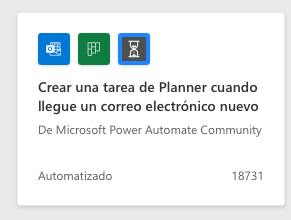
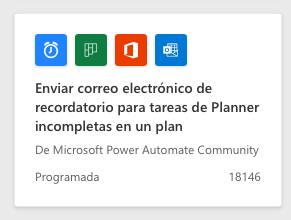
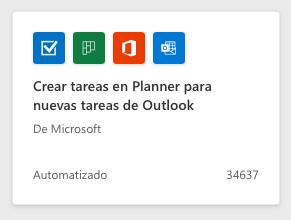
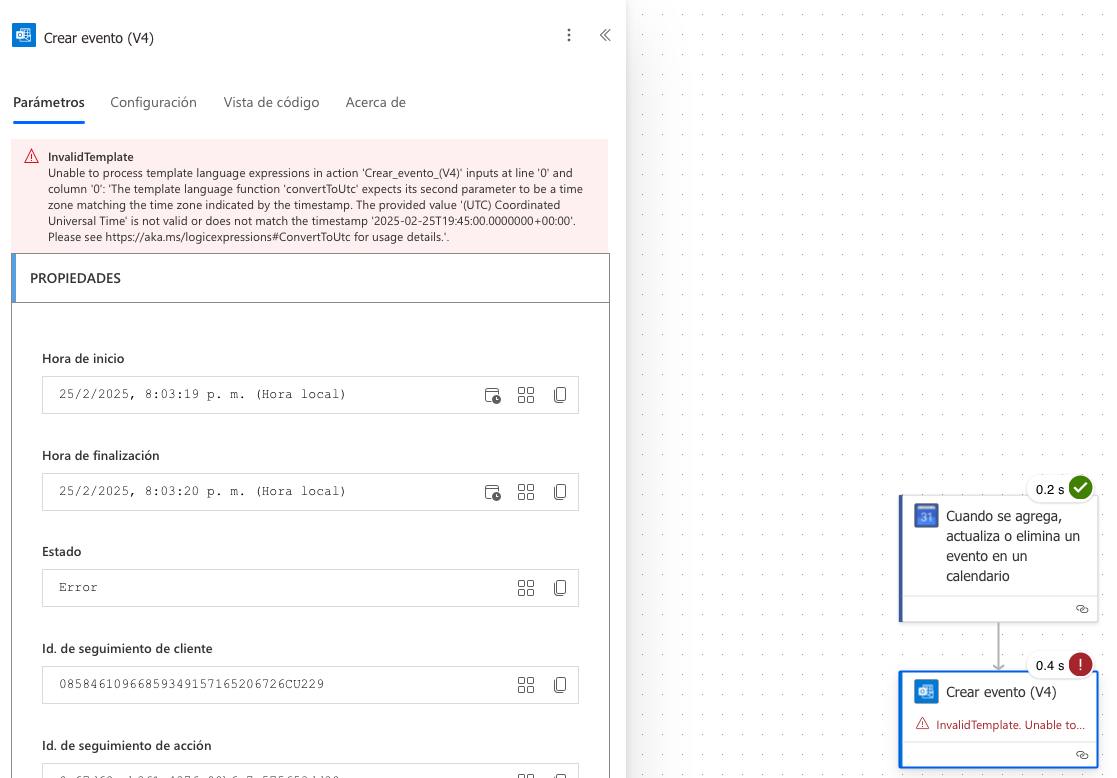
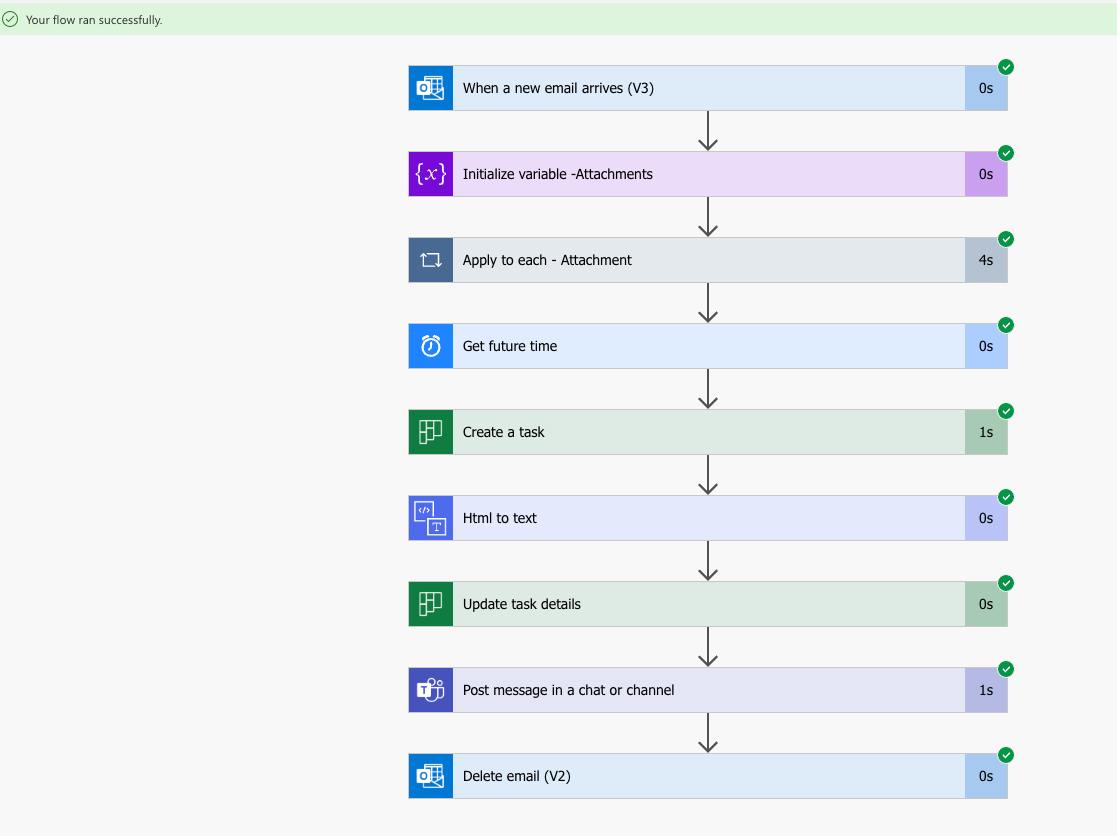
So, since my work environment is based on this very suite, I decided to spend a little time looking into the possibilities of Power Automate, the service for integrating Office features and automating workflows. Honestly, Power Automate is a whole world for getting Microsoft apps to talk to each other—you can do some pretty crazy things. In fact, I’ve decided to invest some of my free time here because I think it has far more possibilities than what meets the eye. You can do things like: every document placed in a folder called «Pending Approval» automatically sends an email to the person responsible for approving it, and that same email includes an approve/reject button, they can review the document… and once approved, it’s automatically copied to another folder called «Approved.» All automatic, without you clicking a single button.
¿Necesitas ayuda con tu domótica?
Te ahorro tiempo, dinero y disgustos. Sesiones de consultoría desde 60€.
Carlos Sahuquillo
'Haga lo que haga en la vida, siempre compito' - Jacques Villeneuve Reserva una sesión →
Sigue leyendo
Ver todo el blog
Entradas relacionadas

8 abril, 2024 · General
Smart Bottle Low Cost
Drinking water is healthy and fashionable. Today I tell you how to have your own smart bottle for less than €4 and…
Leer
16 diciembre, 2020 · General
Now you can invite us to a coffee!
If you consider that the blog has brought you something positive (beyond economic spending), you now have the possibility to invite us…
Leer
13 abril, 2020 · General
Low-cost remote work
Lowcost remote work, Chernobyl, and the importance of not running security tests in a rush and under pressure.
Leer
0 comentarios