Best app for Apple HomeKit
 Carlos Sahuquillo
·
10 junio, 2021
·
9 min de lectura
Carlos Sahuquillo
·
10 junio, 2021
·
9 min de lectura
Ep. 8 · escúchalo
0:00 /
Idioma:CastellanoEnglish
Every so often this question comes up in the Telegram group, especially from folks who are just starting to automate things at home. When you start buying and installing devices at home, it’s common for them all to be from the same manufacturer, which makes it easy to control them from a single app. But once you start bringing in different manufacturers, bridges, automations… which is the best app to manage all your connected devices? Let’s see if we can give a clear answer.
Philips Hue App
I have friends who only have Philips Hue devices at home. Between the bulbs, the smart-buttons and the smart plugs, all their needs are covered, so they simply use the Philips Hue app to manage everything. It’s available on both iOS and Android. If you don’t have other types of devices, the Hue app is really, really good and lets you do things directly from the app that you can’t do once you integrate the devices with one of the more standard ecosystems like Apple HomeKit, Google Home, or Alexa. It’s true that some of the app’s own features aren’t exactly super useful… but come on, how cool is waking up to the app’s ‘Savannah Sunset’ ambiance? I have no idea what a real sunset in the middle of the African savannah looks like, but the ambiance is pretty nice and creates a reddish-yellow color combination that, with a bit of imagination, could pass for a sunset… well, with a LOT of imagination.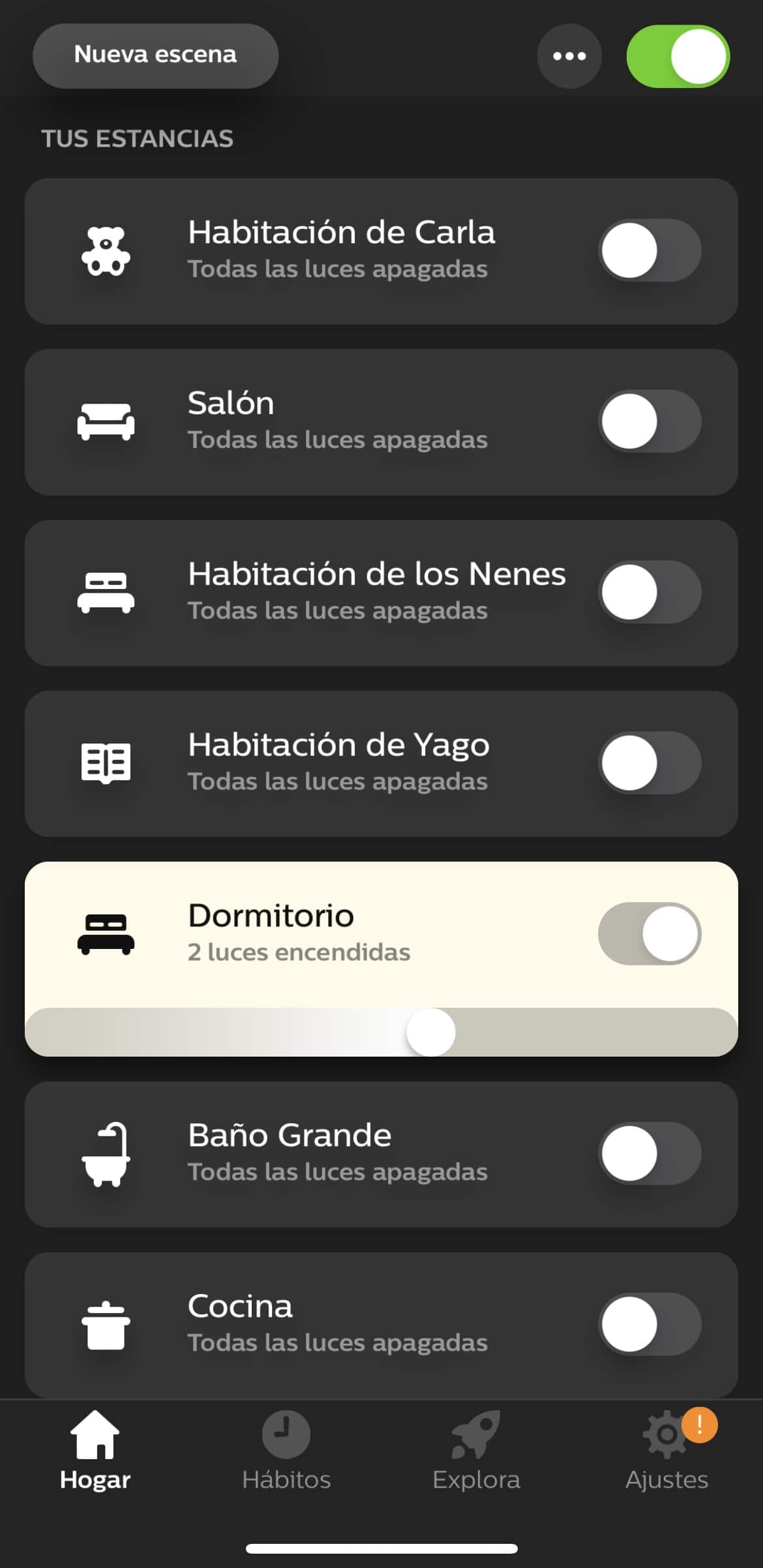

Aqara Smart Home or Xiaomi Home App
If all your devices belong to the Aqara ecosystem, you can manage them from either the Aqara Smart Home app or Xiaomi Home. Both are available for Android and iOS. Not sure if you knew this, but the Aqara brand belongs to Xiaomi — it’s simply their smart-home division — but all Aqara and Xiaomi devices are compatible and can be linked in either the Aqara app or the Xiaomi one. So, which one should we use? These days there’s honestly not much difference between the two, but keep in mind that once you start using one, you won’t be able to switch to the other without having to relink all your devices. I started out using the Aqara app, but it wouldn’t let me configure the bridge’s alarm. Well, it let me set it up in a very basic way, but some settings — like the activation delay to give you time to leave the house, the sound you want it to make, and so on — just weren’t configurable… so I migrated to Xiaomi Home for a bunch of years… though now I’ve gone back to Aqara because they’ve added the ability to integrate directly with HomeKit, without needing to log into the app or anything like that. I still need to look into how the bridge’s firmware updates work, but so far it seems useful and seamless.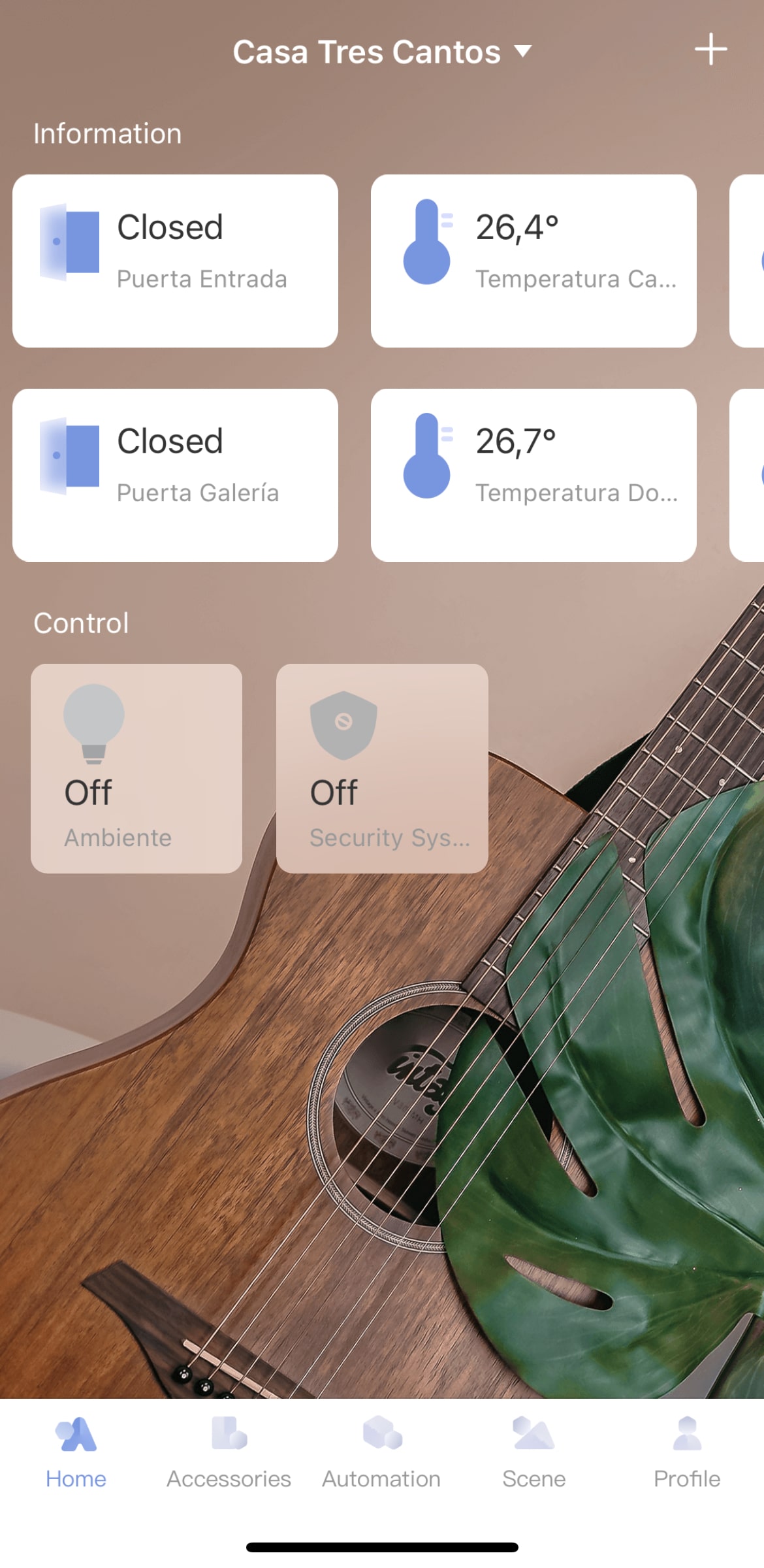
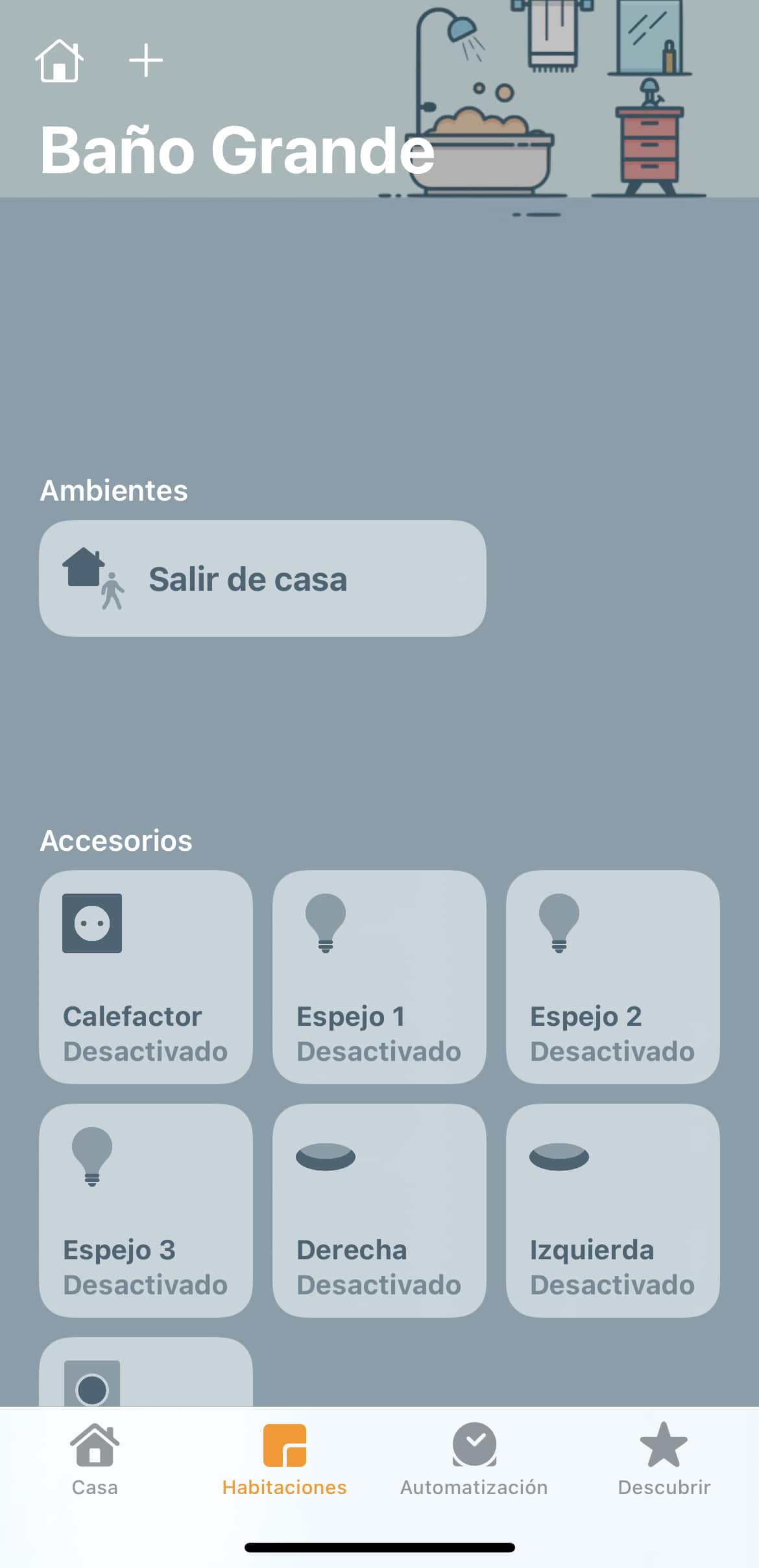
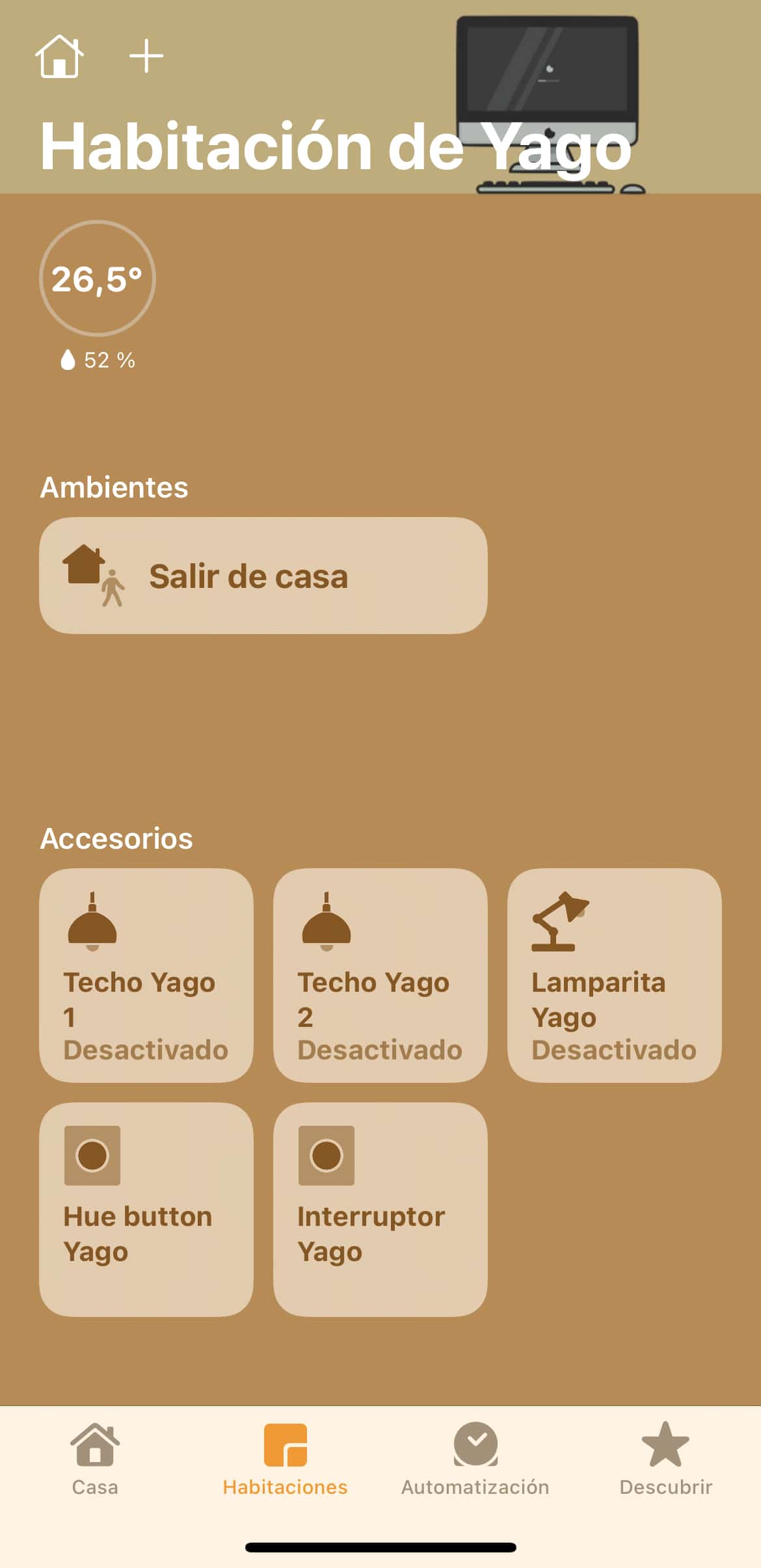
Apple Home App
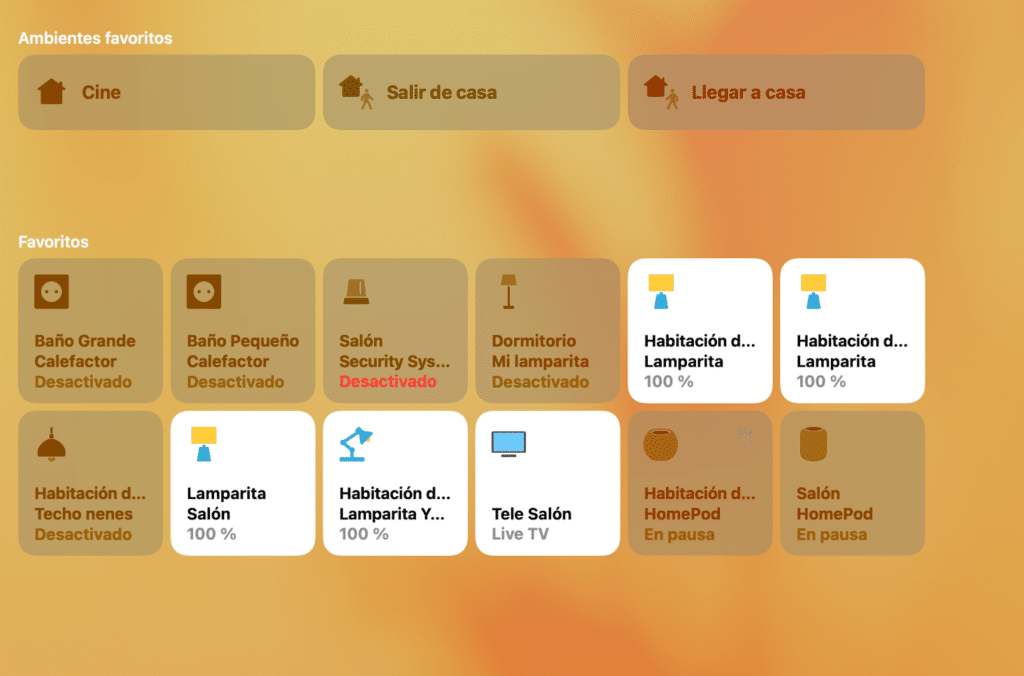
Unlike what happens with Philips and Aqara/Xiaomi, Apple doesn’t make its own devices (for now! rumor has it that could change in the future), but it does have the HomeKit standard, which lets you link any compatible device to the Apple Home app. There are plenty of devices officially sold by Apple on its website, and many others that carry the HomeKit sticker even though they’re not sold directly on the official site. When we have a device compatible with Apple HomeKit, we can set it up both from the manufacturer’s own app and from Home. But yes, you need both, since the initial setup has to be done through the manufacturer’s app… and often the ‘fine-tuned’ configuration is also only available in the manufacturer’s app, with only the basic functions integrated into Apple Home.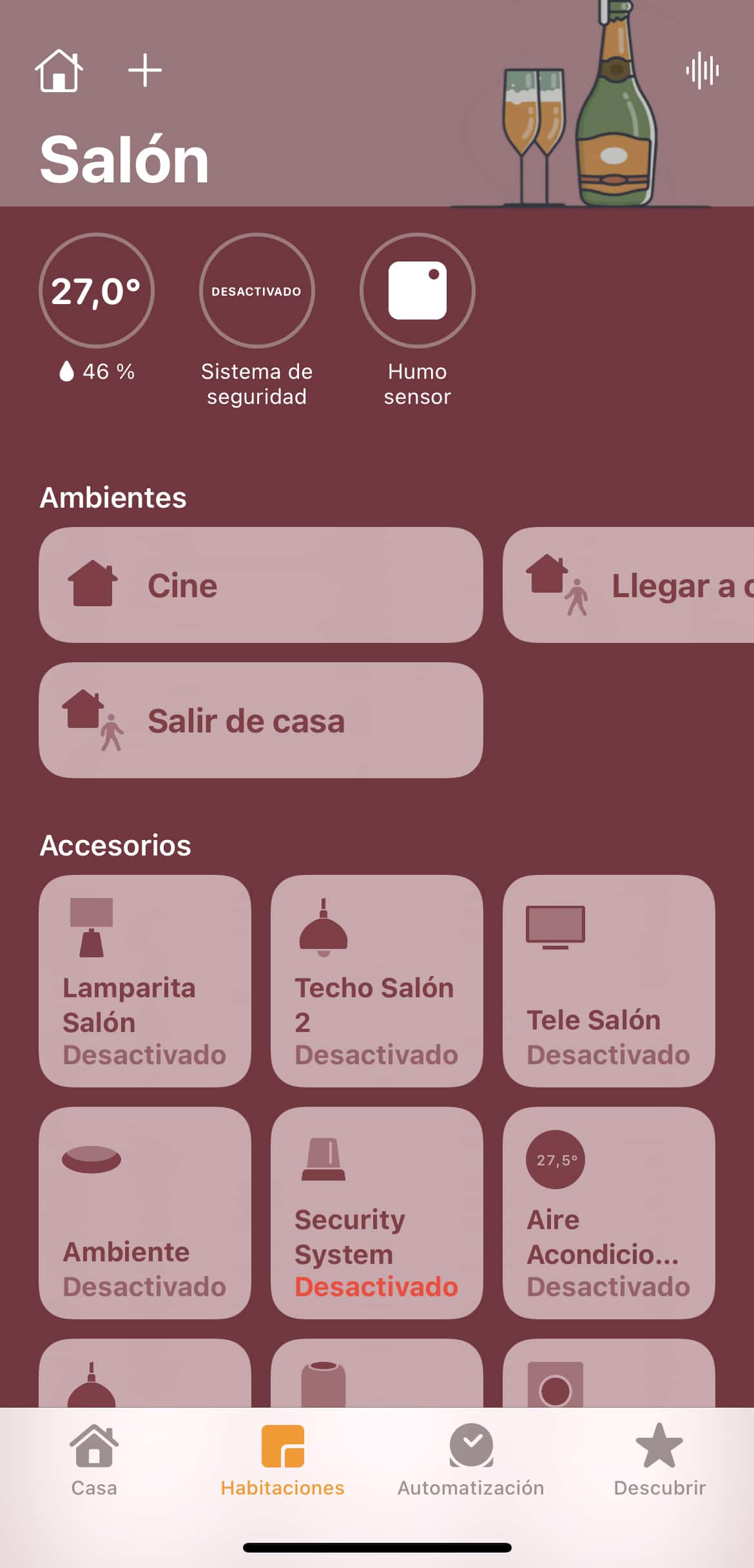
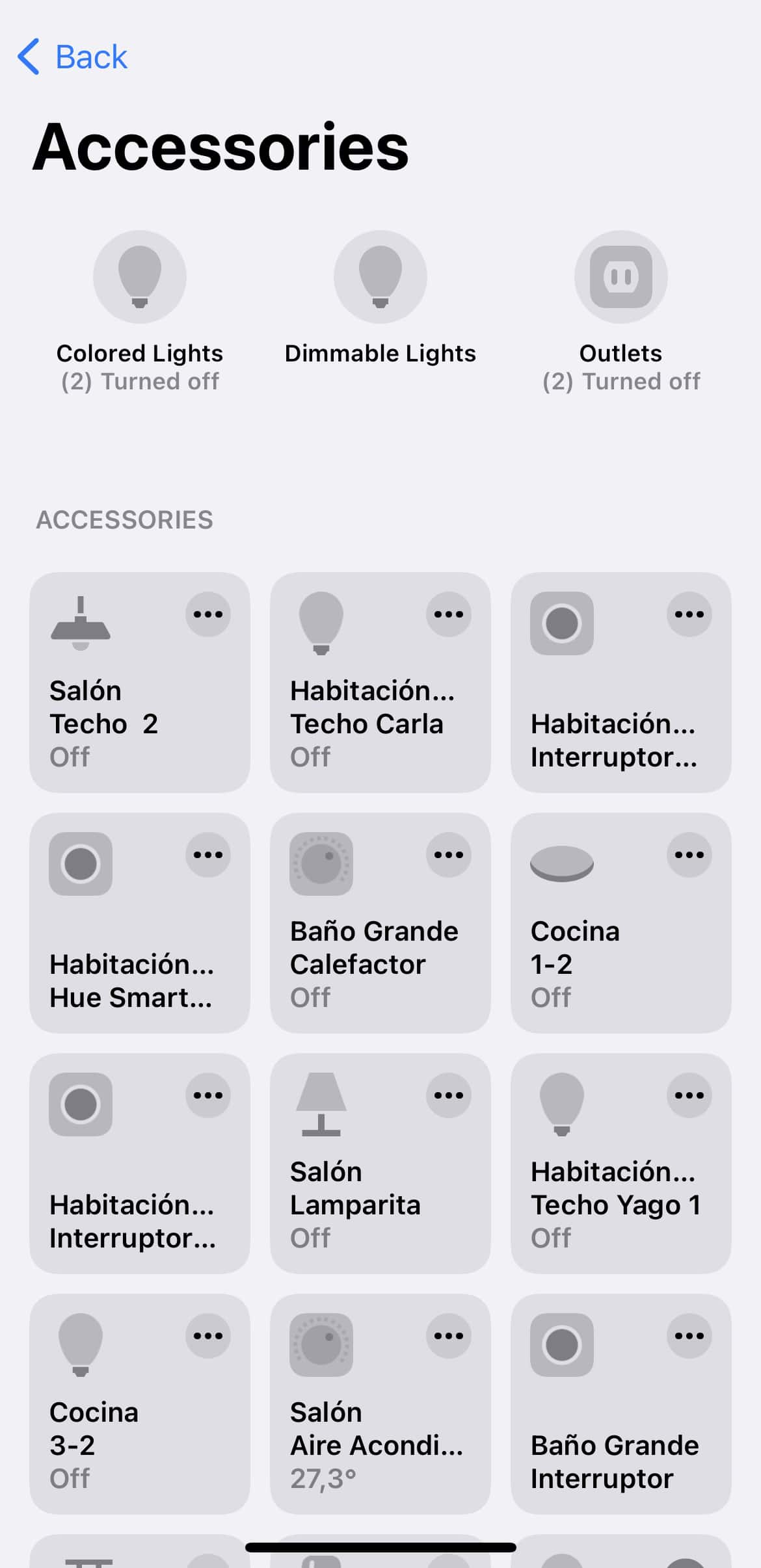
Home+ v5
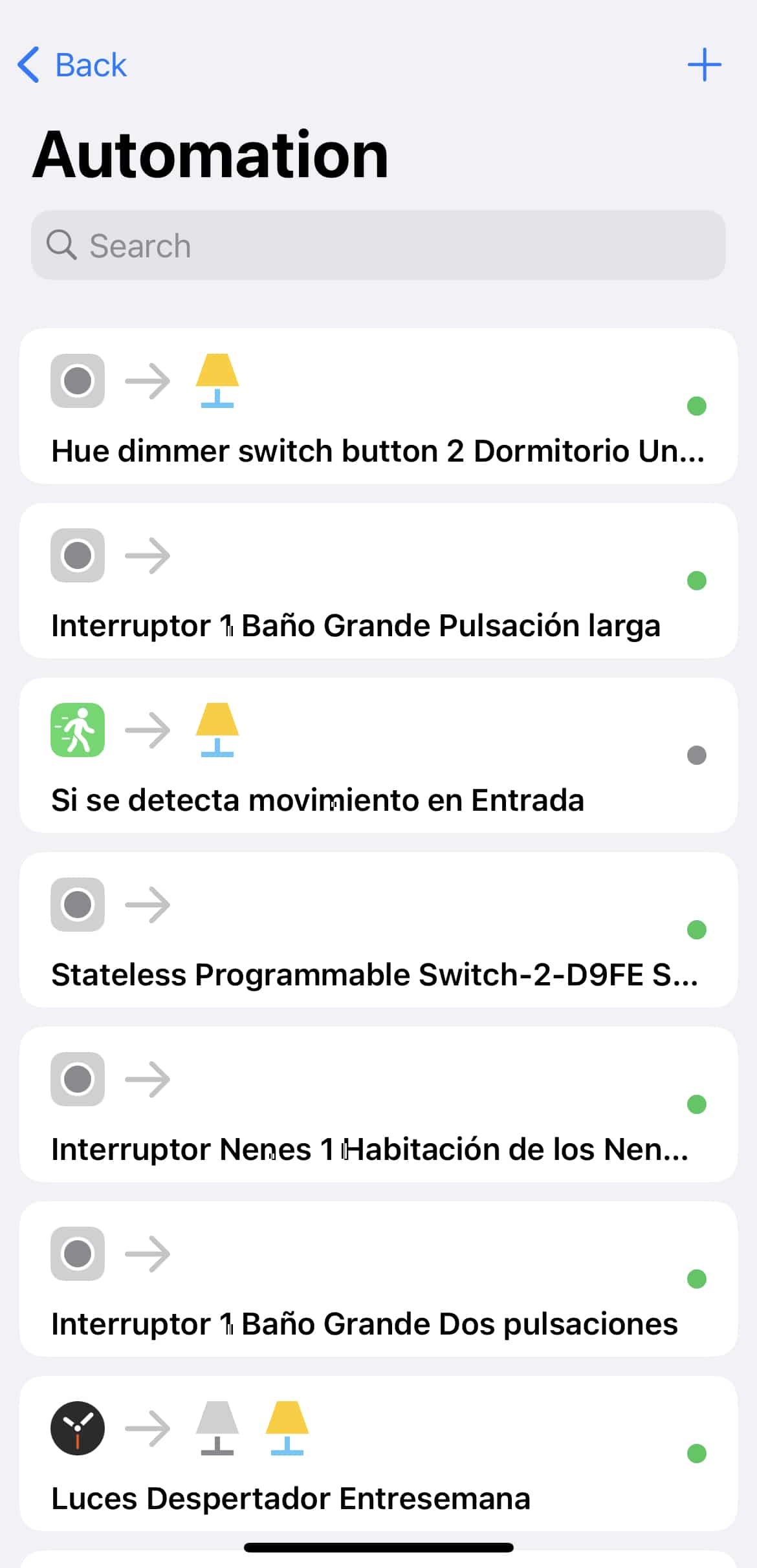
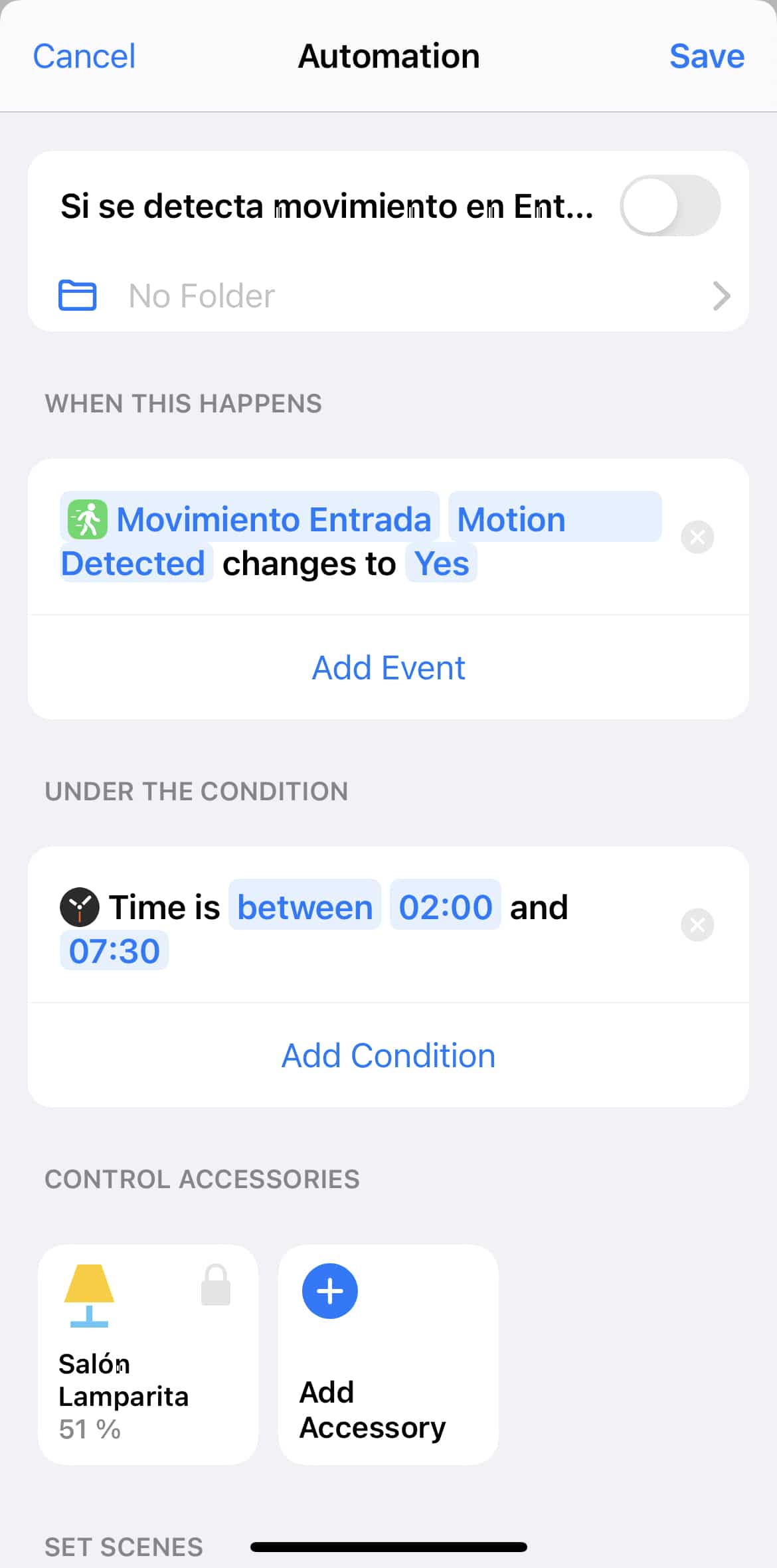
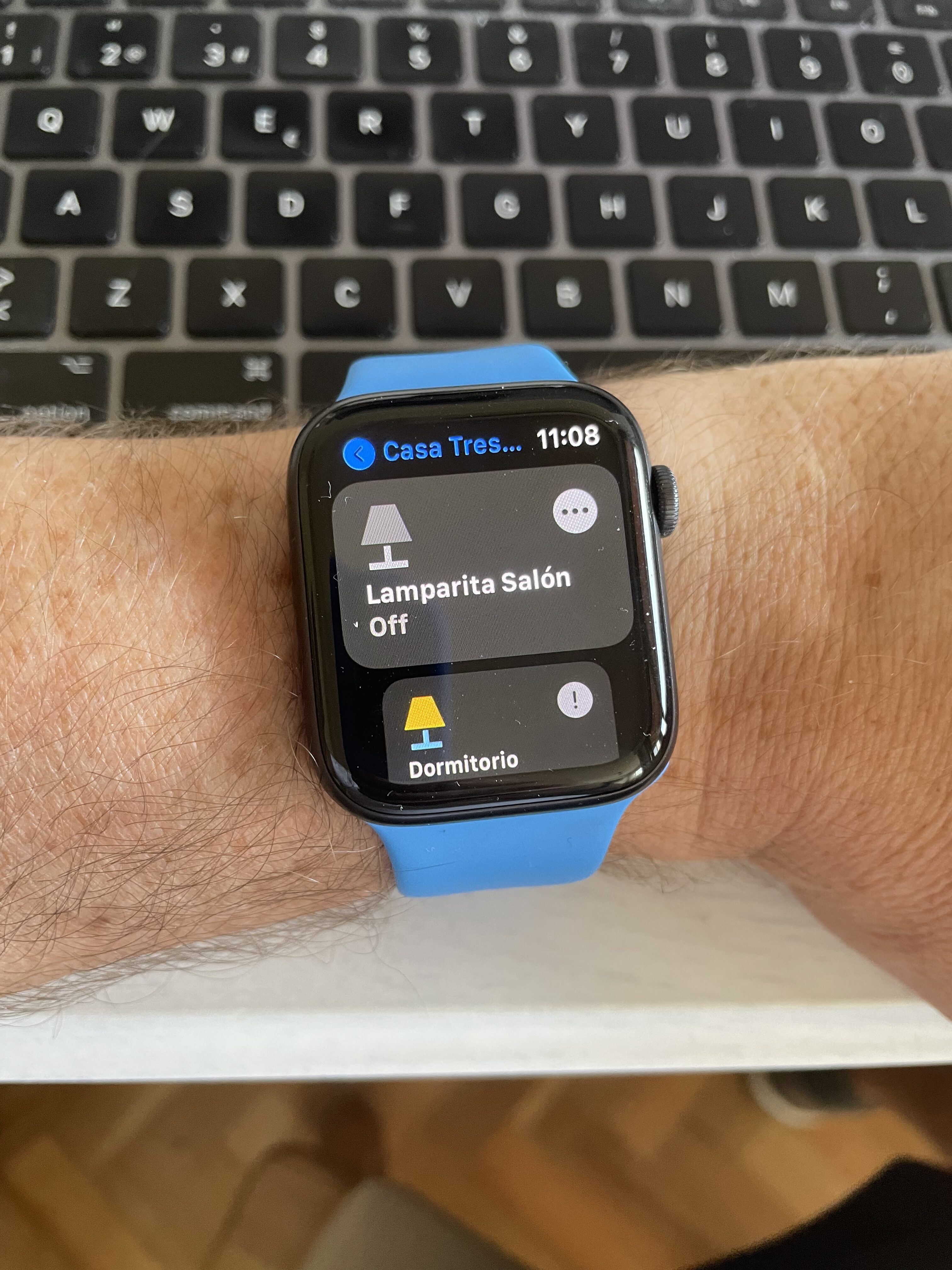
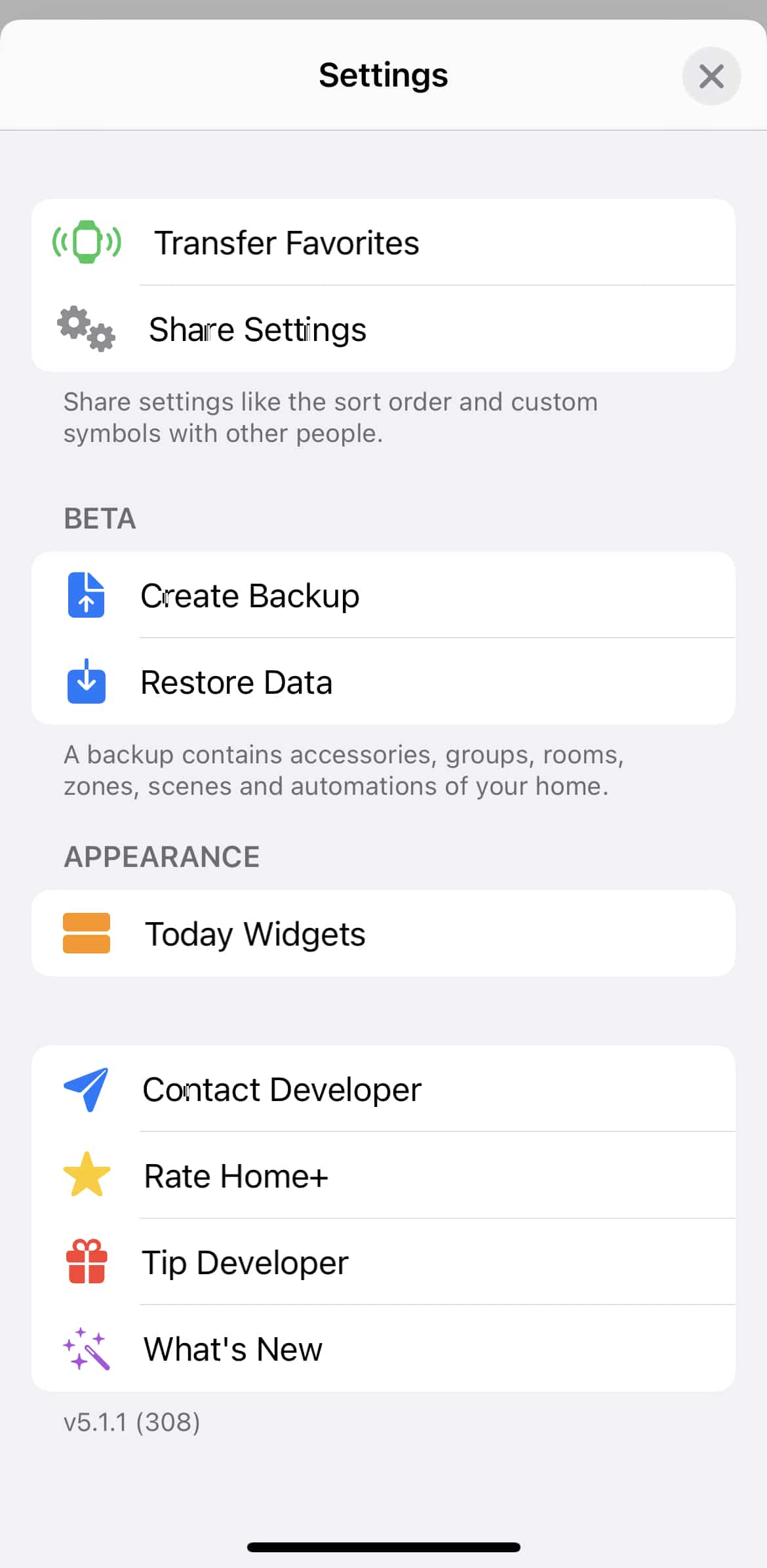
And with that, we arrive at my favorite app, though I’ll warn you upfront: it’s not cheap. Home+ is like a Home app on steroids, giving us a ton of extra features and making life easier. With Home+ you no longer need to know programming or scripting to create complex automations, since the app itself makes it really simple and suggests connections and conditions as you go.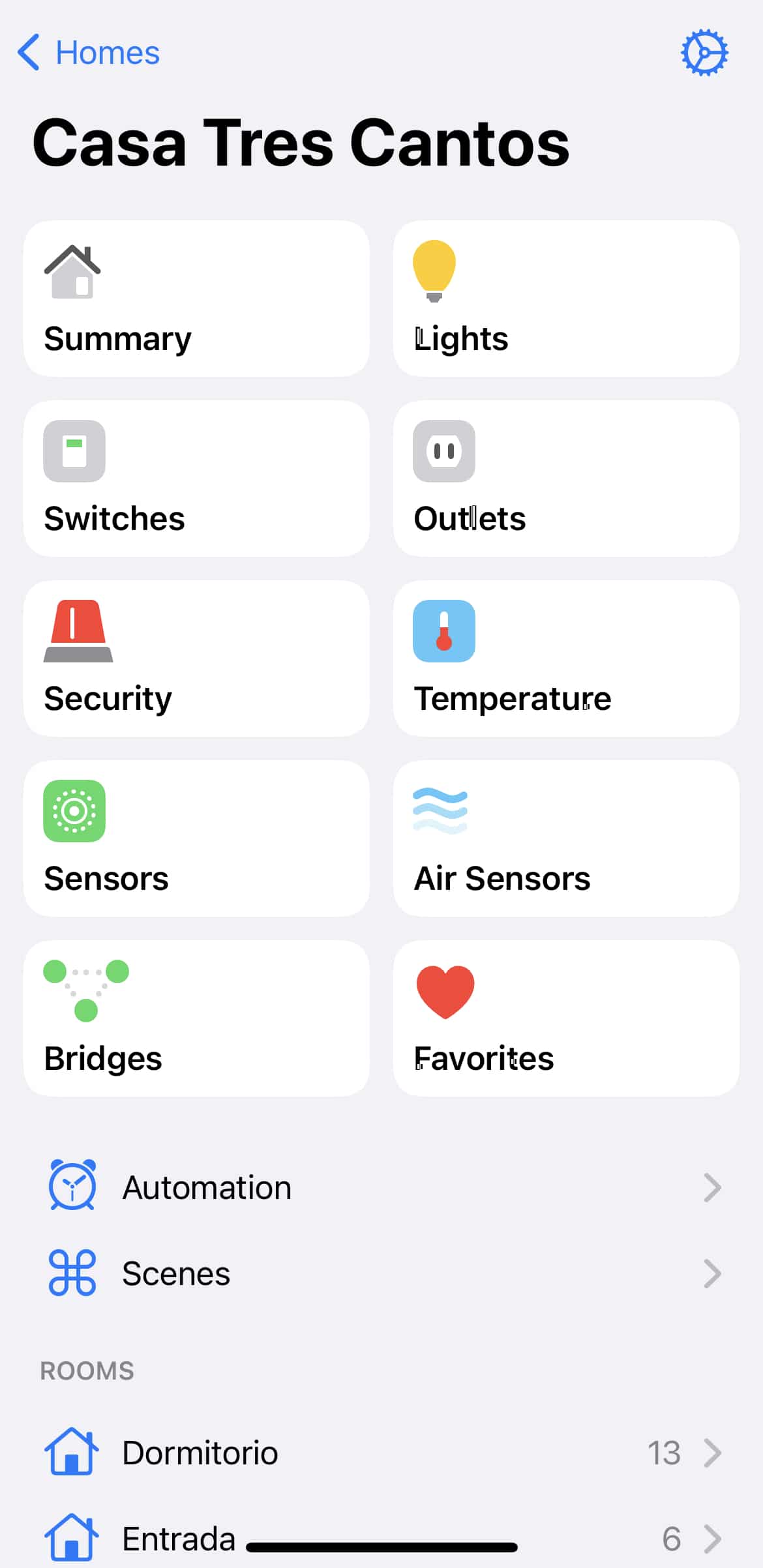

¿Necesitas ayuda con tu domótica?
Te ahorro tiempo, dinero y disgustos. Sesiones de consultoría desde 60€.
Carlos Sahuquillo
'Haga lo que haga en la vida, siempre compito' - Jacques Villeneuve Reserva una sesión →
Sigue leyendo
Ver todo el blog
Entradas relacionadas
17 septiembre, 2026 · Domótica
Leer
HomeKit with AI in iOS 27
Apple released iOS 27 on September 14th and, as every year, I'm going through what's changing in the Home app and HomeKit.…
Ep. 112 · escúchalo
0:00 / 12:44
3 septiembre, 2026 · Domótica
Leer
Webhooks and workflows in Controller for HomeKit
Kicking off Season 4. I'm picking back up the automation for the sensor that kept running out of batteries that I told…
Ep. 111 · escúchalo
0:00 / 13:12

27 agosto, 2026 · Domótica
Leer
How to tell if your kid is sneaking into your room without having a camera
I bought the Aqara P2 presence and light sensor with Matter, and I've got it running simultaneously on HomeKit and Home Assistant…
Ep. 110 · escúchalo
0:00 / 12:16
0 comentarios