HomeKit automations on public holidays
 Carlos Sahuquillo
·
31 mayo, 2023
·
8 min de lectura
Carlos Sahuquillo
·
31 mayo, 2023
·
8 min de lectura
Ep. 53 · escúchalo
0:00 /

Idioma:CastellanoEnglish
Are you tired of disabling automations on weekday holidays? Do you sometimes forget and the light turns on at 6 in the morning even though you don’t have to get up early? Look no further, you’ve come to the right place! Let me explain how to integrate a holiday calendar into HomeKit.
This need comes up because sometimes we have an automation that turns on every weekday at 7:30 to wake you up, but then it turns out that today, being a Wednesday holiday, well, it shouldn’t turn on, right? You’re supposed to want to sleep in a bit longer to make the most of the day off. So normally what you have to do is remember to disable that automation so it doesn’t wake you up.
Conditional automations
You already know I’m a big fan of automations. I always say I don’t want to be shouting around the house or pulling out my phone to do certain actions. I want the house to react on its own to different circumstances. For example, if it’s nighttime and I’m not home, then there’s no need for the lights to turn on. But if it’s nighttime, I’m not home, and the lights are therefore off, but I’m approaching home, then they should turn on. This means I end up with a ton of automations that also can’t be simple ones. I don’t want my radiator to turn on at 7 in the morning during the week so I can shower after running, for example. I want it to turn on at 7 in the morning if I’m out of the house, but nearby—meaning I’m not in another city for a work trip or something like that—and if the bathroom temperature is below 14 degrees, for example. Then yes, I want it to turn on. Ever since the Home app opened up the possibility of creating a Shortcut, automation options have improved a lot and now we can create much more complex automations. We’ve talked about this before. Not only can you create them from the Home app with Shortcuts, but also from third-party apps like Controller for HomeKit, which we’ve also discussed before.Integrating a Calendar into automations
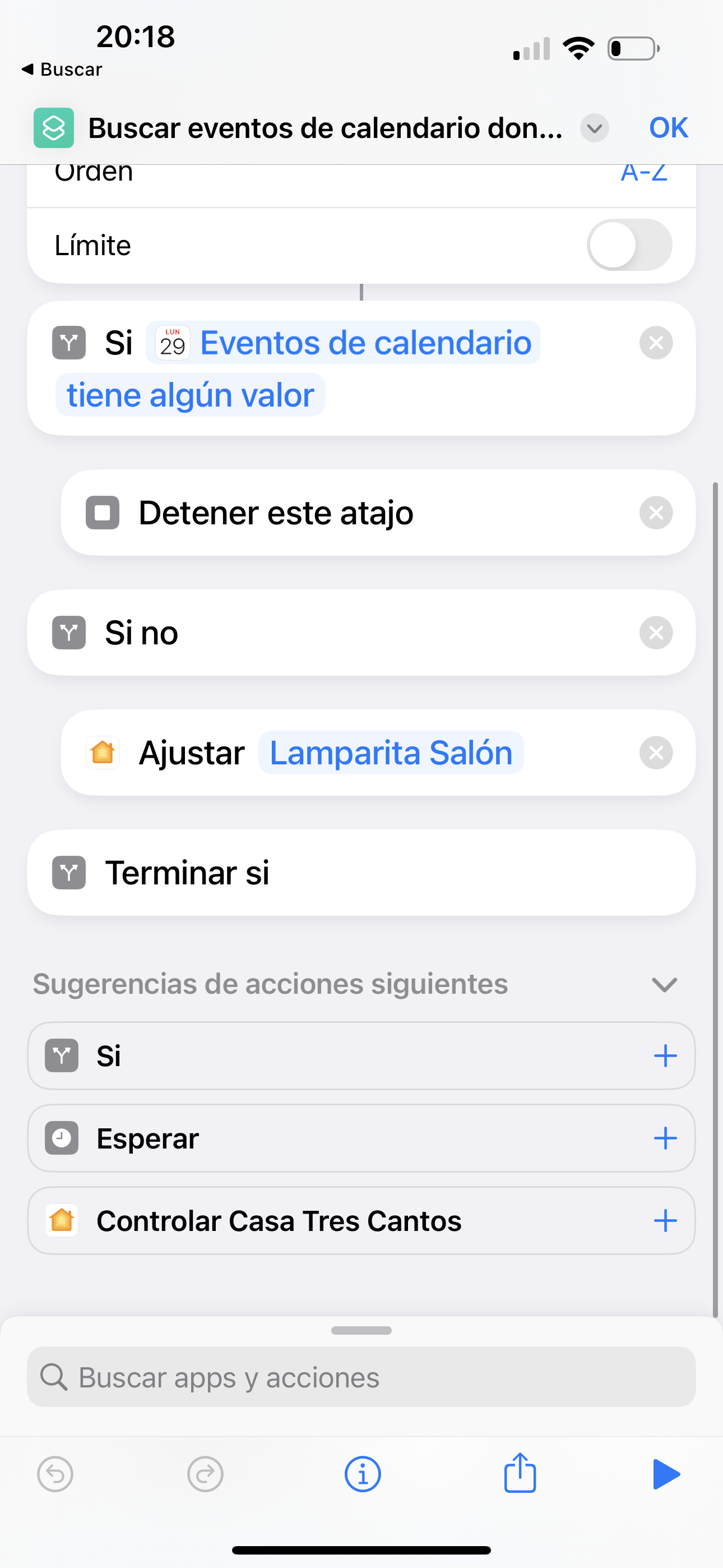
What I want to tell you about today is exactly that: how to create an automation that takes into account whether it’s a holiday. In Home Assistant it’s really simple, honestly—in the next episode I’ll explain how to do it—but in the Home app there isn’t such an obvious option. So let’s see how it’s done. The first thing you need to do is create a Shortcut. To do that, open the Shortcuts app on the iPhone and there we’re going to add a Calendar. For that, we tell it we want to Find all events in a calendar. We create a shortcut and tell it to find all calendar events, and then right in the same Shortcut you get a start date option that’s set to, say, seven days by default. Well no, I change that and set the start date to the next day, meaning just one day, the same day. Then, the calendar should be a specific one. I’ve created a calendar called HOLIDAYS where I put all the national holidays. It’s true that iCloud already has a national holidays calendar, but besides that I also add my work holidays, for example, since there are days they give us off, I don’t know, the company anniversary, or because there’s some kind of event or something, and I also add the school calendar so I know whether certain automations that depend on, well, whether the kids have school or not, simply shouldn’t run.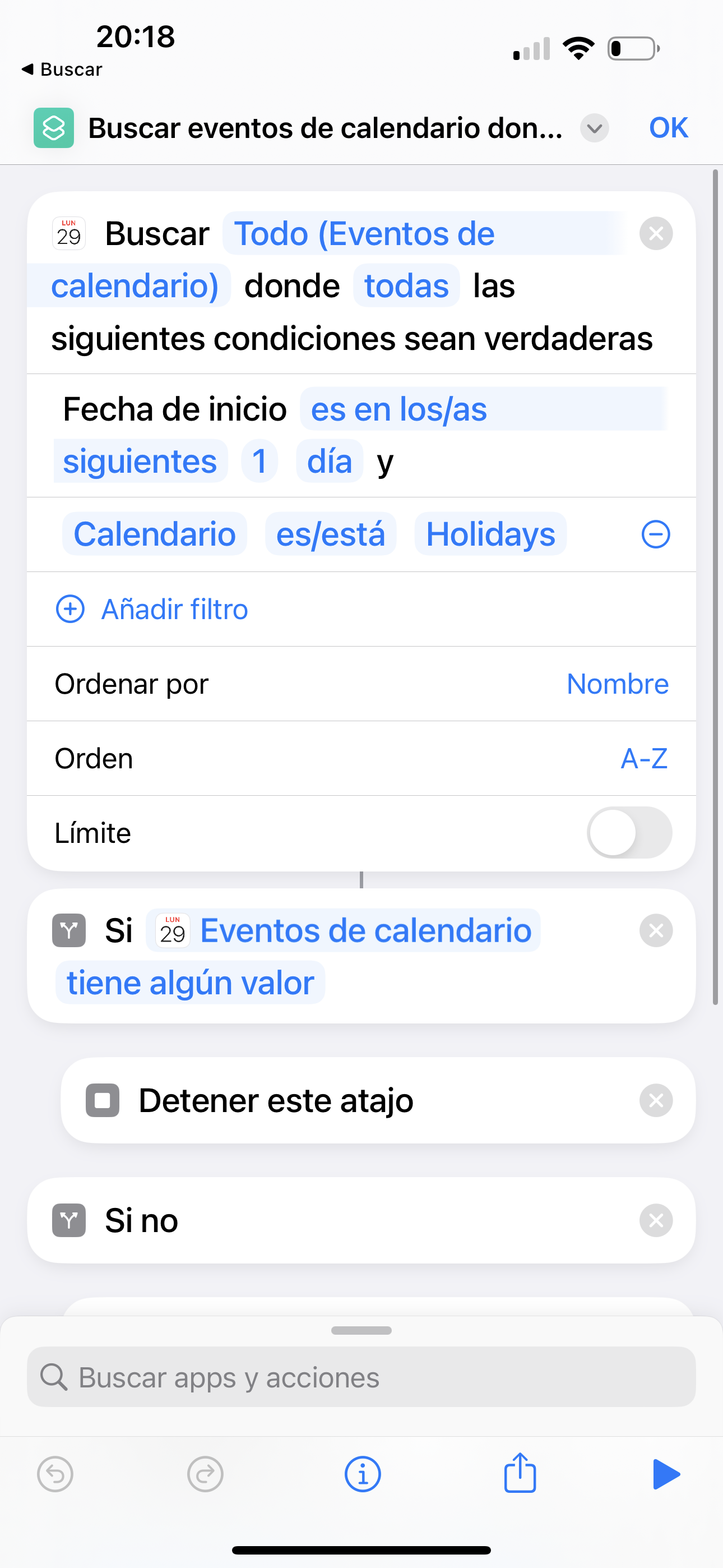
Automating the shortcut
After creating the shortcut, you need to trigger it at some point. To do that, you have to go into Shortcuts, to the Automation tab, and keep in mind that we can’t do this from the Home app because—don’t ask me why—the Home app can’t run certain shortcuts, especially if they involve other apps, like in this case, Calendar. However, if we create one of those Personal automations that the iPhone calls them, well, there are things that can’t be done directly with the Home app, things that can’t be executed, or sensors that can’t be read. Some Shortcuts can’t do certain things while others can’t do other things. In this case, what we do is create a Personal automation to run every day at 8:30 in the morning instead of running the conventional automation from the Home app. Remember to remove the confirmation request, otherwise when it’s about to run, it will ask for confirmation on screen. Honestly, once you figure out the trick, it’s pretty easy to do. Keep in mind that this automation runs locally, meaning on our iPhone or iPad. If the phone happens to be out of battery at that moment, the automation won’t work. And honestly, that sucks—I really don’t like it, because the other automations, the ones done through the Home app, run from whichever Accessory Hub we have. So even if the iPhone is out of battery, the automation will still work. In this case, it won’t, and that could be a problem… or not, but anyway, it’s something to keep in mind. If you don’t feel like dealing with all this and just want to download the Shortcut directly, you can do so here: https://www.icloud.com/shortcuts/509c6ef60581465c8428d235c7c5f799¿Necesitas ayuda con tu domótica?
Te ahorro tiempo, dinero y disgustos. Sesiones de consultoría desde 60€.
Carlos Sahuquillo
'Haga lo que haga en la vida, siempre compito' - Jacques Villeneuve Reserva una sesión →
Sigue leyendo
Ver todo el blog
Entradas relacionadas
17 septiembre, 2026 · Domótica
Leer
HomeKit with AI in iOS 27
Apple released iOS 27 on September 14th and, as every year, I'm going through what's changing in the Home app and HomeKit.…
Ep. 112 · escúchalo
0:00 / 12:44

3 septiembre, 2026 · Domótica
Leer
Webhooks and workflows in Controller for HomeKit
Kicking off Season 4. I'm picking back up the automation for the sensor that kept running out of batteries that I told…
Ep. 111 · escúchalo
0:00 / 13:12

27 agosto, 2026 · Domótica
Leer
How to tell if your kid is sneaking into your room without having a camera
I bought the Aqara P2 presence and light sensor with Matter, and I've got it running simultaneously on HomeKit and Home Assistant…
Ep. 110 · escúchalo
0:00 / 12:16
Hola!
Gracias por toda esta información que compartes.
Cómo has creado el calendario de vacaciones? Veo en https://support.apple.com/es-es/guide/iphone/iph3d1110d4/ios y https://support.apple.com/es-es/guide/iphone/iph80d93ac49/17.0/ios/17.0 que puedo suscribirme a un calendario de festivos nacionales. PERO no puedo editar (y entiendo que tampoco añadir) los que en mi comunidad autónoma son festivos también.
Así las cosas, replicas uno a uno los festivos nacionales en un calendario creado ex profeso y además, añades los de tu comunidad y los de la empresa? Cada año? Seguro que me pierdo algo porque no creo que esto tenga que hacerse picando teclas, como si fuéramos salvajes (en palabras de Emilcar).
Gracias, de nuevo por tu ayuda.
Un saludo