Parental control on iOS and Android
 Carlos Sahuquillo
·
14 octubre, 2019
·
16 min de lectura
Carlos Sahuquillo
·
14 octubre, 2019
·
16 min de lectura
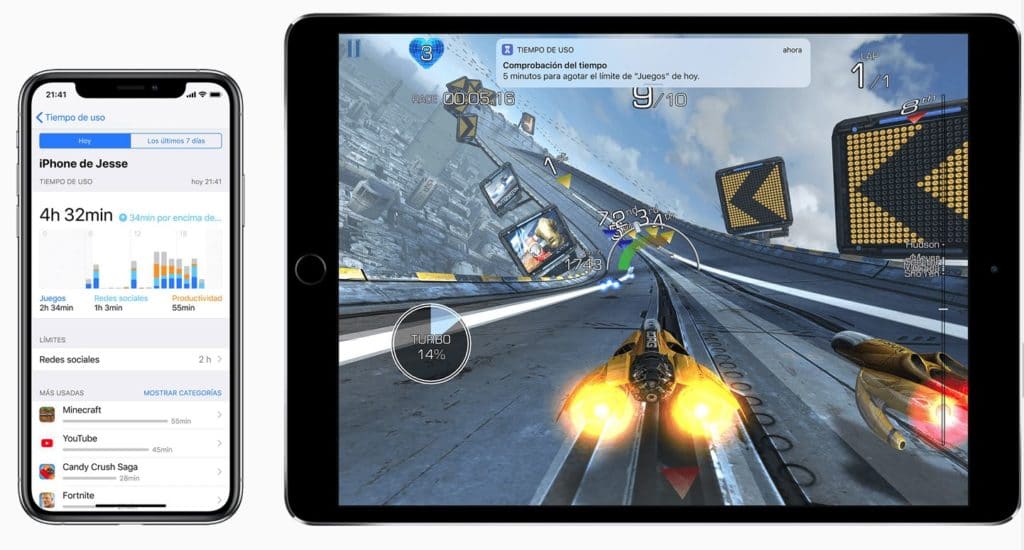
Another of the recurring issues that I’m often asked by friends and acquaintances is about parental control. All septiembres are repeated. Who more or less needs to control the content their children use on the Internet and the use they make of phones and tablets either the apple mark or the android mark. Of course. This can be managed from both platforms So I’m going to tell you how I do parental control on iOS and Android, both on my eldest son’s iPad and on my younger children’s Samsung Galaxy Tab A, managing everything from my mobile phone and my own
woman.
I don’t know if you remember it or if you didn’t know this wonderful blog at the time, but A couple of years ago we’ve been talking about this.. So we talked about how important education is in the face of the impossibility to review absolutely everything that goes through our children’s screen. At present there are some technological solutions that help us in this task, so I’m going to tell you what needs I had and how we’ve been solving them rather than telling you the benefits and possibilities.
s of this kind of tools.
So, My needs were very clear: I needed my children not to stay playing with the tablet until the morning and they would soon rise with the intention to continue playing. It also needed to control the applications that were installed on the tablets, no longer because of the associated costs (which also) but because they could be more or less appropriate to them or are some malicious application that would infect their devices in one way or another. In addition, I wanted to manage all this from my mobile comfortably, without having to go into any website or review control panels or anything complicated that would make me lose
so long that he lost interest in the review.
Of course, the kind of videos they used on the Internet, that they could contact strangers or that were more or less’ hooked ‘, I was also concerned, but we already talked about this in the entry I mentioned before And my position you already know: to educate before you ban… I wish in all spheres of life common sense worked, we would save many laws!
Parental control in iOS
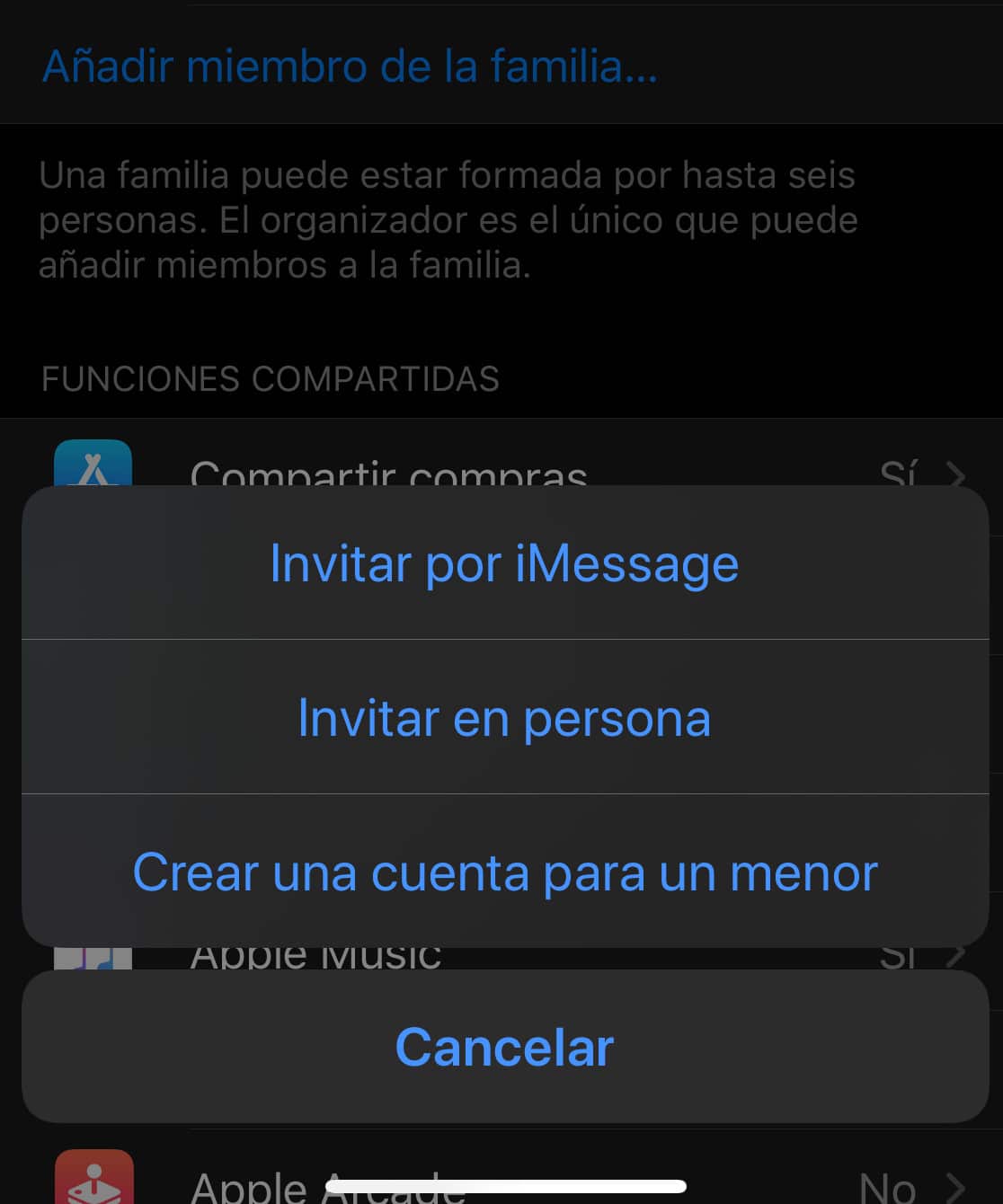
On Apple iOS devices we have several parental control possibilities included in the system, so I didn’t have to install any third-party applications. The first thing to do is to tell Apple that we are going to create an account for our child or, if you already have it, indicate that it is minor. Under no circumstances do you set up your children your own iCloud account as that will give us many head breakers such as costs, impossibility to limit actions, synchronized photos, etc. Apple has the function Family where we can specify the members of our family
straight and what role each of them has, in addition to their age.
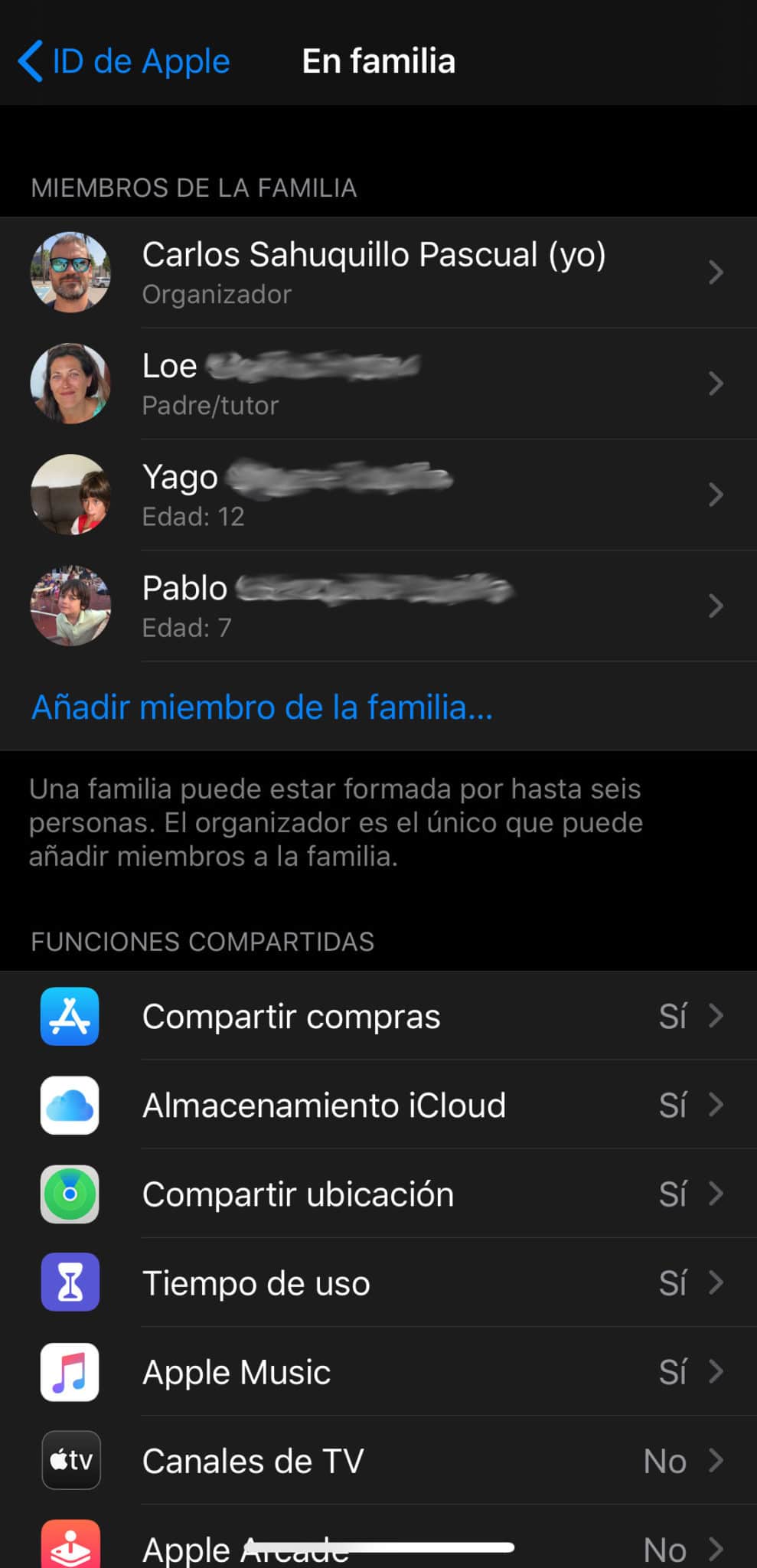
Family allows us to share some things like iCloud space, which is important. Many of you will have hired more storage space on iCloud so you can back up your phone, right? For this space can be shared with the members of Family, so with one subscription we will have all the iOS devices of the house covered. I, for example, have hired the 200Gb plan and it’s more than enough for the backup of my mobile, my wife’s and my eldest son’s iPad, all in sub- iCloud spaces separated and without
the possibility for one to access the documents, photos or backups of another member.
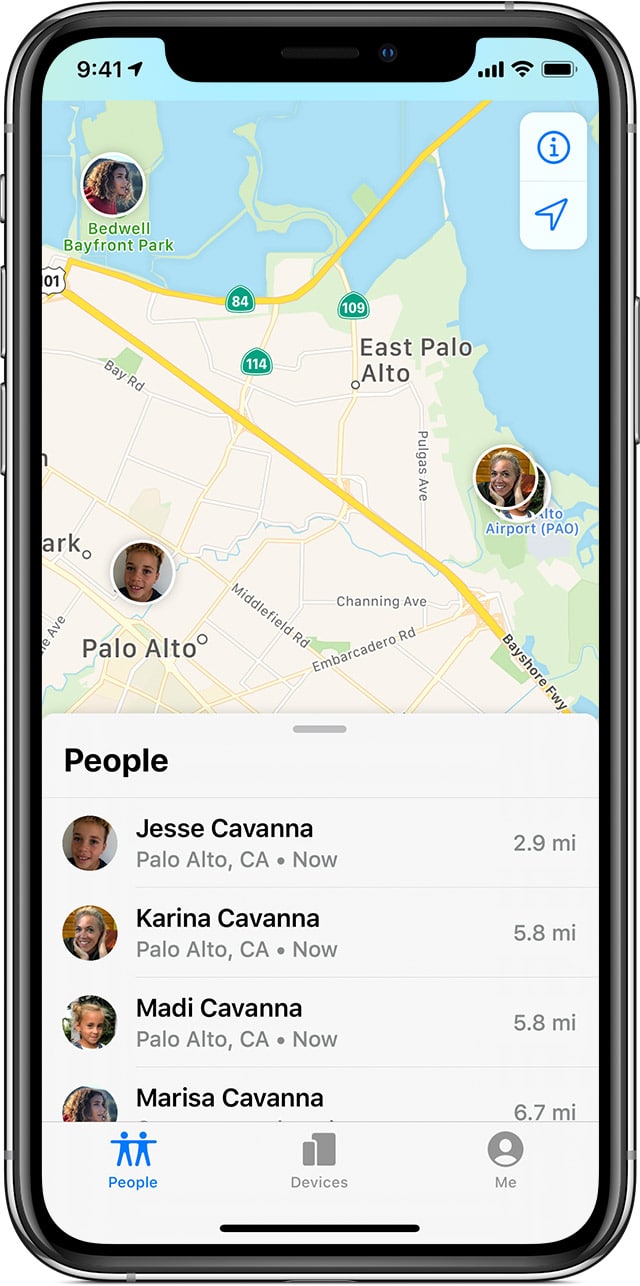
We will also have some interesting possibilities such as placing all members of the Family on a map (to see for example where our child is… or at least his device), sharing a Calendar with important family events a list of tasks editable for all, etc. I don’t use all these possibilities very much, but there they are, I have friends who use the Calendar and the list of tasks with their wife to run the house, out of school, dinner with friends, etc. What I do use is the shared map to find some device.
misguided or so my wife knows where I am in case she’s on the trip or running between airports or similar. Yeah, I know what you’re thinking… it’s all about having nothing to hide, there’s no chance I’ll get out of it that I’m in the ‘Momentos Club’.
In addition, Apple is increasingly giving importance to this group of Family and you can for example share purchases (you only pay once for each application but can be installed on all the devices of all members), books or films, which are automatically available to all family members, Apple Music subscription, Apple Music subscription Arcade which is Apple’s new game platformetc. If someone needs more information or wants to check all possibilities before giving
you have more information about Family on the official Apple website https: / / www.apple.com / en / family-sharing /.
Needs and solutions
Since there are a lot of options, I recommend you think like we did. in the entry on HomeKit automations, needs that you currently have and want to solve. If you begin to study all the possibilities to see what is happening to you you will become a little sturdy with all the information and options available, which will make you tired and not set it right… so I recommend you start with the needs and, once covered, continue reading possibilities.
NEED: have a control of the apps installed to avoid violent or inappropriate games and infections of virus / malware.
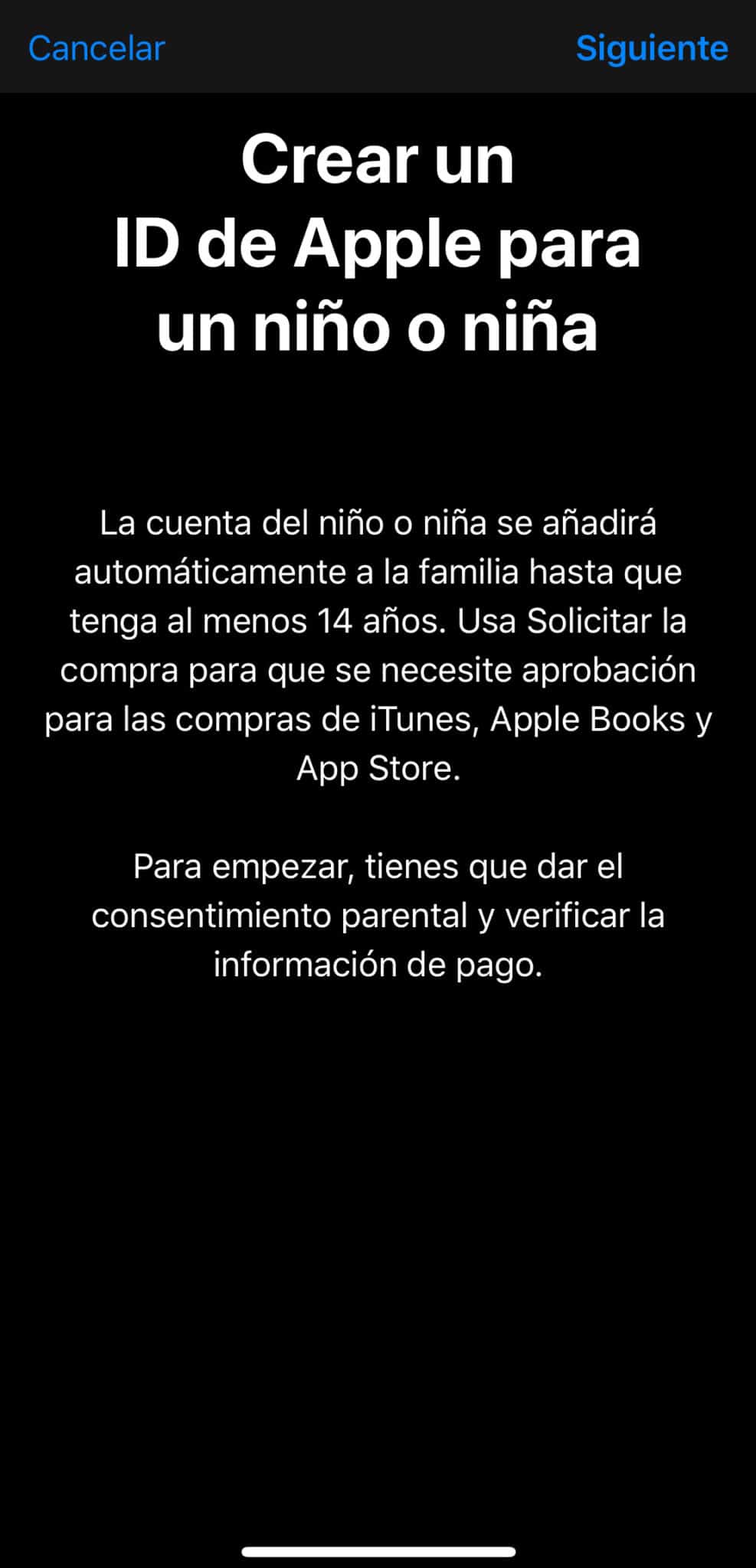
SOLUTION: Once with the group of Family already created, you must create your son’s account and tell him that he is minor. As simple as that, from now on you will be asked for confirmation for each of the apps you want to install, both free and paid, so you can review them before accepting them. Remember that the payment apps s
you will have to pay them once, so if you are 3 or 4 members in the group, the cost will be charged on the group administrator’s card but you can all enjoy the app. It came to us very well for him. Minecraft, that I don’t know if you know it’s cost 7 €, so we only had to pay it once and we have it installed on several devices.

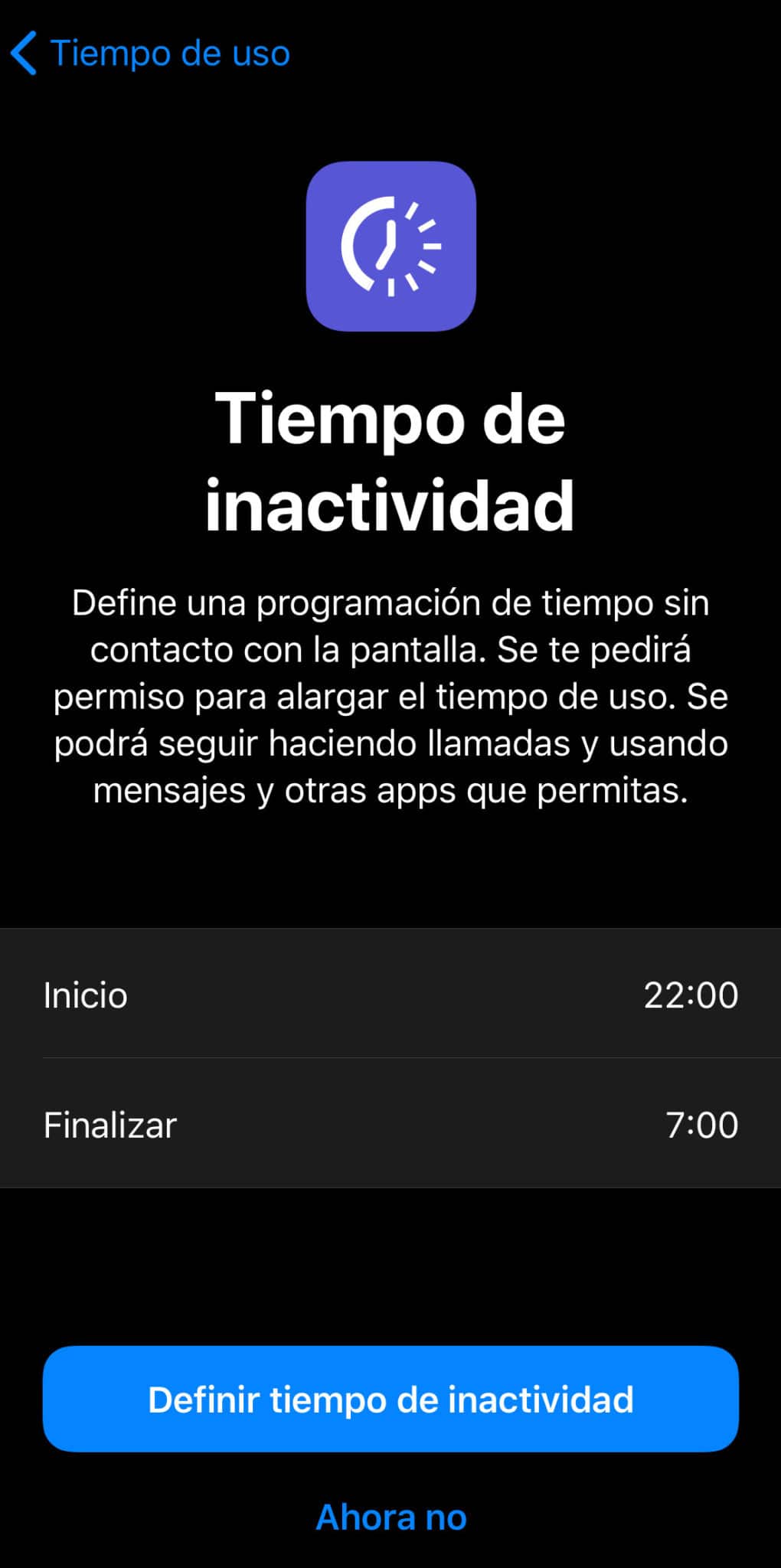
NEED: having a maximum time of use of the device and not working before a certain time to keep them from passing through or waking up soon.
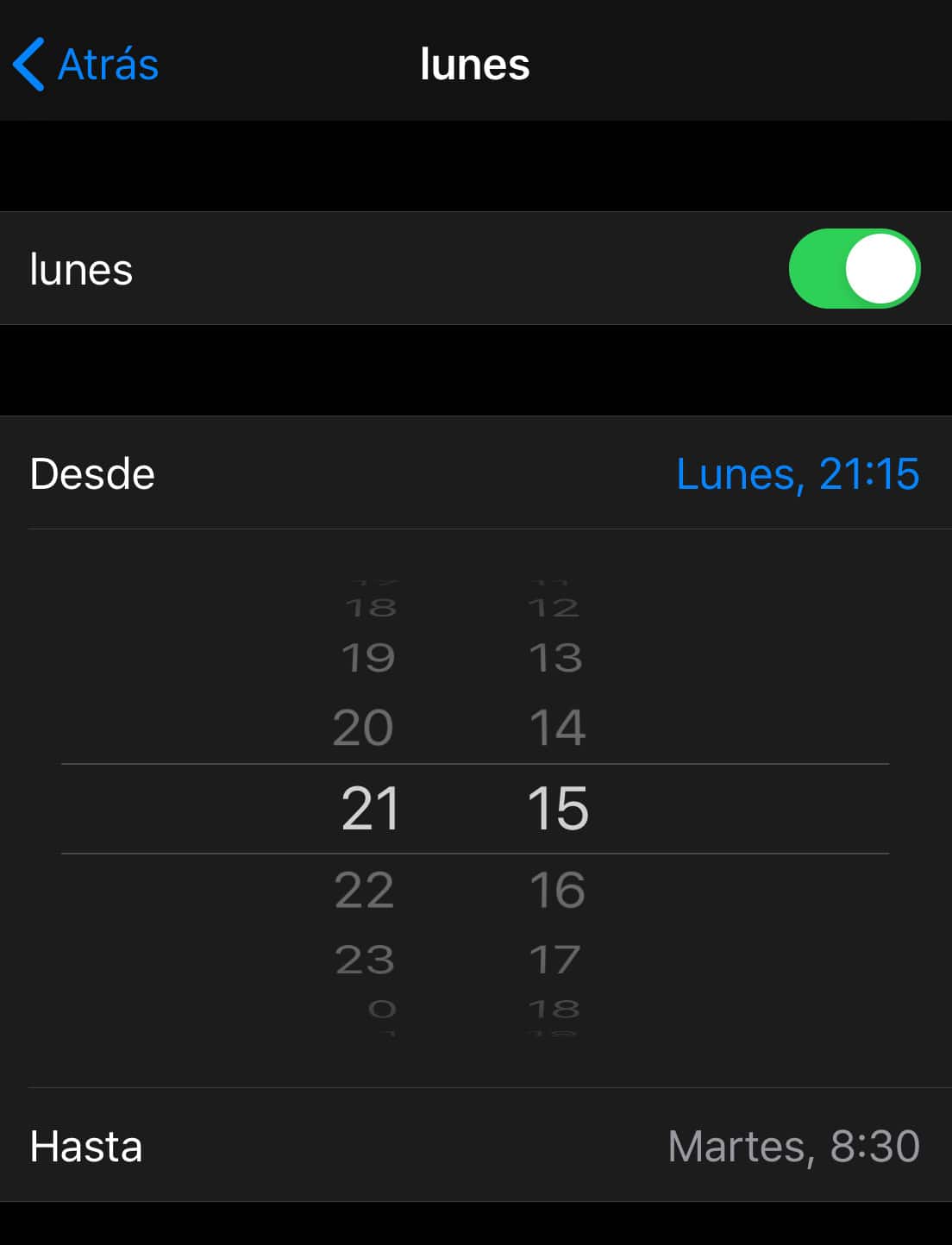
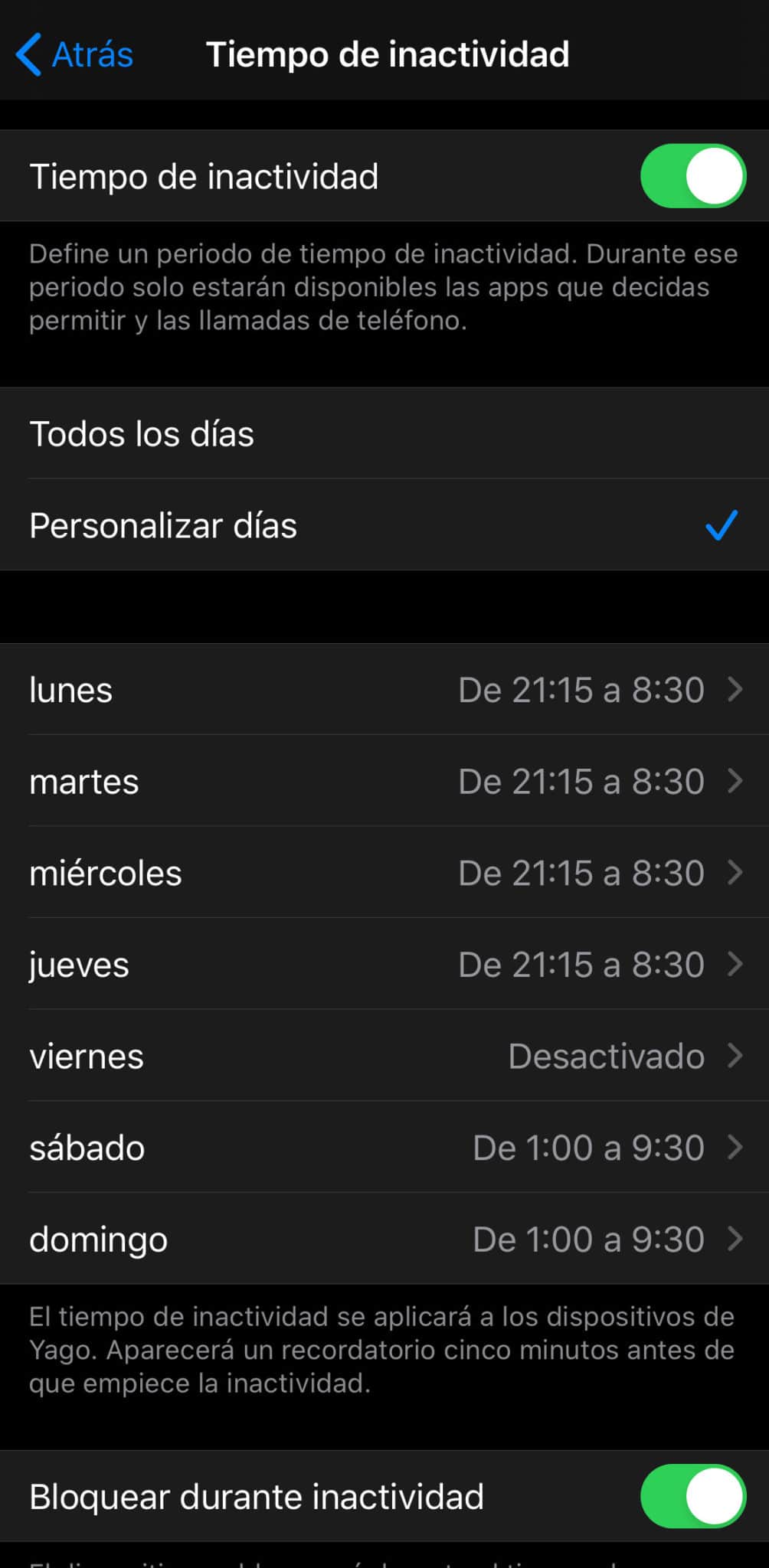
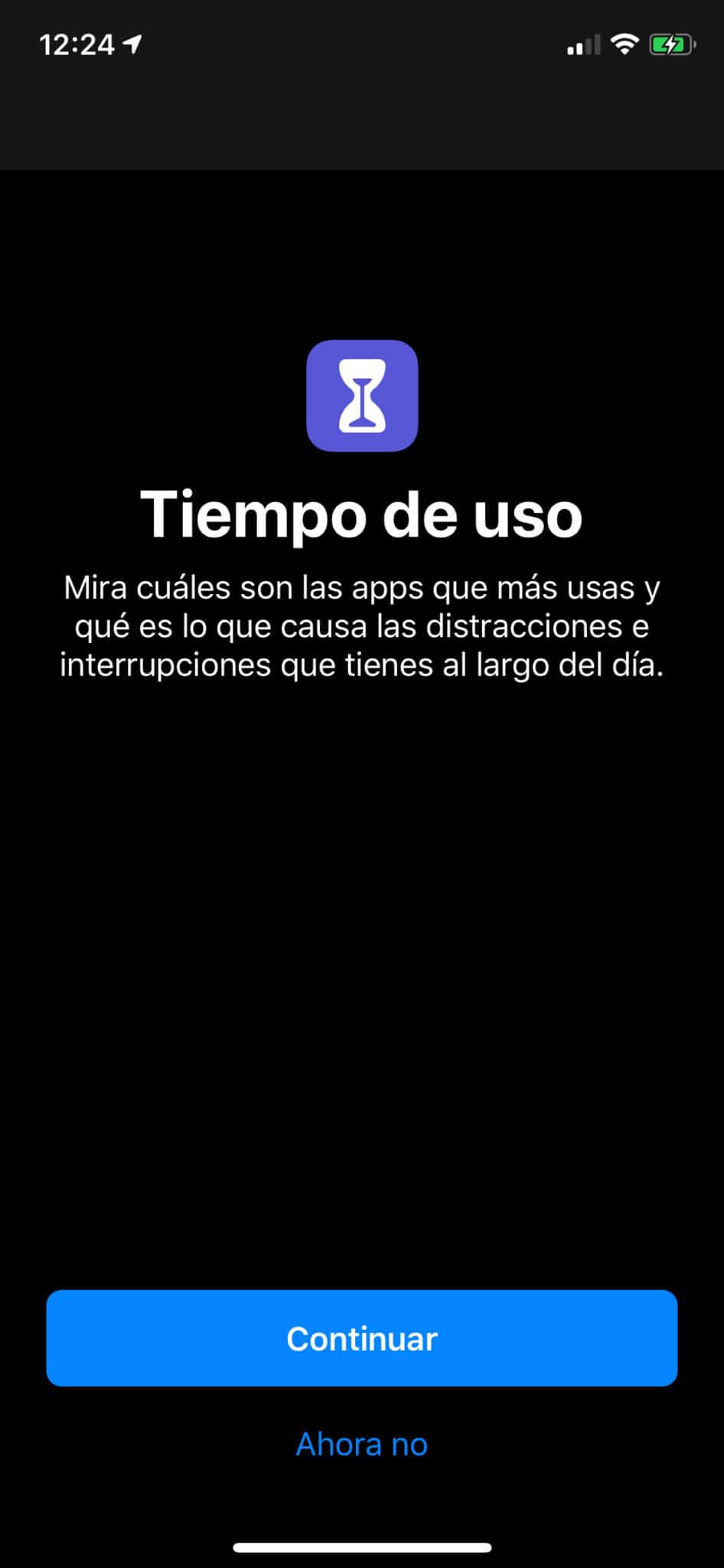
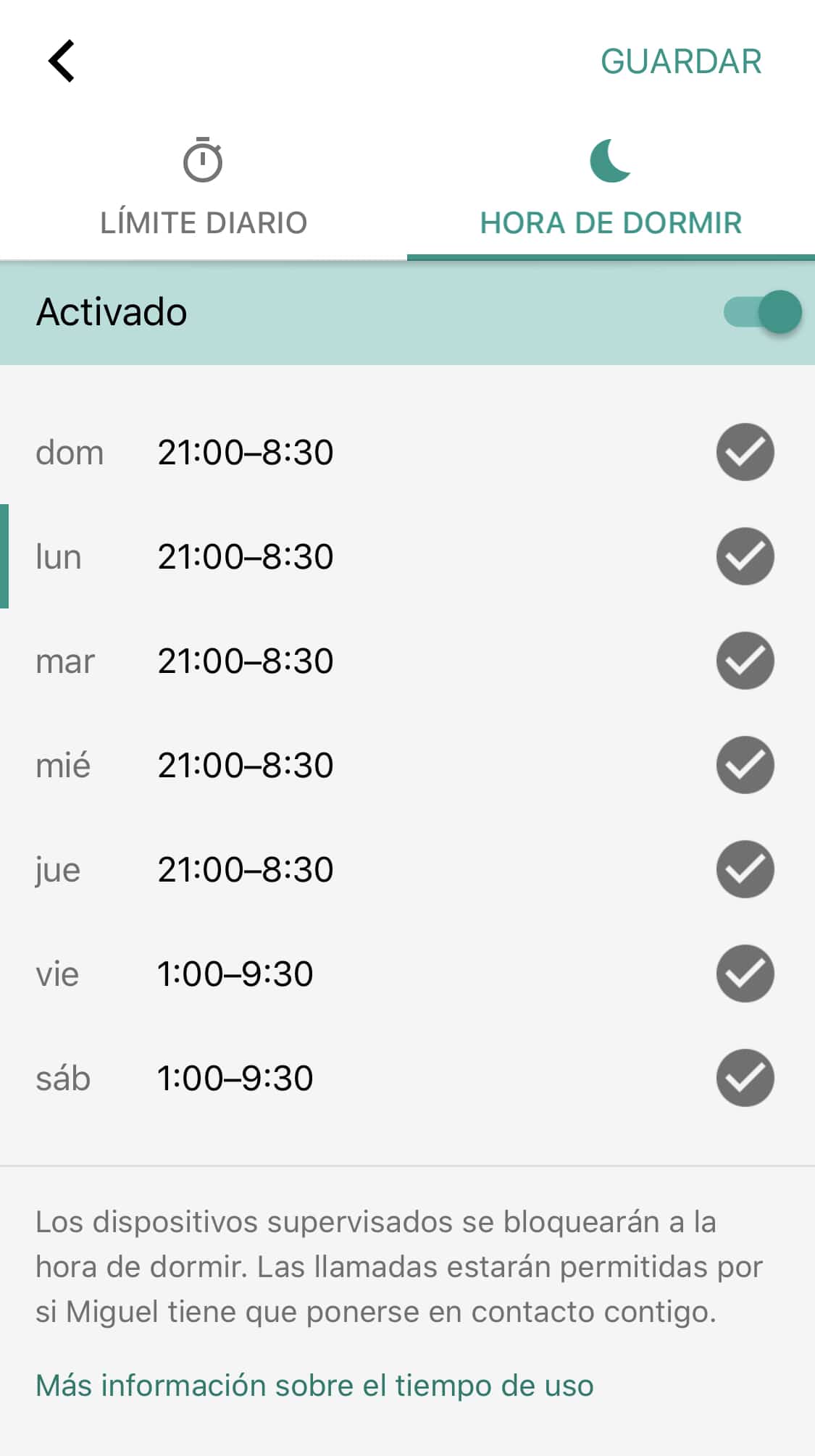
SOLUTION: Adjust the time of use of the device to be blocked and unlocked according to the defined hours. In our case, The hours each week are very strict and my children lie down at a reasonable hour (about 21: 00) and get up at 8: 15. However, the weekends are much more flexible. There are nights we all go out, nights they’re watching a movie late, others
nights go to the grandparents’ house and take the tablet… etc. So during the weekends the time of going to sleep is not defined by not having to get up the next day… but the time of getting up: No one can get up and make noise before 9: 30.. To manage all this, we have a time-of-use configuration on that line:
As you can see below it is possible to create restrictions also by category of the type ‘the games are only available for 2 hours a day but the productivity apps for 4 hours’. I do not use this filter by category, I prefer to define a rest period and that they decide what they do with the device during that time… although it is still a good idea to set it up for myself and to limit me a little bit the time I spend playing the Dragon Ball LegendsHe’s got me hooked.
o!

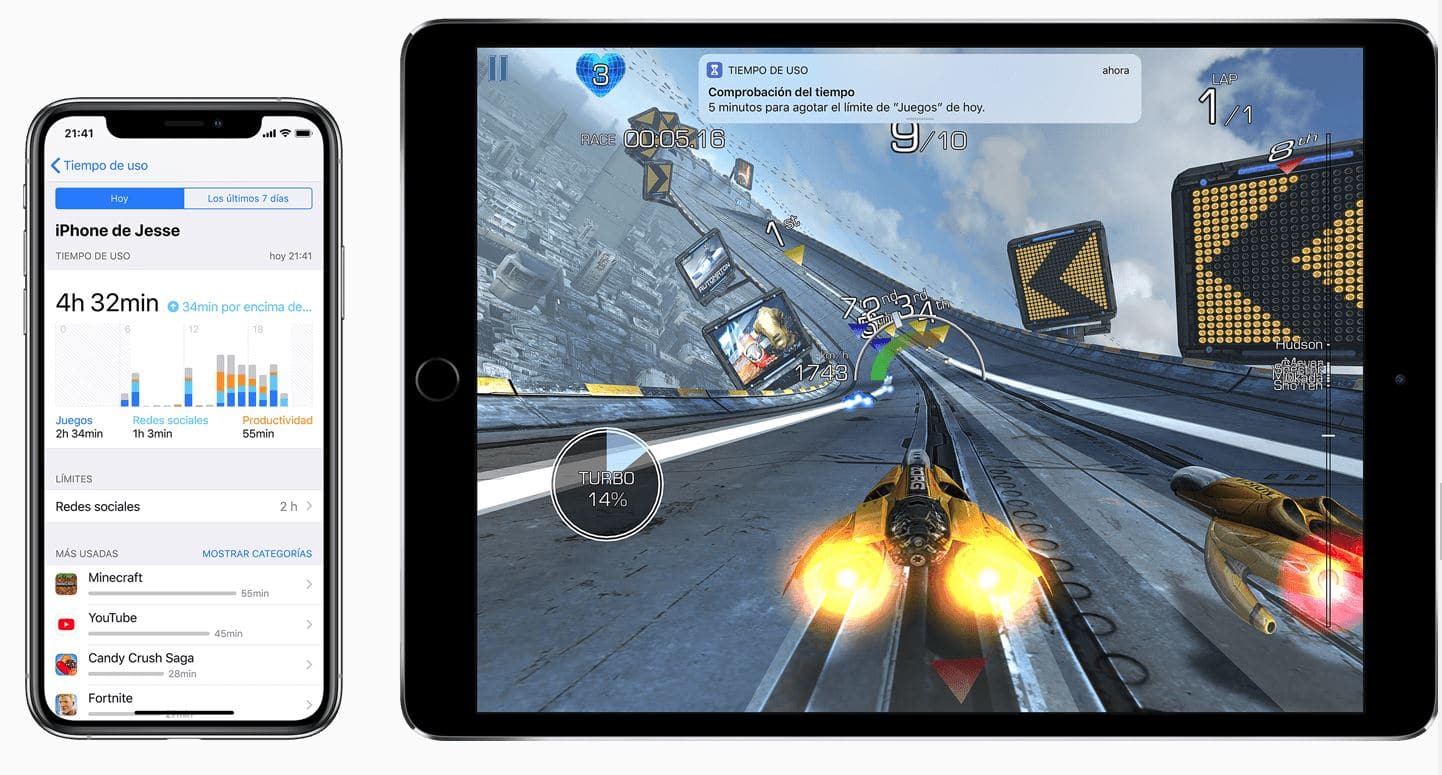
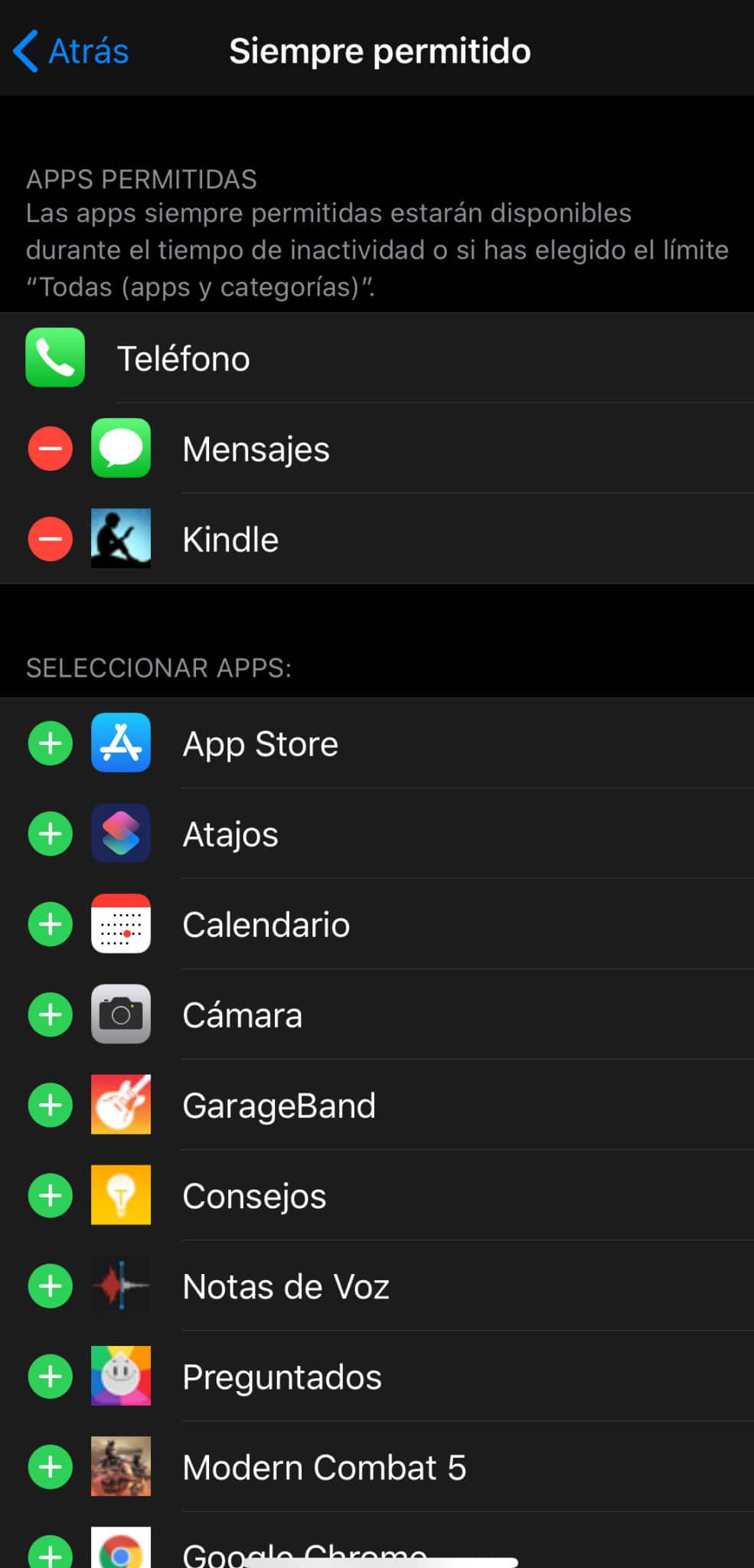
When there is little time left for the time of use to end, the child receives a notice and may request more time for a particular application, game, tool or whatever and we can allow it for 15 minutes, 1 hour or until the next day. In addition, some tools can be allowed SIEMPRE, which is what I do with the Kindle and Messages application If you want to stay a little longer for a week reading in bed or if you want to comment on something and I’m not home.
But as you can see the rest of limits We delegate them to their common sense, I don’t limit them that they can only have (for example) 2 hours of tablet per day. Personally I think those limits no longer make sense and they just make them take it more eager. Or they make up some excuse like they need it to do our homework or to ask a partner about the exam or something. So far this system is working for us; they play with the tablet as with one more toy and at times they get tired and leave it to play something else.. That’s right, you have to have kids with some feeling.
Or common… not much, but something is… and it’s not that mine have too much because they’ve gone out to the father, but for the moment I’m telling you that xD is working for us.
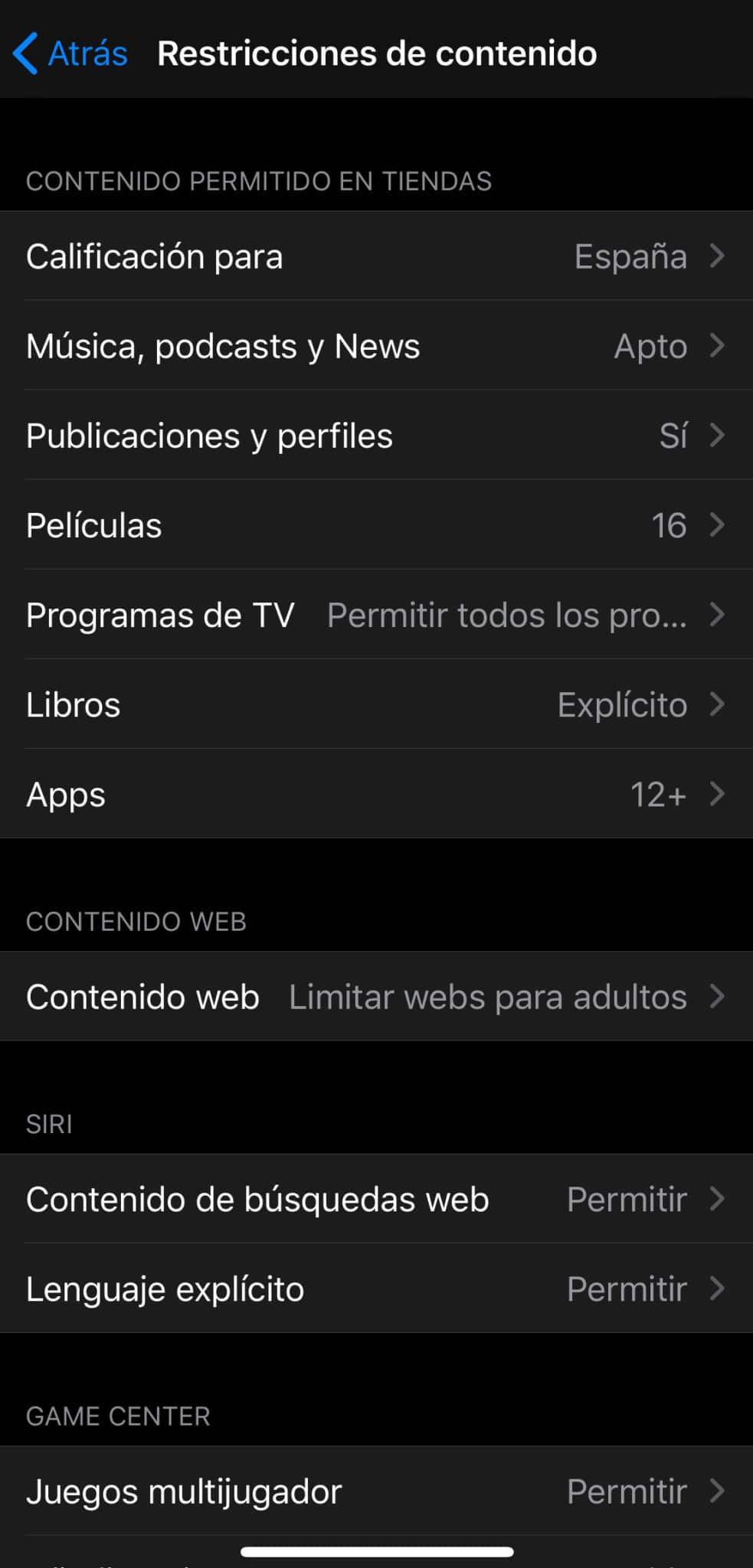
NEED: prevent you from seeing inappropriate content, and I’m no longer talking about them not being able to see violence or sexual content or whatever, but not seeing something that can hurt them or cause discomfort, whatever.
SOLUTION: Adjust the content restrictions available, though I already tell you they’re not infallible… but well, they filter something.
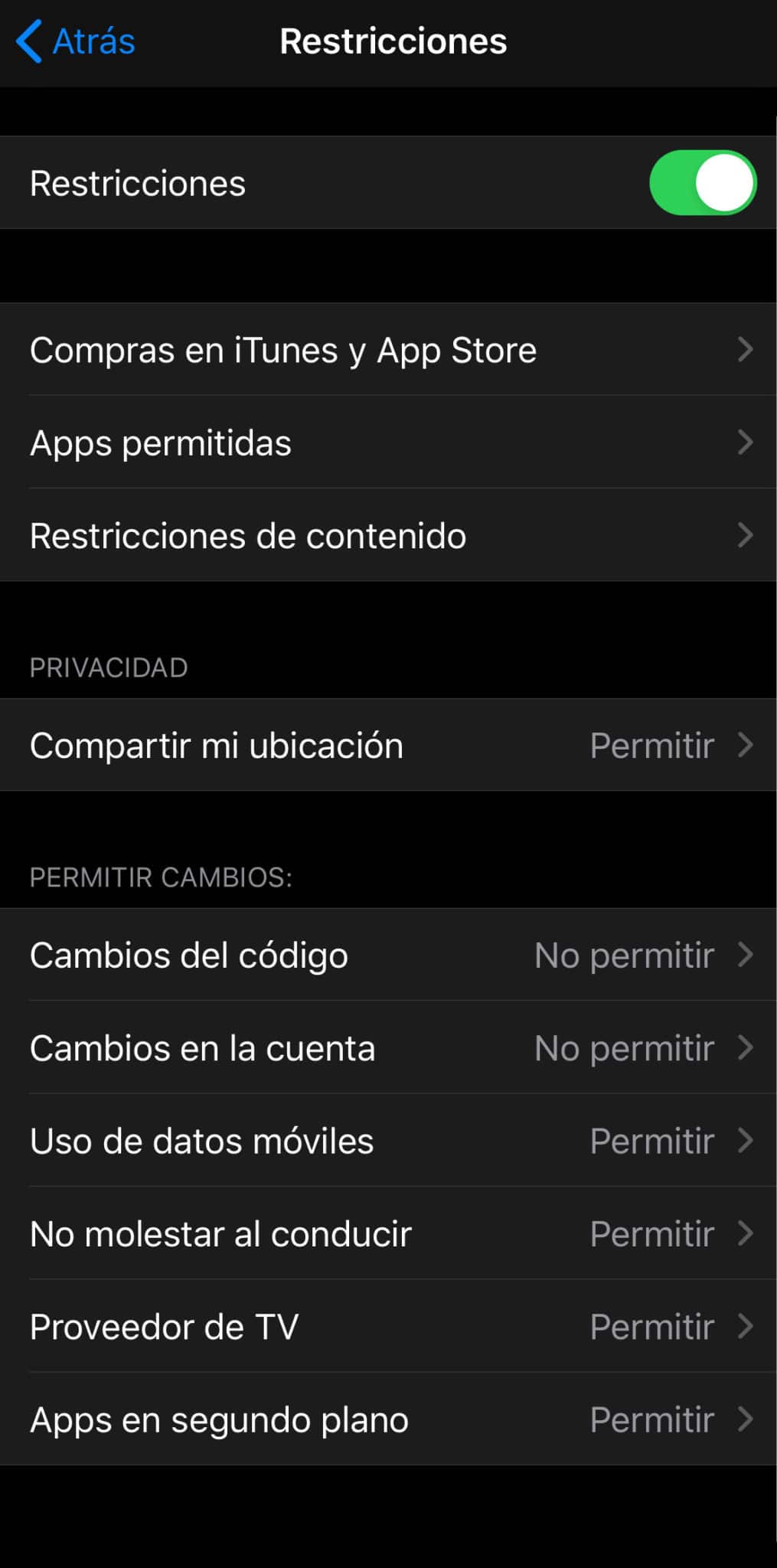
At device level you can also limit some actions such as changing the password (the time I have had to format or make a hard reset of my children’s devices because they have forgotten the pattern or password they had set up 10 minutes before…) or modify some system settings:
Parental control on Android
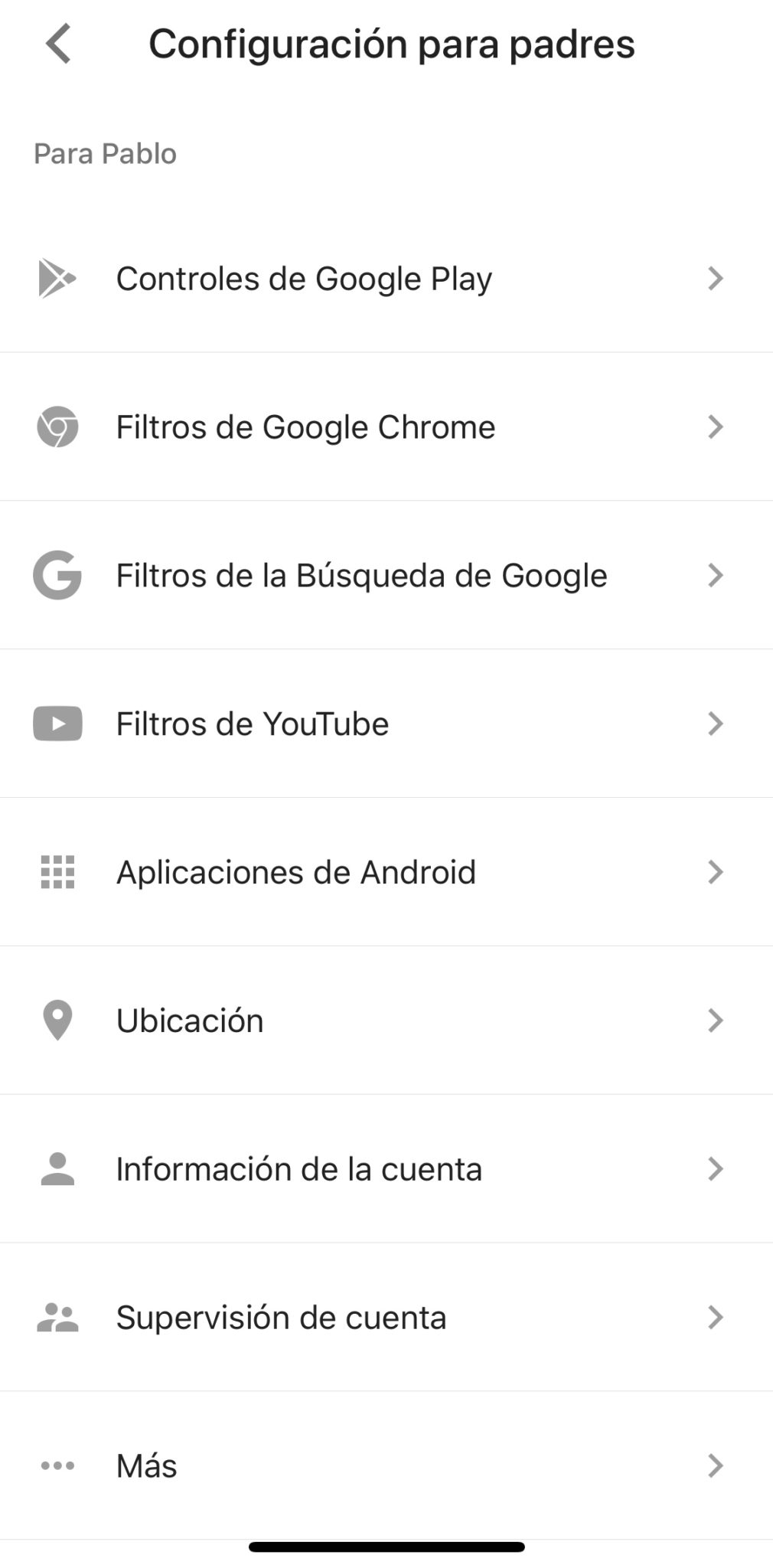
Do not think that these restrictions so well integrated with the operating system are Apple’s exclusive property and that other devices require other types of solutions. If you have Android tablets or mobile at home it is possible to implement the same restrictions using Google Family and no need to install third-party apps..
The possibilities are basically the same, screen time restriction, installed application management, content restriction and protection of some of the system settings. Of course we also have the possibility of geopositioning devices, sharing calendars and task lists… and the best thing is that you do not need to have an Android device to perform such management, as the app that manages all these settings is available for both Android and iOS and it’s called
w noopener noeferrer «target =» _ blank «> Family Link.
In our case, We have set up a policy very similar to the one I had before with iOS., same sleep times and same application approval, but let’s see how it would be made step by step.
Installation of the Family Link app and group creation
If you haven’t set up the Google Family group so far, it’s time to do it.. You can access it through your account settings or directly from the web https: / / families.google.com / familieswhere we will establish ourselves as group administrator and we will have the possibility to invite the other members simply knowing their email address. However, the person receiving the invitation must have his password as he asks him to enter it for safety,
that if the child does not know the password of the Google account (and you better not know it) we will have to do all this process directly from the Family Link app.
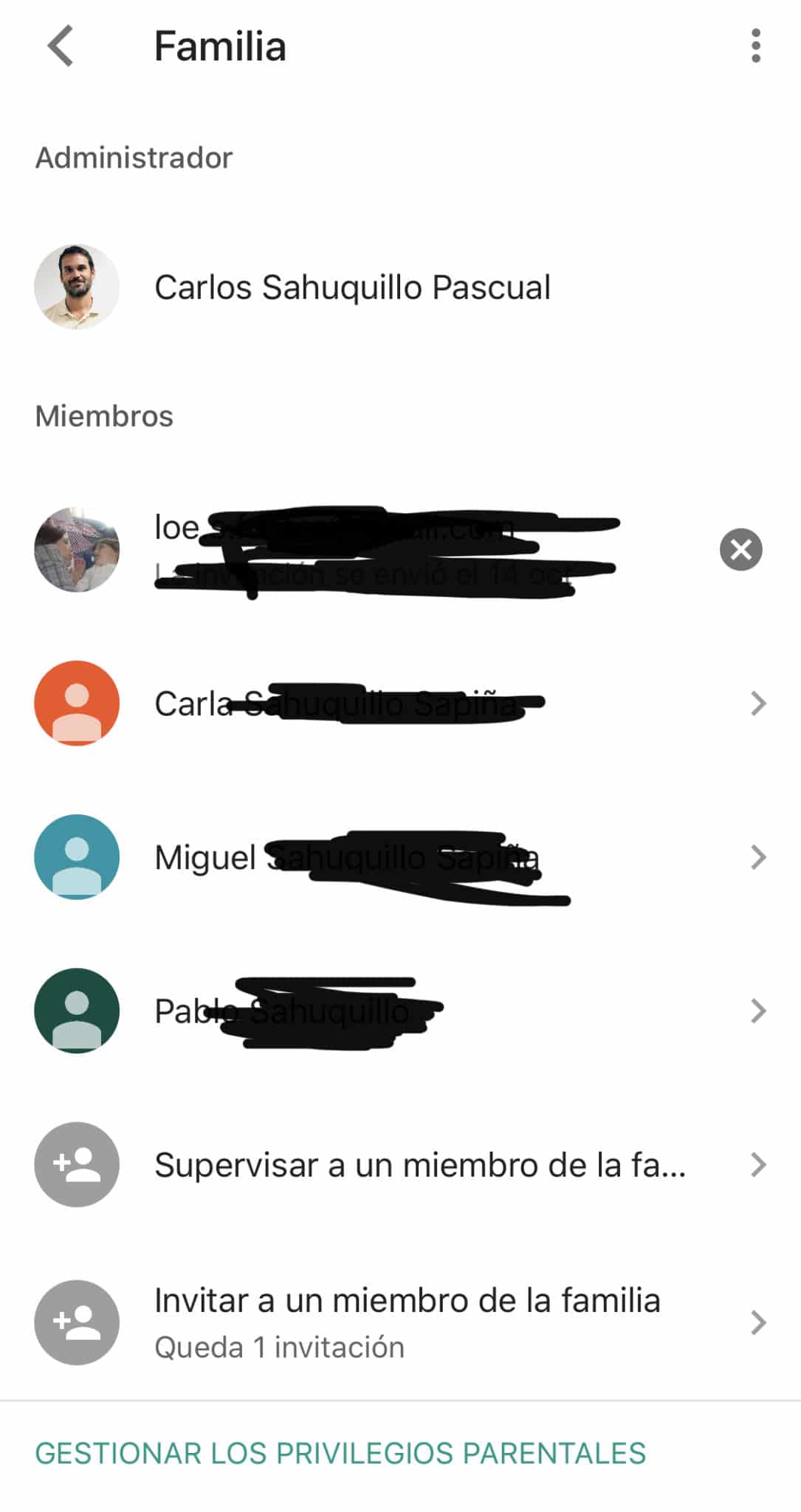
When we first install Family Link, he asks us whether that device is the adult or child device and whether we want to establish ourselves as the Group Manager. Please note that We can only belong to a family group for obvious reasons, so if another member has already created the group and has established himself as an administrator it is he who should give you access.
Once this is done, the process of association with our child’s device is already beginning, which is quite simple, since the app installed on your device will ask us a code that generates our device and which we must enter… and it is already, as simple as that, then you will have to confirm the insertion into the group by introducing the password of our child’s account but do not have to take any intermediate steps or specify that it is under age as in the case of iCloud.
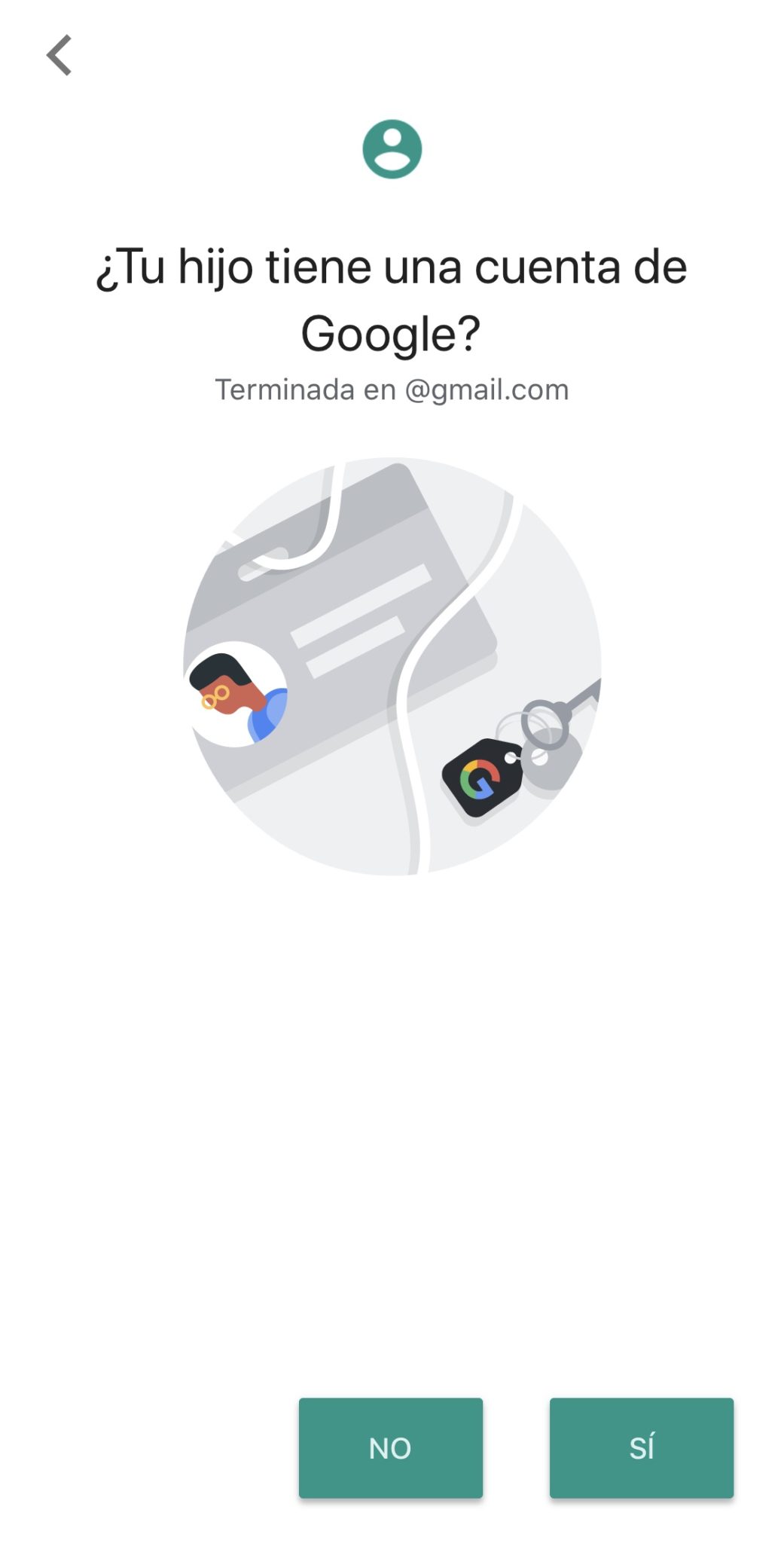

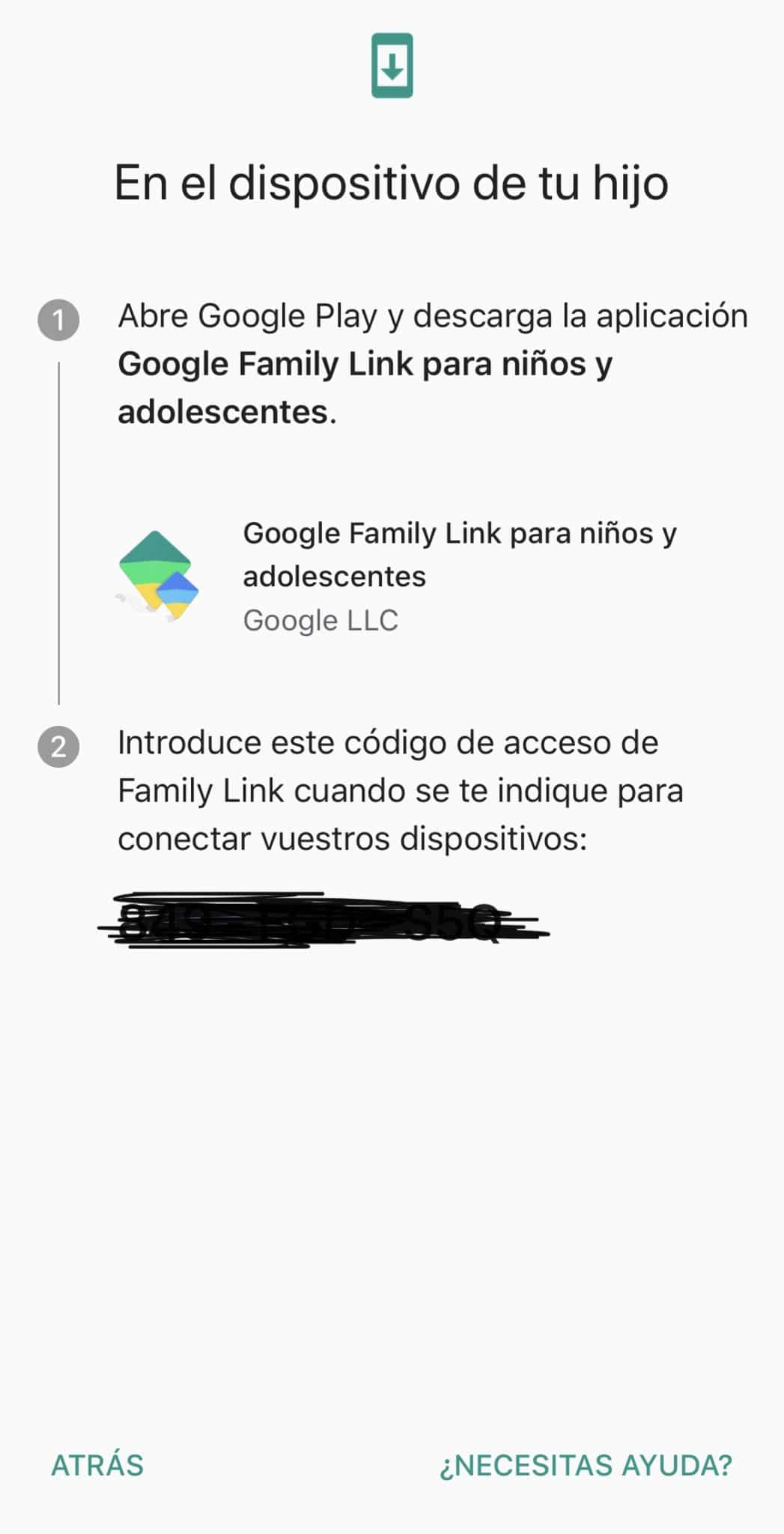
The partnership process ends immediately and from that moment on we can already manage the device configuration and its restrictions. I miss the possibility of copying configurations between members, since in my case I have 3 children with Android devices I have had to repeat the same process 3 times… I would like to have an option that is’ Copy this configuration to other group members’ and thus would replicate the time and content restrictions.

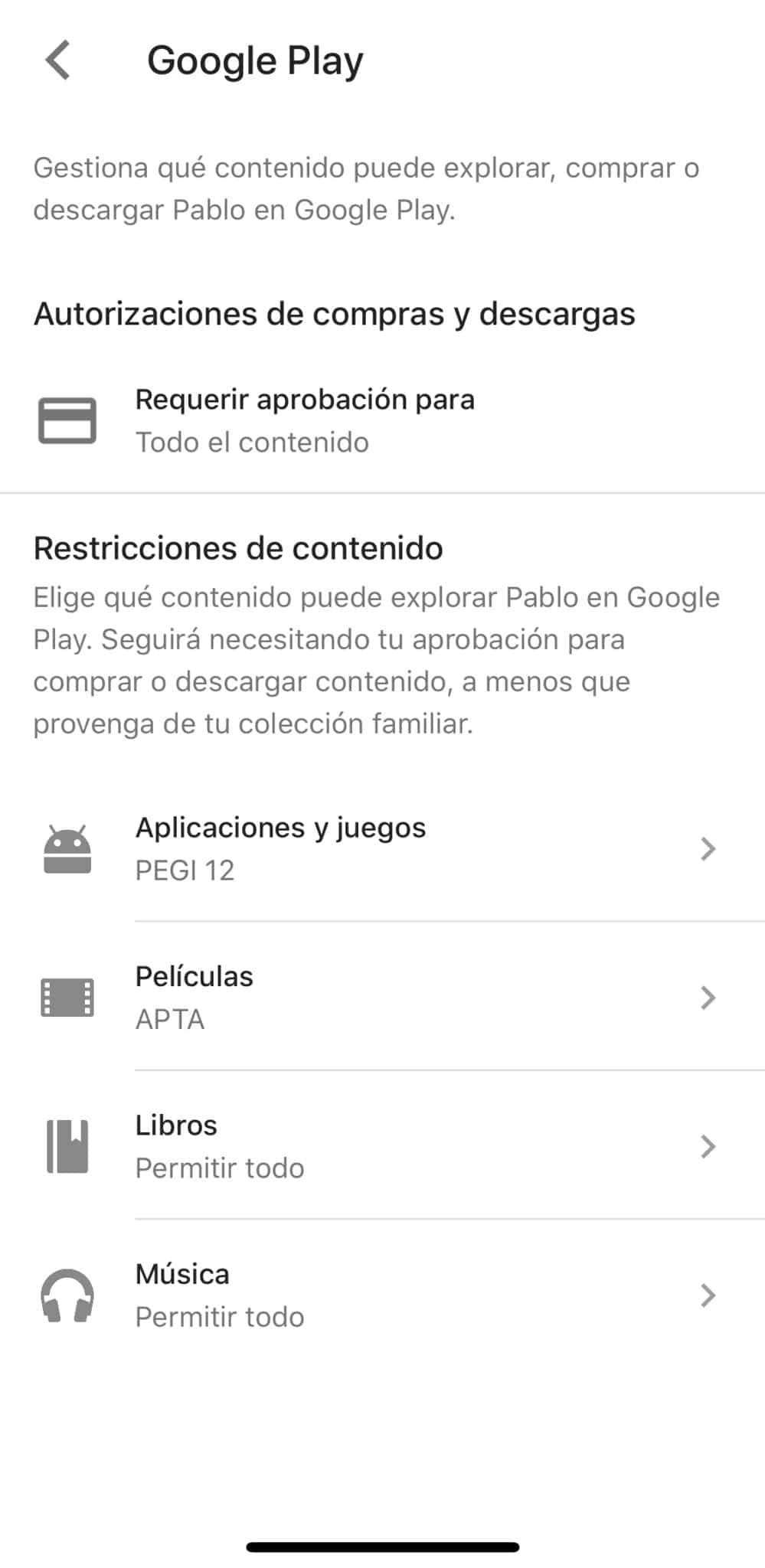
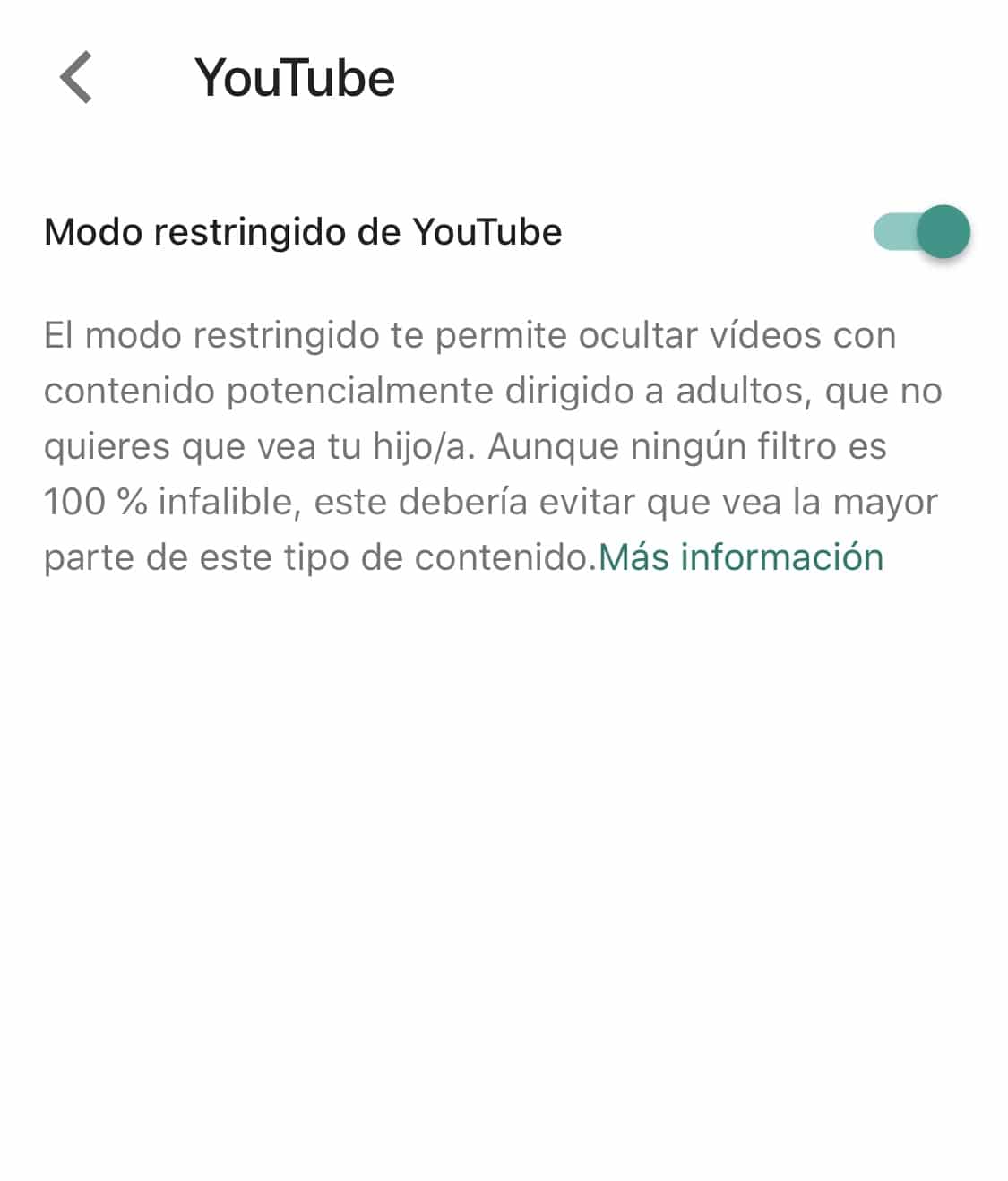
On this occasion I will not explain the needs and the solution because they are exactly the same, same hours and same type of content as those of iOS I have told you before:

Can an iPhone be controlled from an Android (or the other way around)?
So far we have seen every system on your side, but the doubt that comes to me most is another: I have an Android and my son an iPhone (or just the other way around), can I control his cell phone from mine? The short answer is that depends on the combination, because both Apple and Google play each in their own garden. Let’s see it on a case-by-case basis.
| Your cell phone (father / mother) | Children & apos; s mobile | How is it managed? |
|---|---|---|
| iPhone | iPhone | Family sharing |
+ Use time (remote)
You with iPhone and the minor with Android
This case is simple and many people don’t know: Family Link has parent app also for iOS. Download the App Store, log in with your Google account and manage the Android small from your iPhone exactly the same as I have ex
plicate above (schedules, limits per app, location and content). It works at no cost and no trouble.
You with Android and the minor with iPhone (the complicated case)
Here we hit the Apple wall: «Family sharing» and «Time of Use» have no Android app, so there is no native and free way to manage that remote iPhone from your Android. And Family Link doesn’t supervise iPhones either. You have two ways:
- What I recommend, and at cost 0: configure «Time of Use» directly on the minor’s iPhone and protect it with a time code of use that only cones
You.. The rules (rest hours, app limits and content restrictions) are recorded on the device itself and applied alone, without you need your mobile for anything. To adjust them later you just have to take your iPhone and enter that code.
: justify; «>A trick: If at home you have any iPad, an old iPhone or a Mac, you can use it as a «Family Sharing Organizer» device and manage the remote small iPhone from there, even if your daily mobile is an Android.
You’ve seen that. this basic level of parental control can be set on both iOS and Android without any complication, in fact in both systems the process is really simple. We cannot deny that it is more and more common for minors to have their own device and partly manage it themselves, installing applications and changing (sometimes unintentionally) system settings or getting infected with virus or malware. But, Although both solutions allow us to manage the devices in a very simple way, take your time to create the right rules and explain them to your children, of
or otherwise it will become a source of problems and needs not covered, both for them and for us. And of course I continue to be strong in what we have already said a couple of years ago: education is always better than prohibition.
Carlos Sahuquillo
'Haga lo que haga en la vida, siempre compito' - Jacques Villeneuve Reserva una sesión →
Entradas relacionadas

Automations and productivity with Power Automate
Since not everything in life is home automation, in this episode I tell you how I use Microsoft's Power Automate to automate…
Smart Bottle Low Cost
Drinking water is healthy and fashionable. Today I tell you how to have your own smart bottle for less than €4 and…
Leer
Now you can invite us to a coffee!
If you consider that the blog has brought you something positive (beyond economic spending), you now have the possibility to invite us…
Leer
Artículo realmente útil y ameno. Marca de la casa!
Tú que me lees con buenos ojos, amigo César! Aunque creo que tú ya has pasado esta etapa 😉
Súper útil 😉
Lo comparto!
Jajajaja, muchas gracias seas quien seas, perfecta desconocida!!! Jajajajaja
:*
Hola, tengo la aplicación de family link en mi Android, pero le hemos dado recientemente a mi hija mayor un ios, ahora q debo hacer, pq me estoy volviendo loca y creo q no es compatible de esta manera.
Gracias
Hola Sarai! Muchas gracias por tu comentario. Me parece entender que tú tienes un Android pero tu hija mayor tiene un iPhone, verdad? En ese caso no puedes utilizar el grupo Familiar de iCloud ya que tú no tienes un iPhone desde el que controlar el de tu hija, pero hay otras soluciones como la app Qustodio, que está disponible en la App Store y también te permite configurar un montón de restricciones en el iPhone de tu hija 🙂
Mil gracias Carlos. ahora ya solo tienes que venir a casa y ayudarme. yo pago las cervezas
Hola David! Qué sorpresa! Jajajajaja. Me alegro de que te haya gustado pero en tu caso es algo diferente, tienes que pelear con el control paternal de Microsoft (que también lo hay)! Si quieres que lo hablemos solo tienes que decirlo.. y si salen más interesados, pues escribo una nueva entrada!
Besitos en casa!
Hola Carlos
Gracias por tus podcast y tu blog.
Tengo una duda con el control parental en iOs en iPhone.
Si configuro el control parental desde el teléfono sin decir que soy el padre, funciona correctamente y cuando llega la hora programada se bloquean las aplicaciones. Al hacerlo de esta forma no da la posibilidad de mandar solicitudes a mi móvil para autorizar.
Si lo configuro diciendo que soy el padre consigo que funcione pero el Whatsapp se queda fuera y no responde a los bloqueos. ¿qué hago mal?
Me pueden dar más explicaciones de como funciona
Hola Saray. ¿Qué necesitas saber? El uso es muy intuitivo, pero si me dices qué sistema operativo utilizas, te podré ayudar mejor 🙂