On Black Friday I always treat myself to some home-automation gadget, taking advantage of the discounts. Honestly, I buy them regardless of the time of year, but it seems like on Black Friday you’re more inclined to spend, and letting the day go by without buying absolutely anything just feels weird. And shortly after Black Friday comes Christmas, when we can also ask the Three Wise Men or Santa Claus for that device that’s outside our budget… The thing is, around this time of year I usually add new smart home devices to my network along with their corresponding automations, since you already know I don’t want to be shouting at the voice assistant around the house or pulling out my phone to turn on a light — I want the house to interact automatically based on conditions.
Despite the feasts, dinners, and late-night revelry with tons of alcohol, drugs, wild sex, and other excesses, during these days a Reminder pops up telling me to review my entire home automation setup. How many of you have put up the Christmas tree and, when going to activate the automation for the smart plug that turns the tree lights on and off, realized you’re now using that smart plug for the bathroom heater or the game console? Or that the automation turning them on and off at night no longer works and needs some tweaking…
Both of these mistakes are usually easy to fix: we put the smart plug back on the tree lights, or adjust the automation to work with the new device if we decide to buy another one — but there are more complex automations that require actual testing.
How to check battery status
I also check the battery status of my devices. It’s not easy to know the exact battery status, because with regular AA or AAA batteries you can’t know exactly how much charge is left, so it’s estimated based on the power output. With coin cell batteries it’s different, and we can actually see the charge in a slightly more precise way. Even so, keep in mind that the Home app will only warn us about batteries when they’re very, very low, since it only picks up the device’s ‘Status Low Battery’ parameter, so sometimes we only realize a device isn’t responding — and needs a battery change — before ever getting the notification.
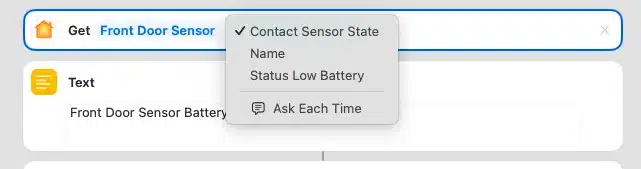
We could create a Shortcut that checks the status of all devices that support it and sends us a notification… and then plug that into a Home automation so it runs, say, first thing in the morning:
Atajo de Apple para hacer un GET del estado de un sensor y poder recuperar el parámetro Status Low
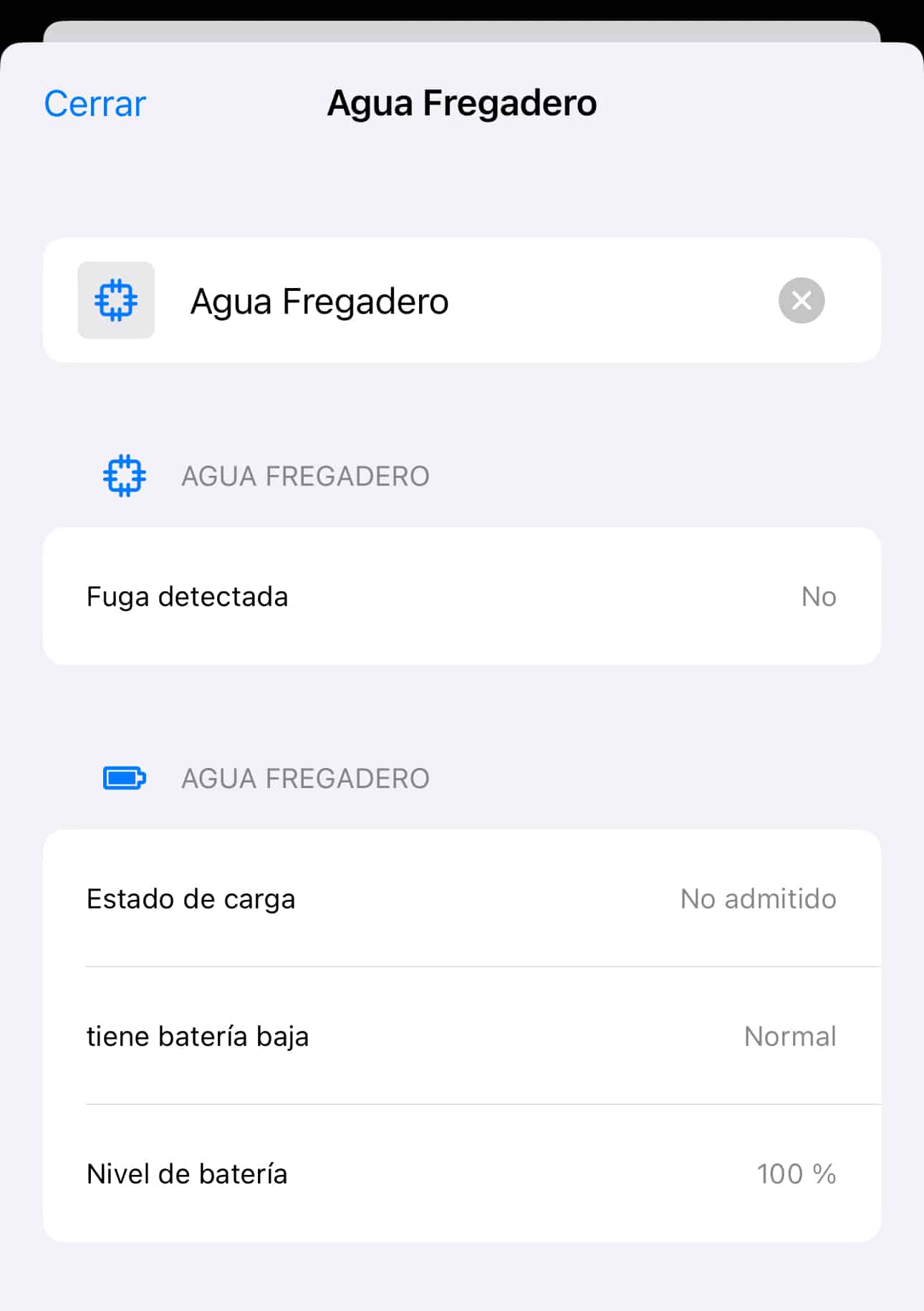
Although there’s an easier way, which is to use Controller for HomeKit, whether we use the app for free or have paid for the advanced features. In the first case, we’ll have to go device by device checking the battery charge:
Vista individual de un dispositivo desde Controller for HomeKit donde se puede ver la batería restante
Maintenance Menu in Controller for HomeKit
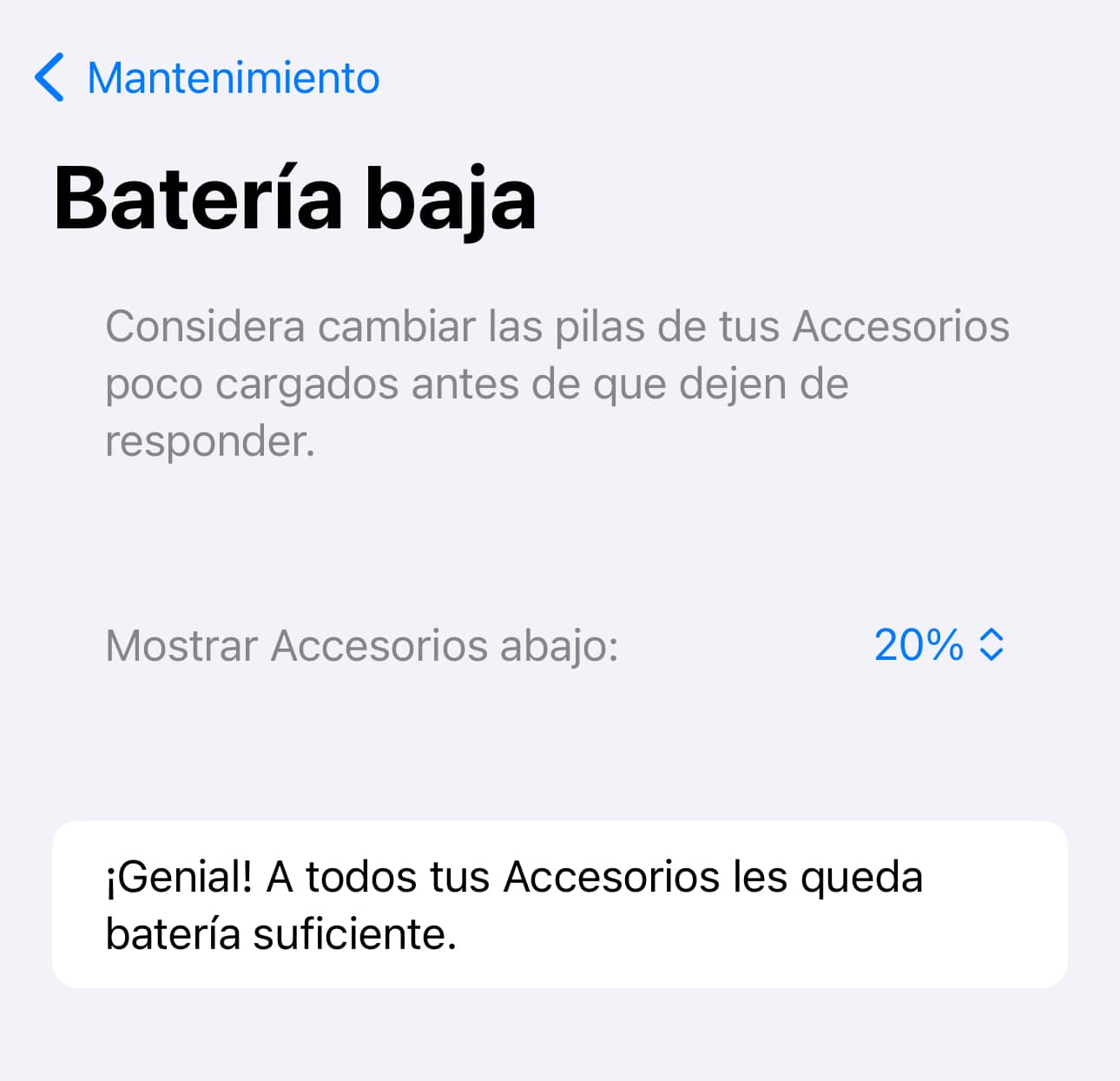
If we’ve bought the app (something I’ve recommended countless times), we’ll have access to the Maintenance menu, where the most important alerts for our ecosystem will show up, letting us define the battery percentage threshold we want to be warned at if needed:
Configuración en Controller for HomeKit para que nos avise cuando los dispositivos tengan menos del 20% de batería
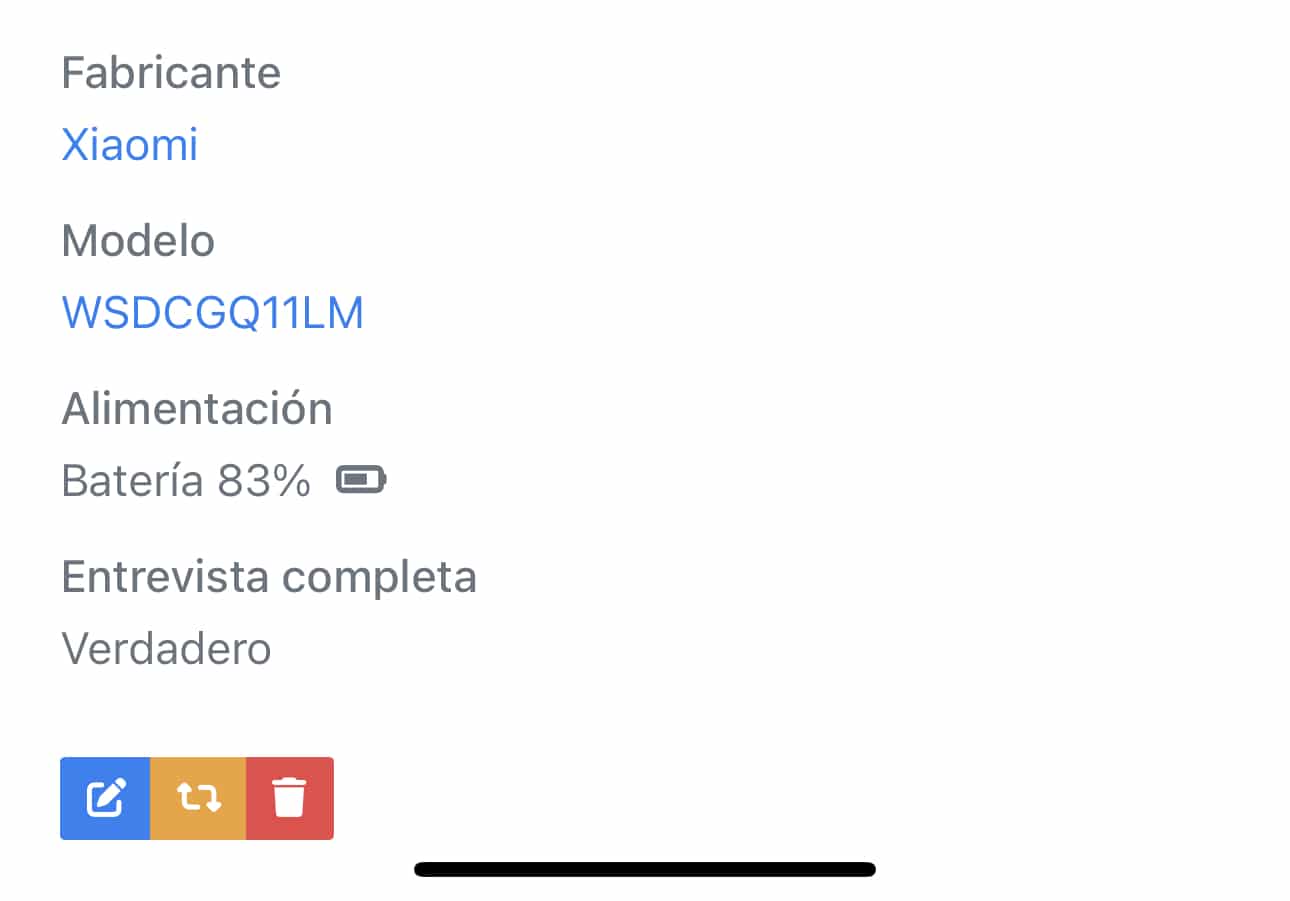
From Home Assistant we can also do this very easily: we simply need to go to whichever plugin we use to manage devices — either ZHA or Zigbee2MQTT for zigbee devices — and by going into each one we can see the remaining battery charge.
Vista individual de un dispositivo desde Home Assistant donde se puede ver la batería restante
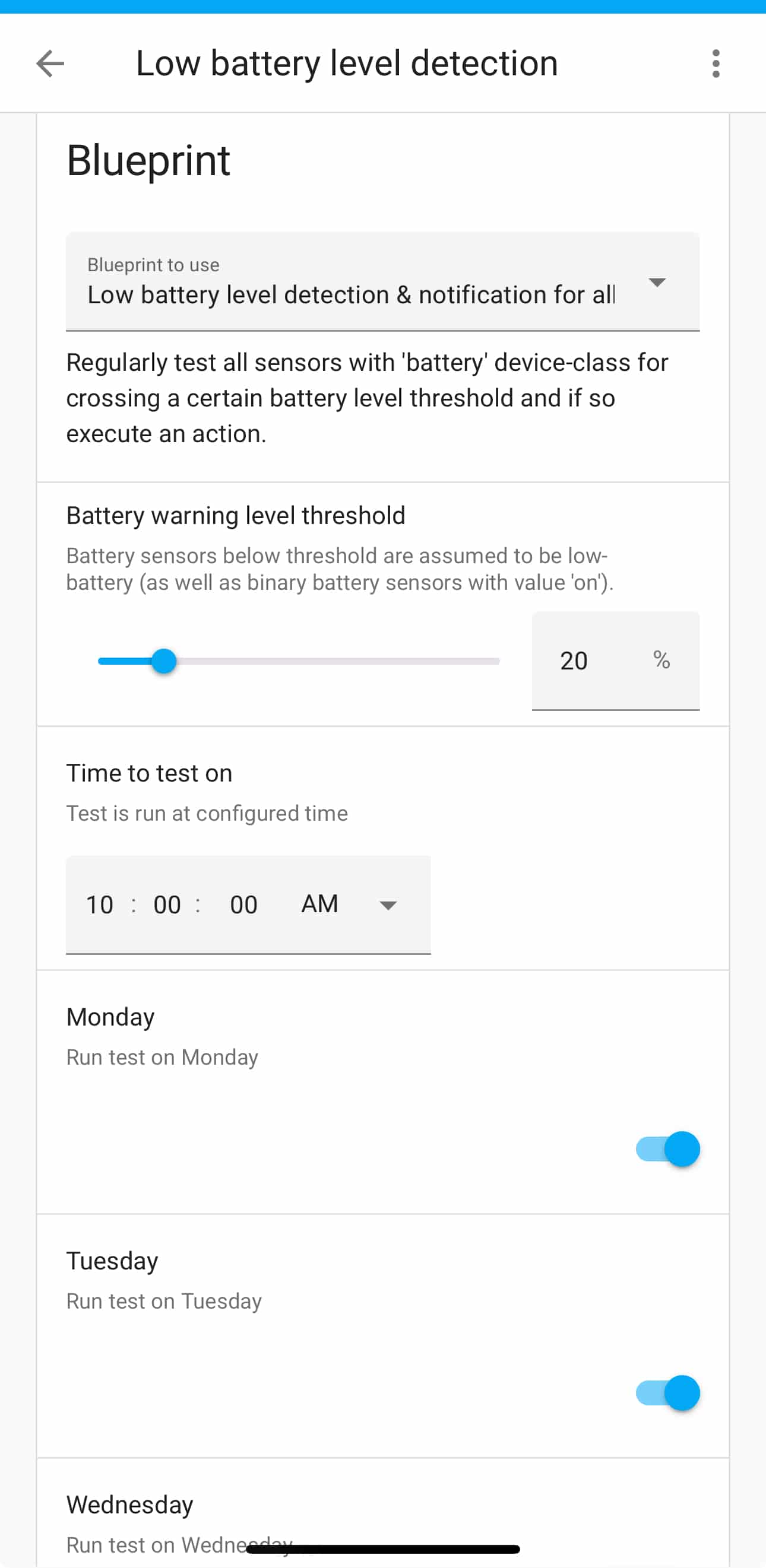
Just like in Controller for HomeKit, we can also create an automation that checks the battery status of our devices and, if needed, sends us a notification. There’s a blueprint for this that we just need to import:
Blueprint de Home Assistant para que todas las mañanas recoja el estado de la batería de los dispositivos y, en caso de que sea menor que el 20%, nos envíe una notificación
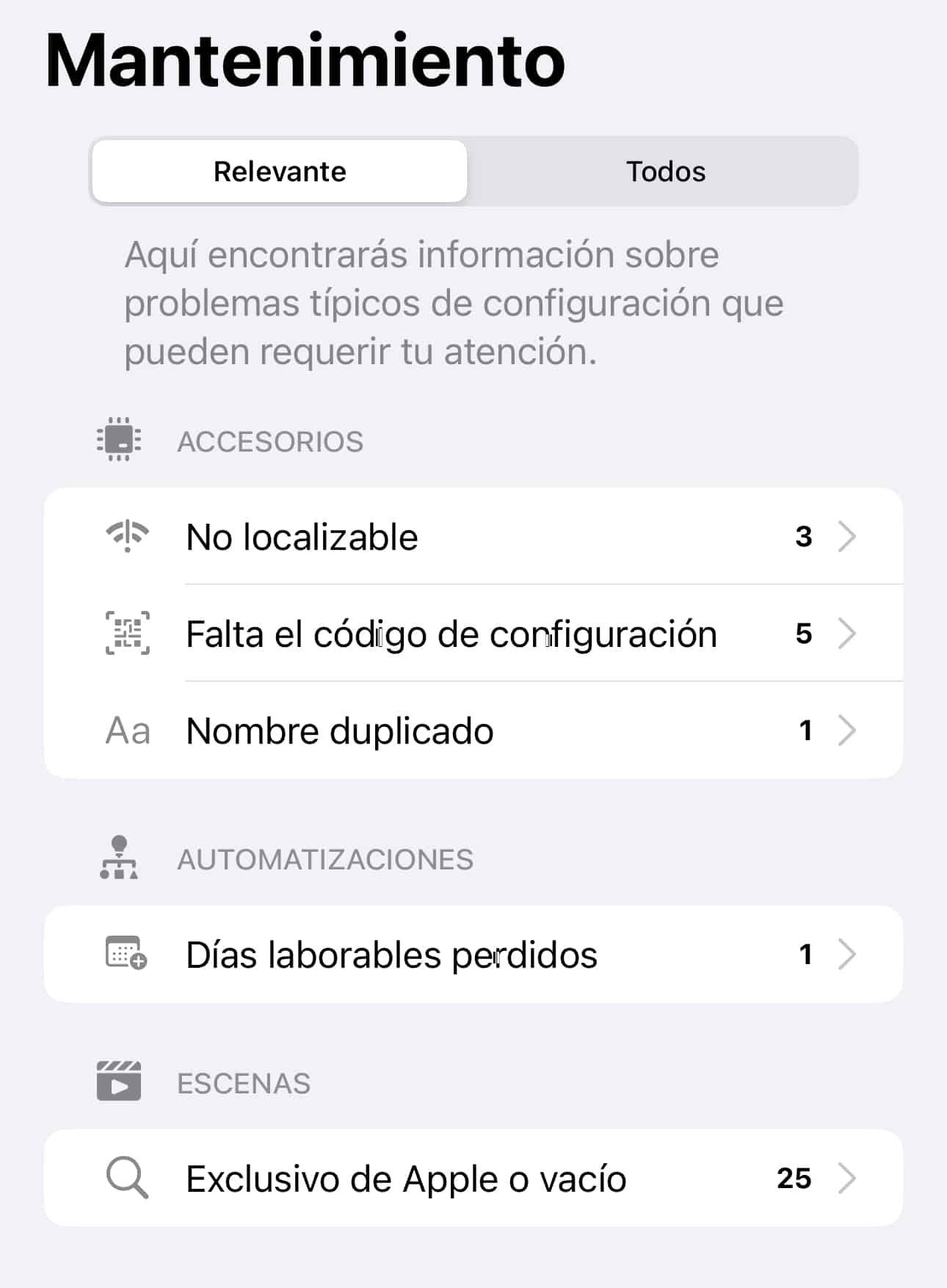
In Controller for HomeKit we can also see other kinds of issues on our network. Right now, for example, it’s telling me the following:
Vista del menú de Mantenimiento en Controller for HomeKit donde podemos ver únicamente los problemas relevantes
In other words, I have 3 devices that are disconnected (they’re 3 test Shellys — I’ll tell you about the tests I’m running with them another day), 5 devices missing their HomeKit QR code (you know, the number that lets us link them to the Home app), 1 duplicate name across 2 devices, an automation that doesn’t have the weekdays set, and 25 automations that are Apple-exclusive because they include devices Apple doesn’t show outside the Home app, like HomePods, Apple TVs, and some HomeKit-compatible TVs.
Each of these requires a few steps to fix. For instance, the issue with the 5 devices missing their HomeKit QR code is actually pretty cool, since Controller for HomeKit can store those codes — no need to keep the sticker with the QR code or the original instruction manual where the code is printed. Goodbye Diogenes syndrome. Hello minimalism, keeping only what’s necessary.
So all I have to do is find the code for those 5 devices and add them to Controller so it stores them. Easy and very handy in case I ever need to re-pair them in the future… you know how sometimes I get the urge to switch ecosystems, bridges, firmwares, or whatever other scheme that makes my life way more complicated even though it won’t actually work any better — which is exactly what I’ll be telling you about in a few days regarding those 3 test Shellys. Now you’re making me spoil it! You really know how to talk someone into things…
The duplicate name issue is because right now I have 2 devices both named ‘Light’. This one’s tricky, because in the Home app, if we put a bulb in the kitchen room and just call it ‘Light,’ we can tell Siri ‘Hey Lola, turn off the kitchen light,’ and Siri will know it’s that bulb and turn it off without any trouble. But if we instead name a bulb ‘Kitchen light’ and put it in the kitchen room, it’ll work exactly the same way! So we could say ‘Hey Lola, turn off the kitchen light’ and Siri will know exactly which light we mean. So, my recommendation is not to name devices something as generic as ‘Light,’ ‘Plug,’ or ‘Switch,’ because it’s not necessary — we can perfectly well call it ‘Living Room Switch’ or ‘Living Room Lamp’ and then assign it to the Living Room room so we can tell Siri ‘Hey Lola, turn off the Living Room switch’ or ‘turn off the Living Room lamp.’
By the way, speaking of voice assistants, the new version Home Assistant will release in early 2024 is going to let you talk to it in natural language! Imagine being able to say ‘Hey Lili, turn off the living room light, then turn on the bathroom one, and start the heater so it warms up gradually’. That’s going to be great.
The issue with the automation missing its weekdays is because since iOS 16, it’s recommended that automations meant to run every day explicitly include all the days — that is, instead of leaving the condition empty, we tell it to run on Monday, Tuesday, Wednesday, Thursday, Friday, Saturday, and Sunday. I don’t know, man, classic Apple thing, but it costs nothing to set the days if it means making sure things work better.
And lastly, the 25 automations I’ve created from the Home app that can’t be managed from other apps. I’d need to check that they’re all exactly as they should be and that none of them are empty or include some device that no longer exists.
Backups
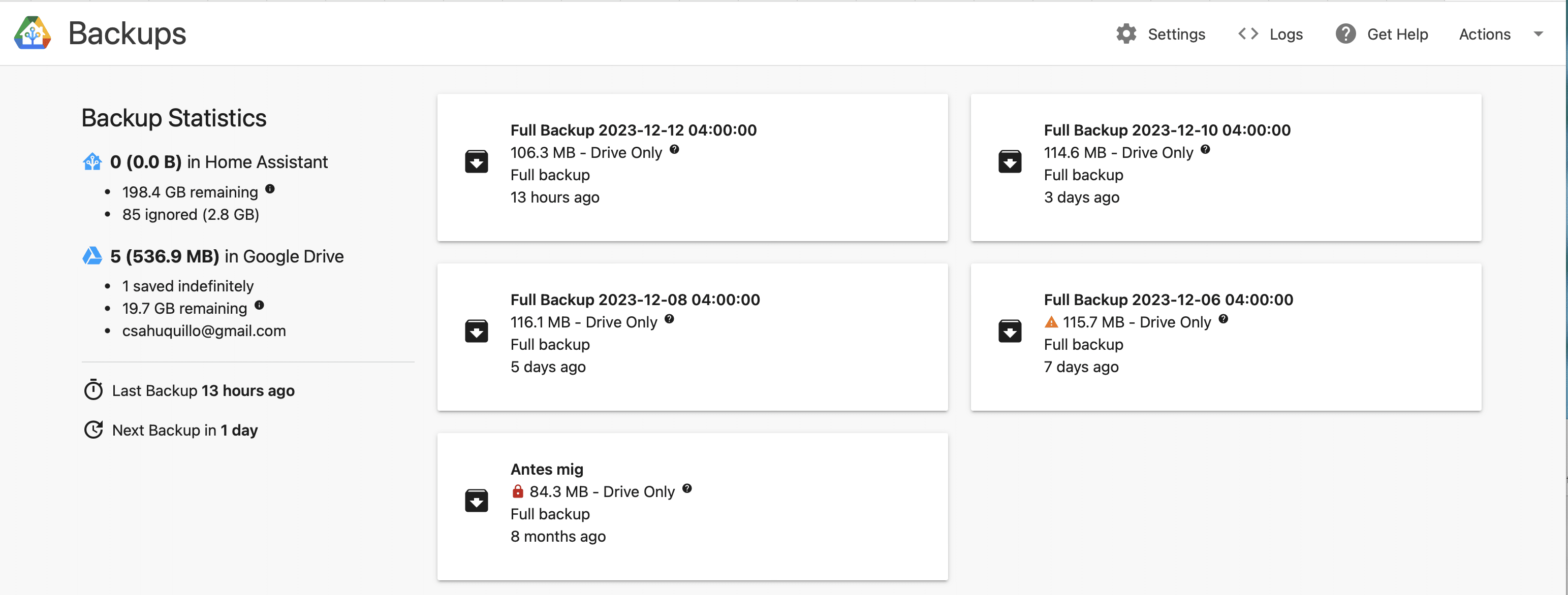
In Home Assistant, at first glance, there isn’t really a Maintenance section as such, although we could build one ourselves — but there are several ways to check that everything’s in order. The first and most important thing is to confirm the Backup is working properly, which we can do simply by checking that the corresponding plugin is running. In my case I use the Google Drive plugin, as I’ve already mentioned before.
Plugin de Backup en Google Drive para Home Assistant
But if we really want to be thorough, the ideal thing would be to nuke our installation and try restoring a backup to see if everything works as it should. Risky, right? But that would save us from scares like the one Jacobo Vidal had recently on the Desde el reloj podcast, when trying to restore the Home Assistant docker after migrating the device it was running on — he discovered the backup hadn’t been made correctly and had the whole system down for several hours before he managed to recover it.
In my case I don’t need to test it at some specific moment because since I’m an idiot and I get carried away, constantly running tests, switching protocols, adding new devices to act as bridges… so every so often I end up restoring after seeing the results, or rolling back after some failed test.In the HomeKit ecosystem this isn’t necessary, since our automations and devices are stored in iCloud, and all the HomePods and Apple TVs we have at home act as the accessory hub, so if one of the speakers becomes unavailable, another one will take over control without any issue. We can’t even define which one we want as the «master» — the ecosystem itself handles the balancing between them.
Even so, Controller for HomeKit does let you back up your automations and settings, but that’s mainly in case we break one or delete it by accident, not so we can restore everything in the event of a failure or replacement of the Apple TV or the HomePods, since that won’t be needed.
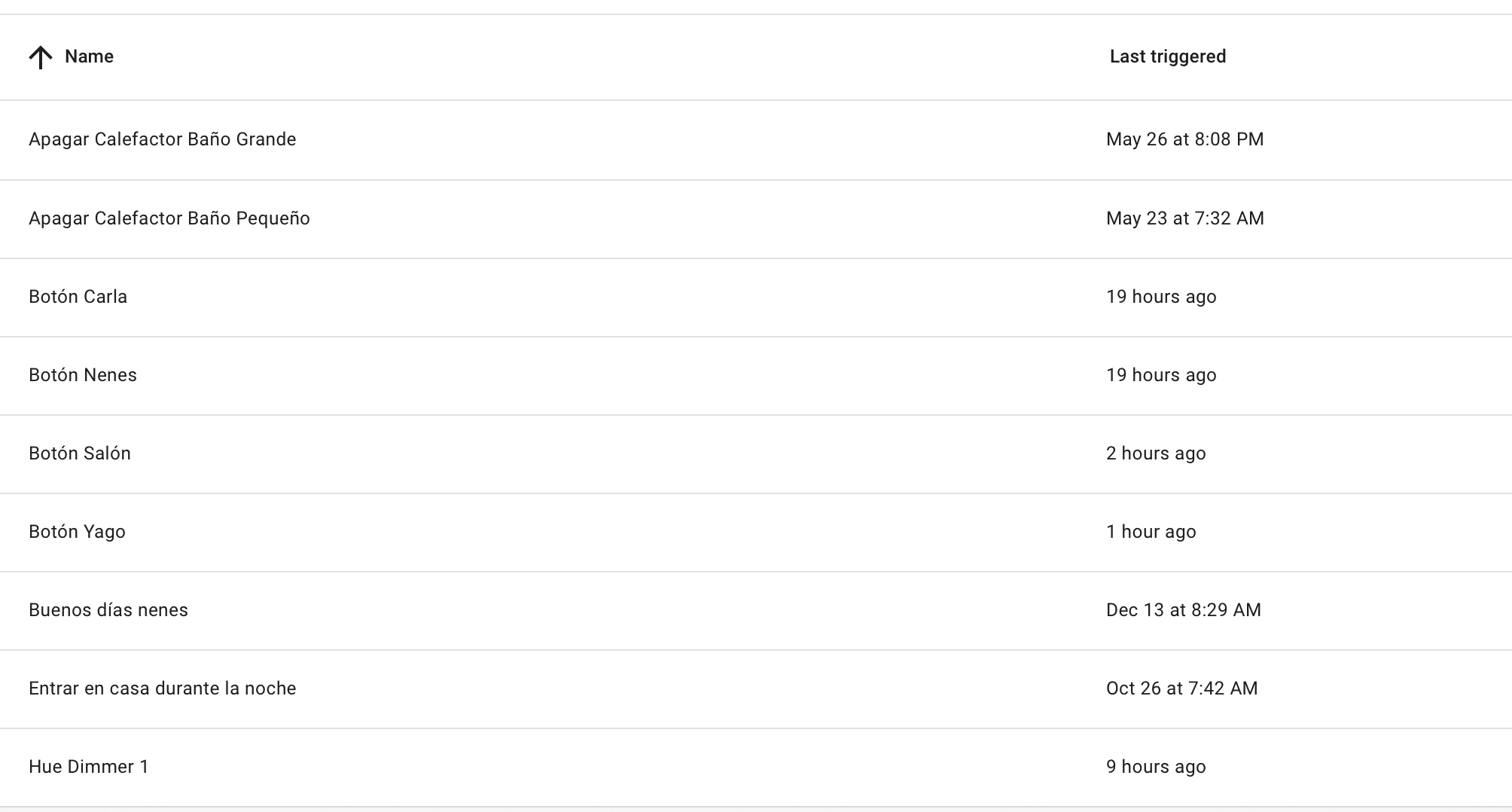
Lastly, from Home Assistant we could test automations by going into them and running them manually in test mode, since all the logs and results are saved so we can check whether it’s working correctly. Also, another neat thing about Home Assistant is that you can see, next to each automation, the last time it ran, which is really useful because it gives us a sense of whether it’s working properly or whether it hasn’t run in ages for some reason:
Automatizaciones en Home Assistant con la información de la última vez que se ejecutaron
Anyway, even though it might seem tedious, we could have the whole system reviewed in under an hour, you know? Don’t think this is going to be a ton of work with all sorts of nasty surprises popping up. Even so, it’s worth it, because it lets us sleep a little more soundly — I don’t even want to imagine being in Jacobo’s shoes, thinking my devices aren’t working while my wife’s sword of Damocles hangs over my head… not to mention over some other, more cherished part of my anatomy.
¿Necesitas ayuda con tu domótica?
Te ahorro tiempo, dinero y disgustos. Sesiones de consultoría desde 60€.
Genial Juanjo, ya me contarás! A mi me gusta mucho, toda la sección de ‘Mantenimiento’ está muy bien y hace cosas que no hacen las demás. Es posible que no sea tan bonita como la app Casa de Apple, pero a nivel de funcionamiento e información funciona muchísimo mejor.
 Carlos Sahuquillo
·
12 diciembre, 2023
·
10 min de lectura
Carlos Sahuquillo
·
12 diciembre, 2023
·
10 min de lectura

 In Controller for HomeKit we can also see other kinds of issues on our network. Right now, for example, it’s telling me the following:


Gracias por el aporte, Carlos.
Voy a descargar la app Controller para probarla. Pinta muy bien.
Genial Juanjo, ya me contarás! A mi me gusta mucho, toda la sección de ‘Mantenimiento’ está muy bien y hace cosas que no hacen las demás. Es posible que no sea tan bonita como la app Casa de Apple, pero a nivel de funcionamiento e información funciona muchísimo mejor.