HomePod alarm sound
 Carlos Sahuquillo
·
27 septiembre, 2021
·
8 min de lectura
Carlos Sahuquillo
·
27 septiembre, 2021
·
8 min de lectura
Ep. 19 · escúchalo
0:00 /
Idioma:CastellanoEnglish
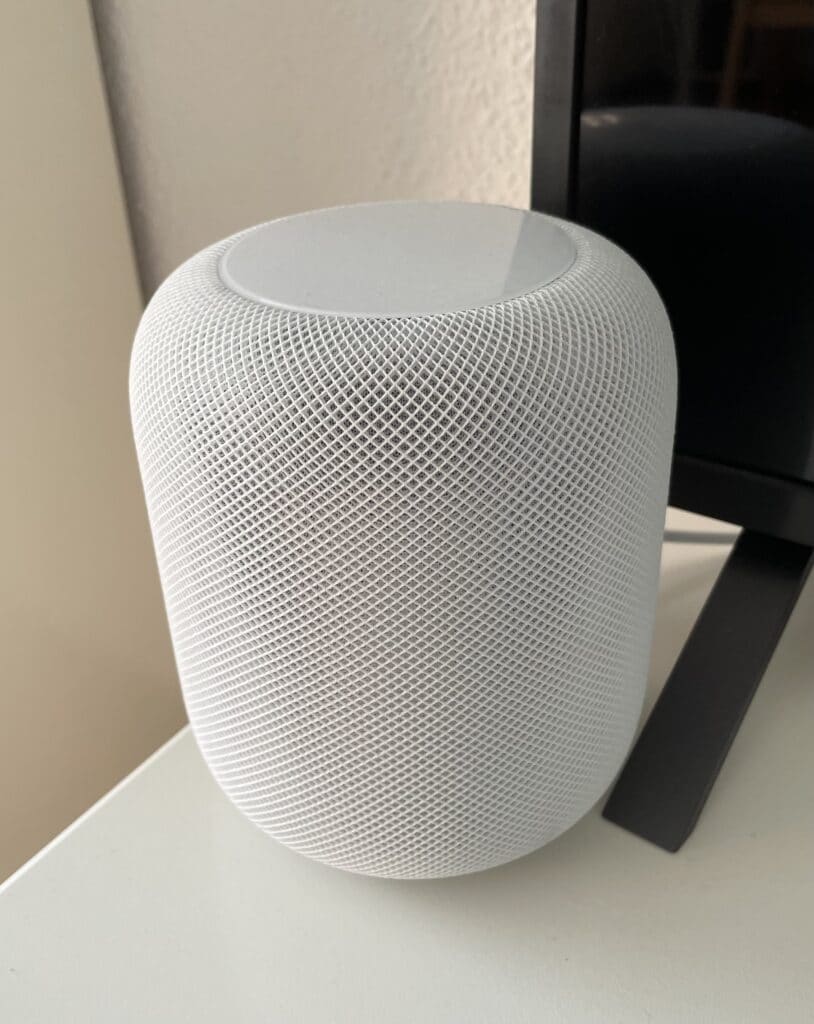
We’ve mentioned on several occasions that Aqara’s bridge can act as a connected alarm. It’s not as robust and reliable an alarm as those from traditional security companies, but it can serve as a first line of defense against burglars. In this post we’ll see how to route the alarm sound through the HomePod so it sounds much louder.
It’s clear that if the burglar is somewhat skilled and cuts the power the moment they get in (the circuit breakers are usually right next to the front door), well then there goes any sound or Internet connection you were counting on, although some people set up a Raspberry Pi with a 4G card and a UPS for this purpose… but what can I say, there’s nothing that valuable in my house to justify going through all that trouble.
Even so, just with a few sensors, or with Aqara’s bridge and sensors, we can get it to work as a connected alarm, so we can arm the alarm when we leave home and, if some condition is met—like a door or window opening, or the motion sensor detecting something, etc.—the alarm will start blaring like crazy, and on top of that we’ll get a notification on our phone.
If you’re podcast listeners, we already covered this topic and how to activate the alarm on Aqara’s bridge in episode 13 of the Domótica Compatible podcast.
The problem: Aqara’s M2 bridge only has an internal speaker
Activating the alarm with Aqara’s M1 and M1S bridge is a very simple task that works quite well since they come with a small built-in speaker that, while it won’t produce a 100-decibel blast, can still act as something of a deterrent for burglars. However, now that I have Aqara’s M2 bridge I’ve realized that its speaker is a joke, it’s not even external, so you can only hear the alarm if you’re right next to the thing and practically press your ear against it… which I doubt burglars would do, and if they did, instead of getting scared they’d probably crack up laughing. Buuut we have a solution for the alarm sound if we have this bridge: using the HomePod (either the classic or the mini) as the alarm speaker.The solution: Routing the alarm sound through the HomePod
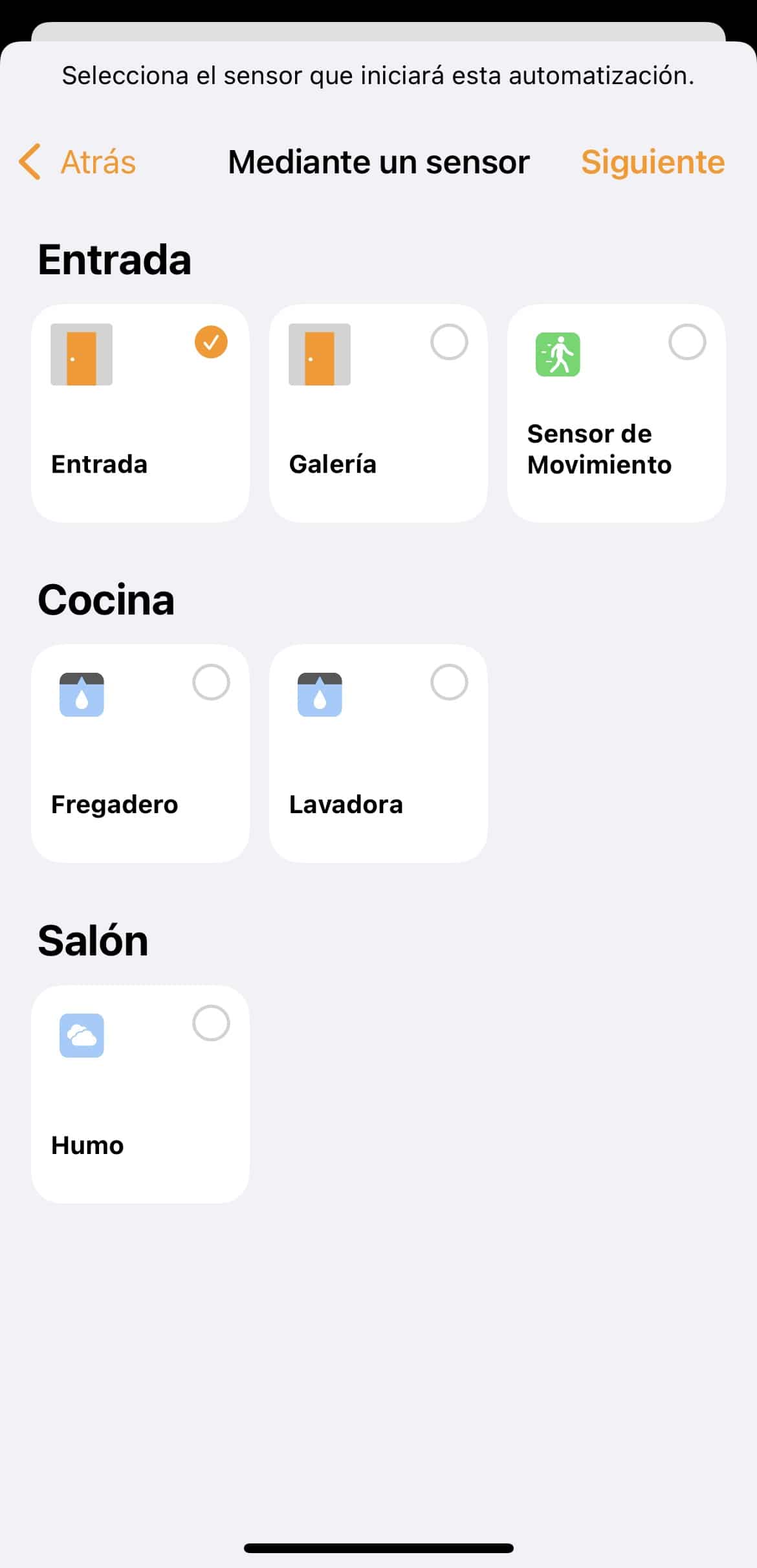
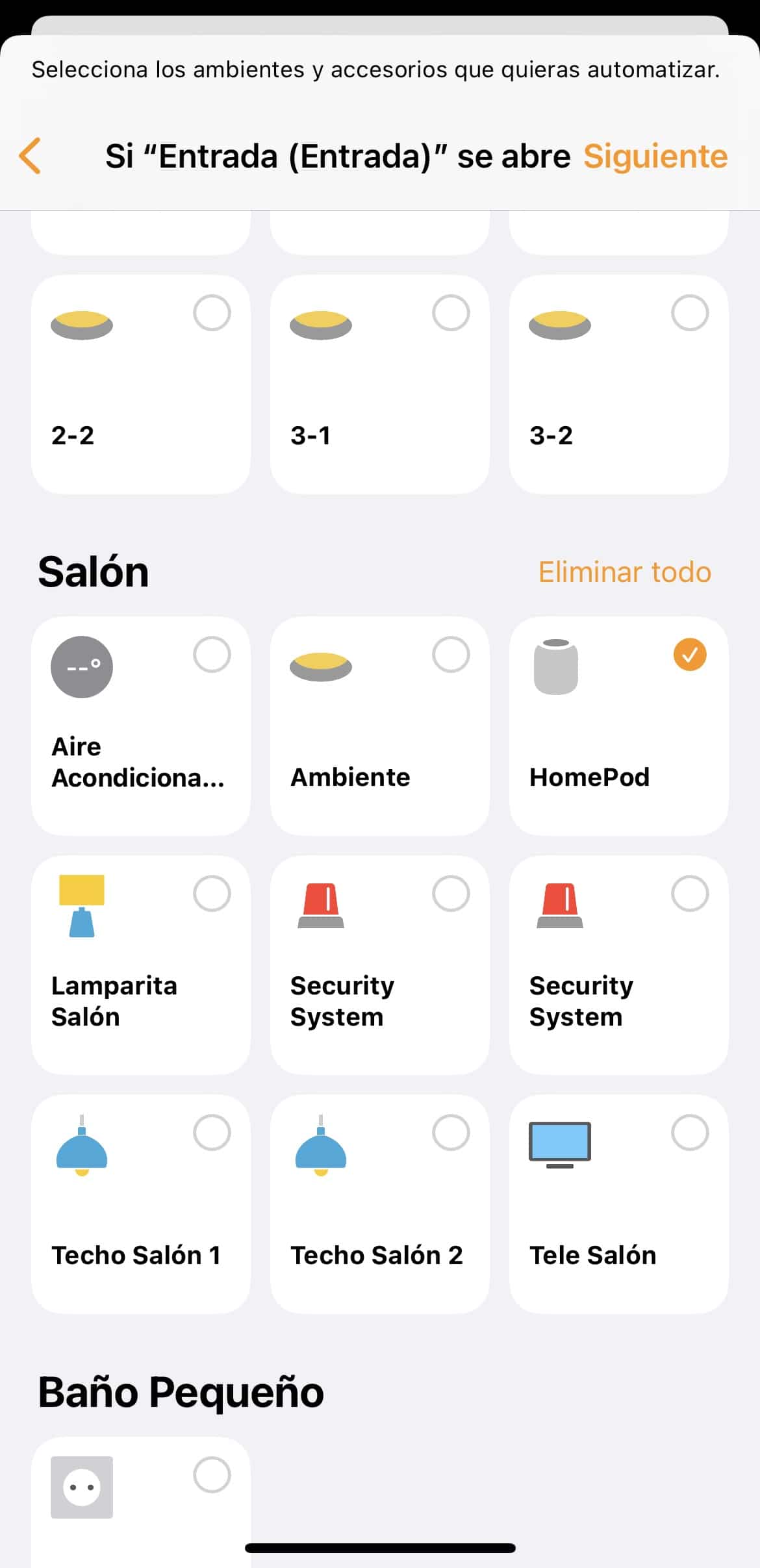
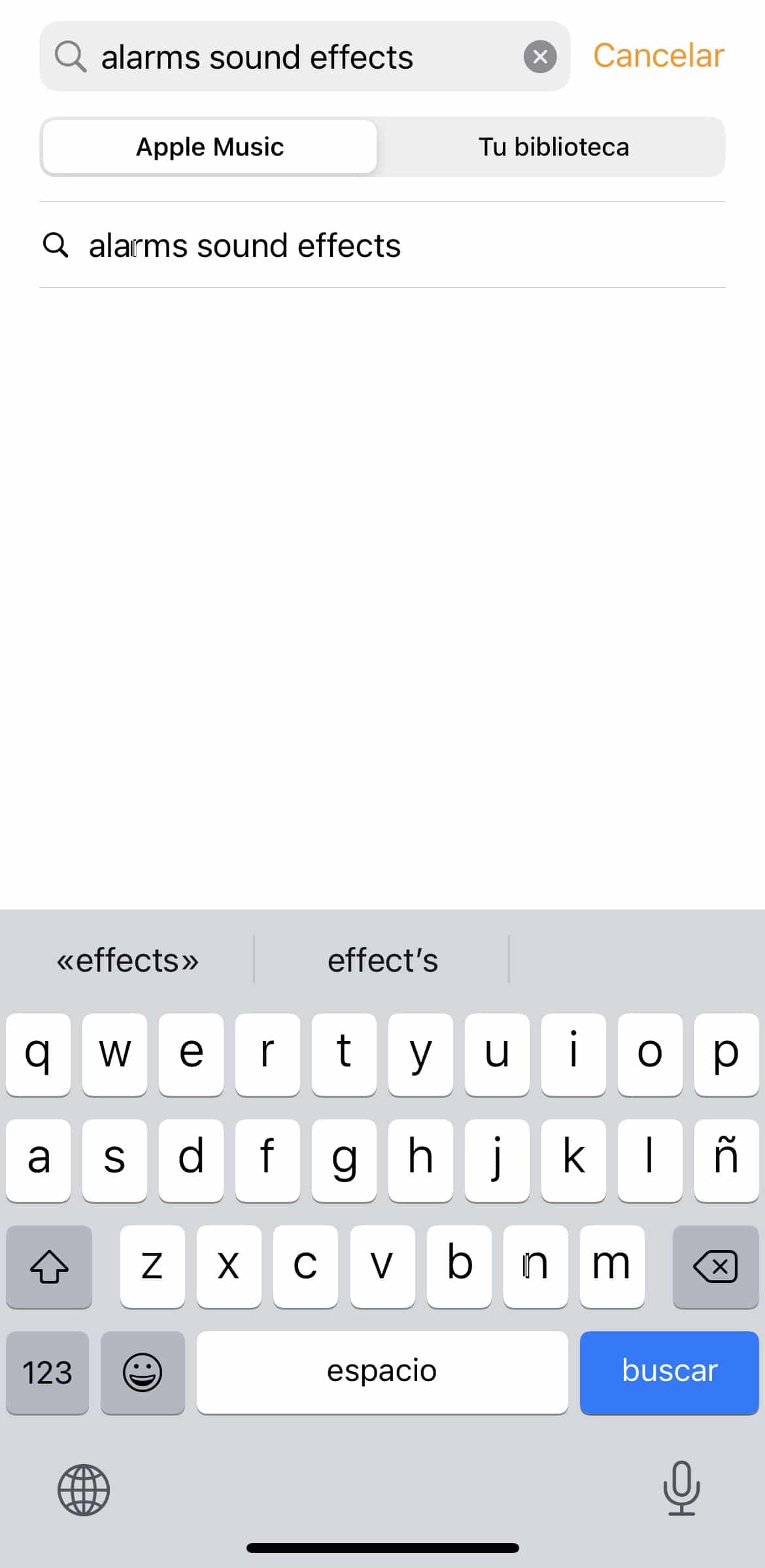
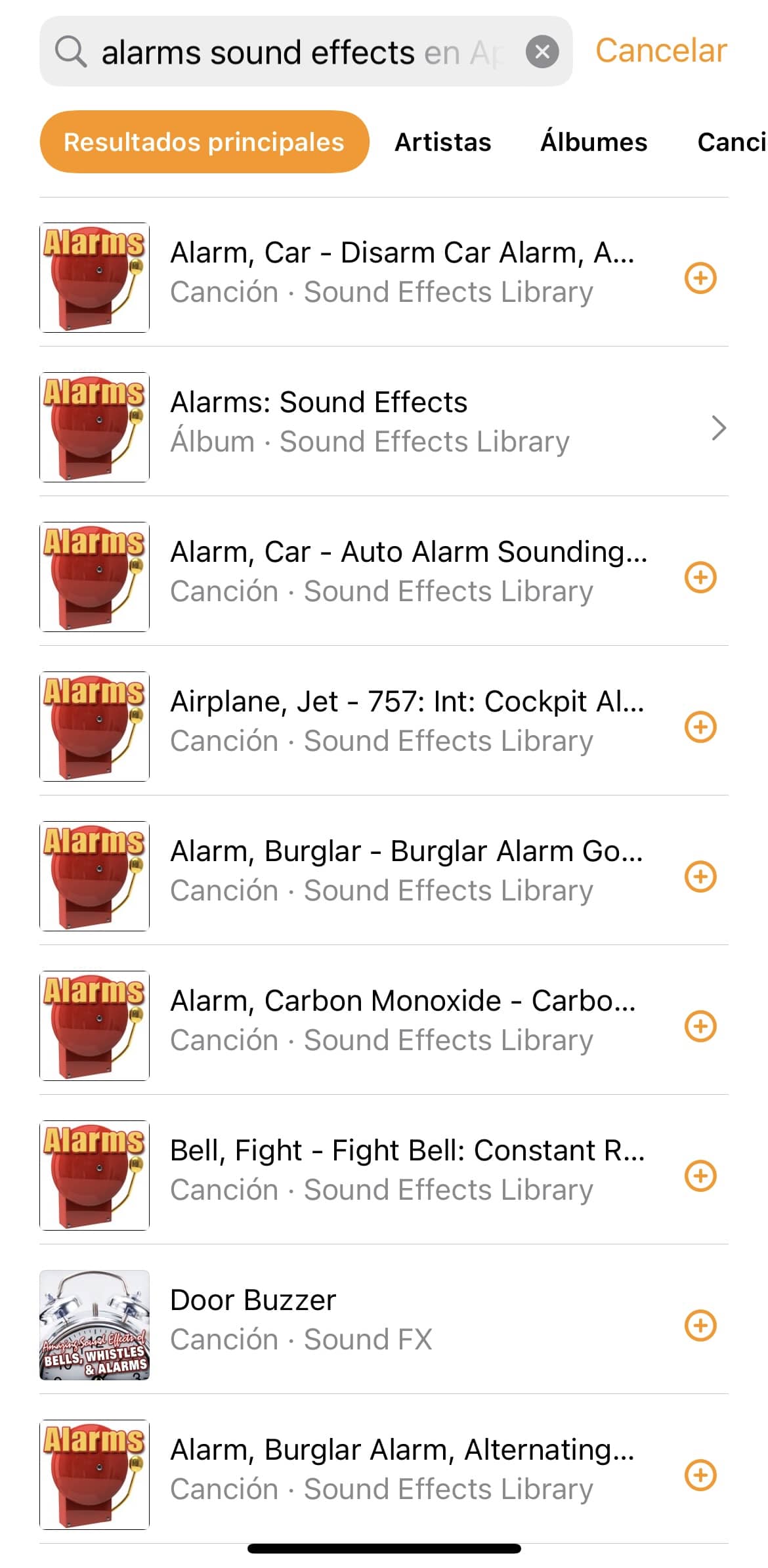
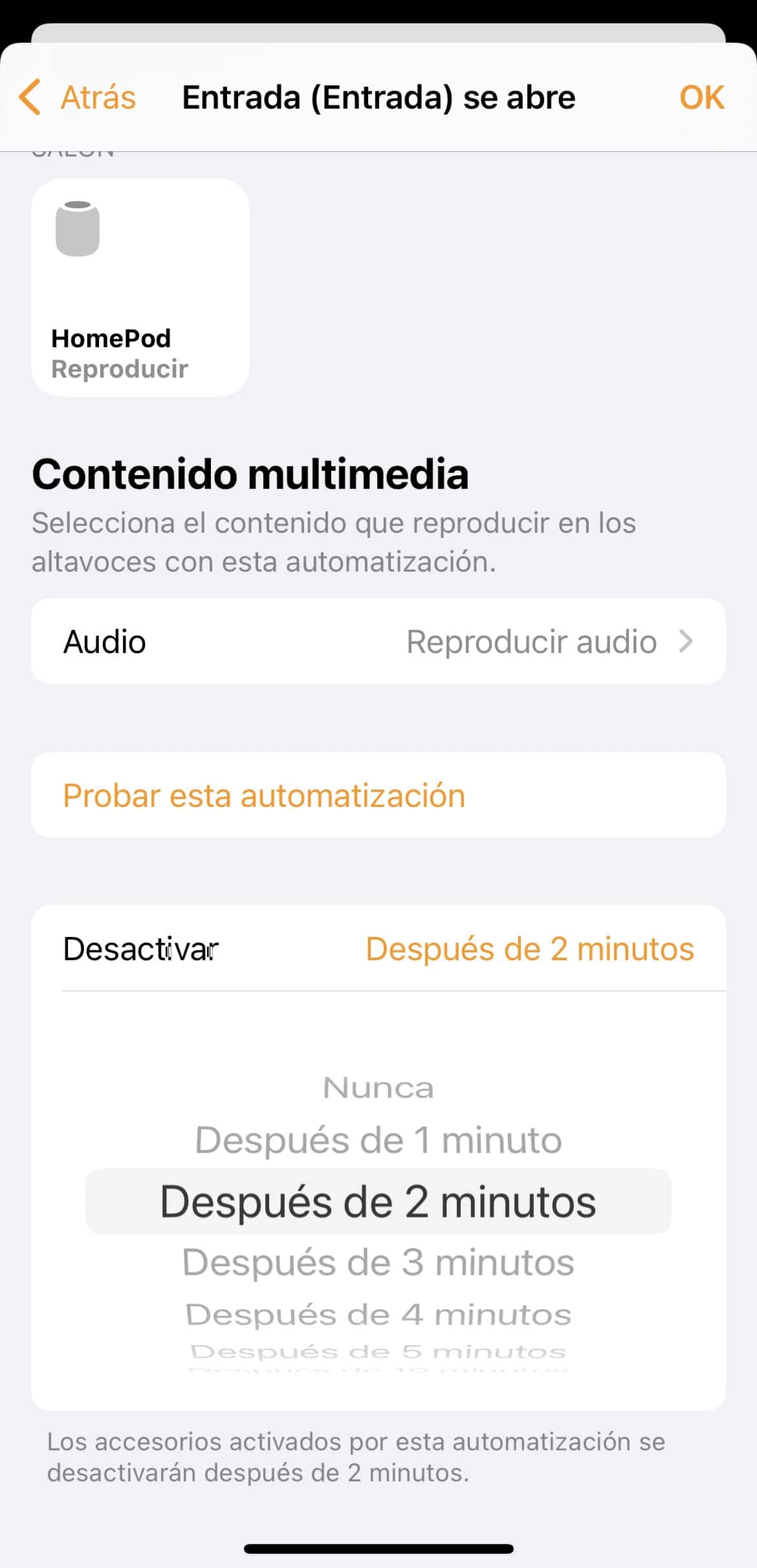
Actually we can use this method as long as we have some sensor that can act as a trigger, it doesn’t have to be Aqara’s bridge. If we have Philips Hue’s motion sensor which costs around €30, Eve’s which is a bit pricier but supposedly can detect pets, or the door/window sensors from Eve and Onvis respectively, we can make the HomePod sound an alarm if they detect something… but we could also make the alarm go off if, for example, a leak sensor detects that the sink pipe is leaking or that we’ve overfilled the pool (not my case, I only have bathtubs and they’re not that big), have the house lights turn blue and have the HomePod play ‘Singin’ in the rain’! Okay, I’m rambling, but we can make it go off with any sensor we have that’s HomeKit-compatible and shows up in the Home app. The setup is very simple, we just need to open the Home app, go to automations to create a new one, and for the condition set it to ‘When a Sensor Detects Something’. Here we’ll directly see the available sensors, in my case I get the smoke detector, the motion sensors, the door-open sensors, and the leak sensors.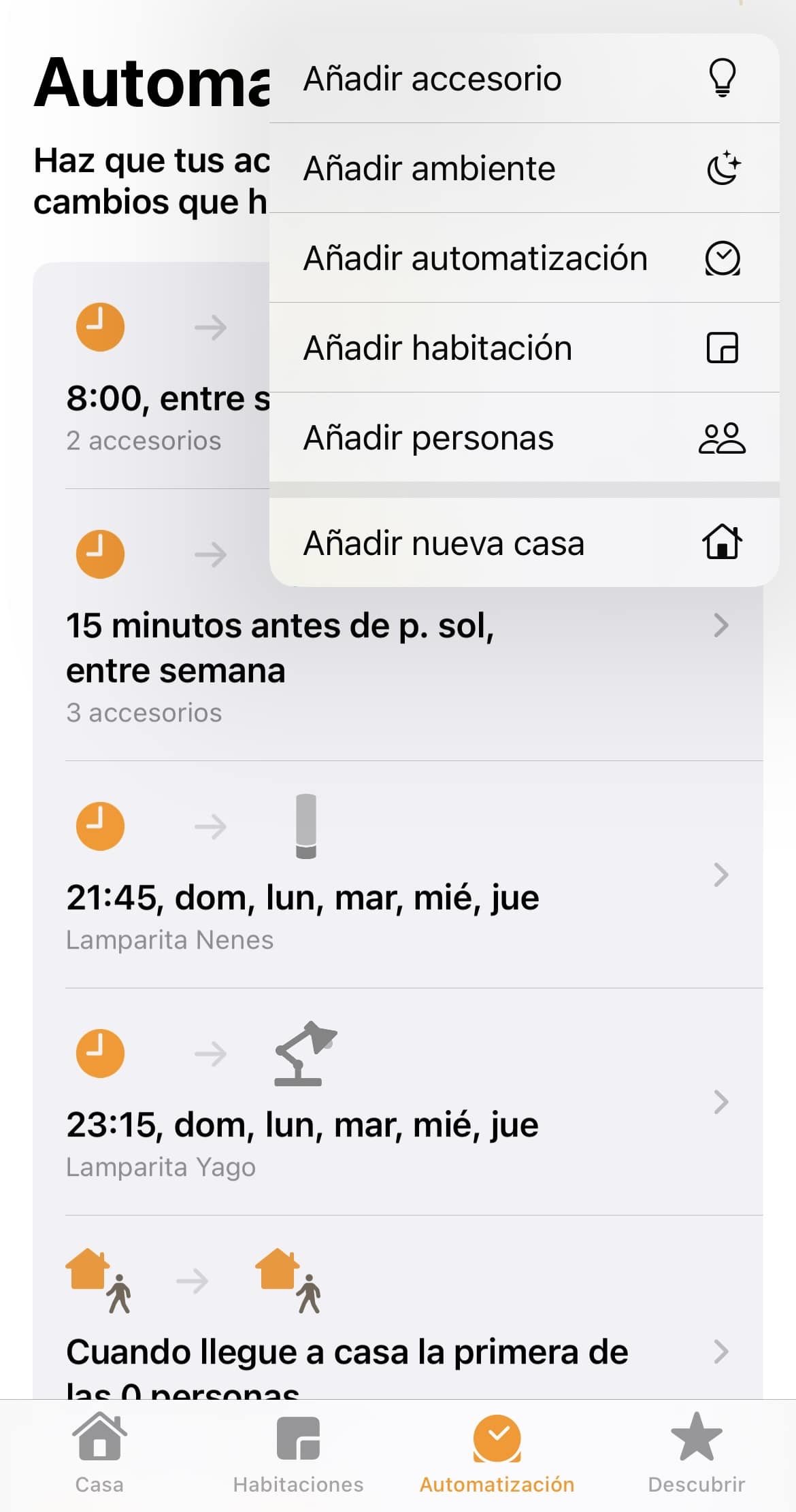

Watch out for the location!
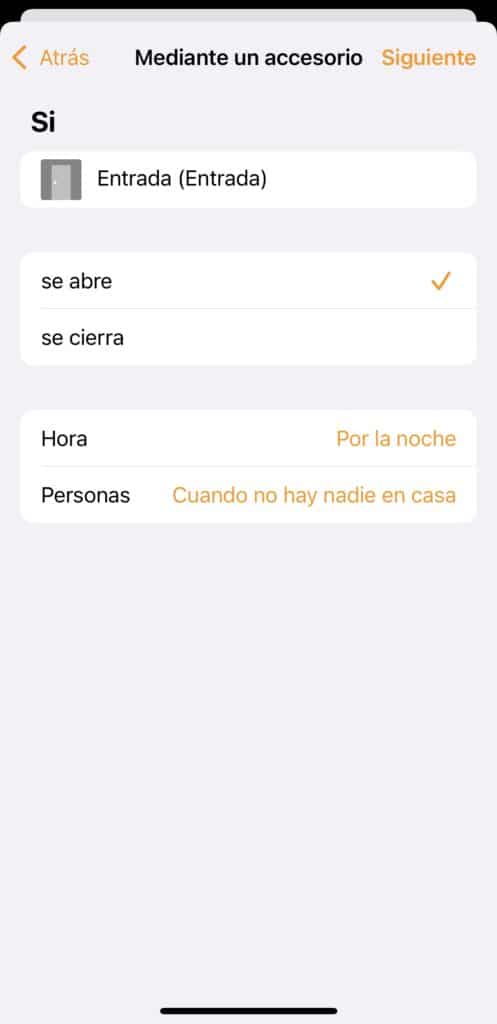
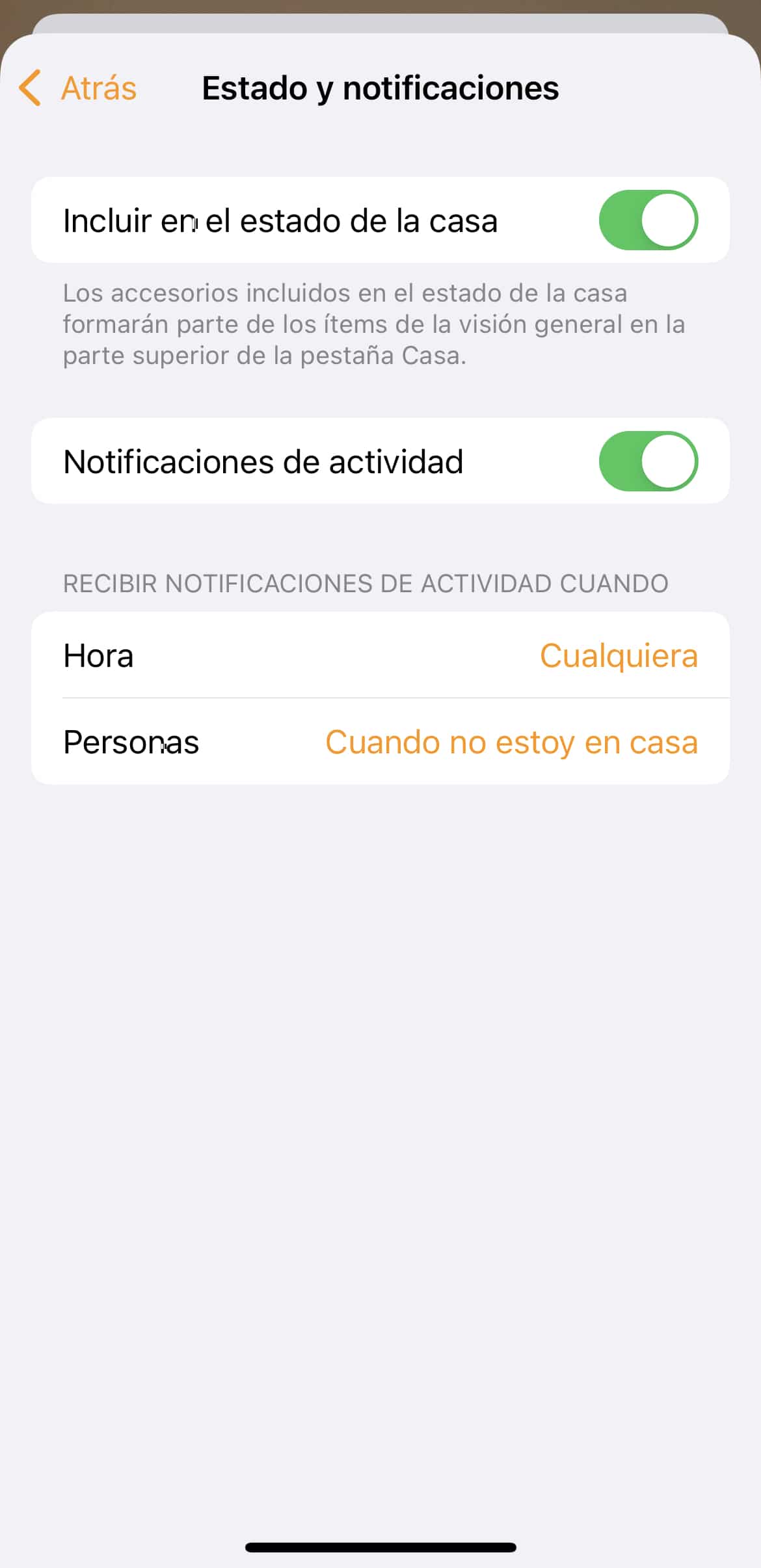
The good thing about this automation is that you don’t have to arm and disarm it like a conventional alarm or like we do with Aqara’s bridge, you just need to set the conditions correctly. If we tell it to sound at night when nobody’s home, it means it’ll go off if the door opens at night and none of the devices belonging to the people we’ve added in the Home app are nearby. For example, I have my wife’s iPhone, my eldest son’s iPhone, and my other kids’ tablets. But what happens if, say, we go out to eat and the little ones’ iPads are at home? The alarm won’t sound because it thinks someone’s home… and what happens if I remove these iPads from the condition and tell it to only consider whether my iPhone and my wife’s are away from home? Well then, if one of my younger kids stayed behind with the grandparents, a babysitter, or I simply went down to take out the trash and the kid was left alone for that minute and a half… as soon as they open the door it’s going to start blaring like crazy. Keep in mind that the Home app doesn’t take ‘being home’ literally, for the Home app it means you’re within a zone that’s usually around 200m radius… so if we go down to the park below our house the app will probably still think we’re home, there’s no way to add a condition like being connected to the Wi-Fi. So, as soon as we all head home and enter the geographic area that Home considers «home,» the alarm will deactivate… or it should, because this doesn’t always work smoothly—if you’re driving, for example, and pull into the garage without coverage, it’s easy for it to not catch on, and as soon as you open the door your house turns into a light and sound show. We should also keep in mind that we can activate the notification directly on the sensor, not for the specific automation, so we can tell the door sensor, for example, to notify us if the door opens and we’re not home… this way we’ll know the alarm is going off because the door opened even if we don’t get a direct notification saying AAAH AAAH ALARM GOING OFF, WE’RE ALL GOING TO DIE!!!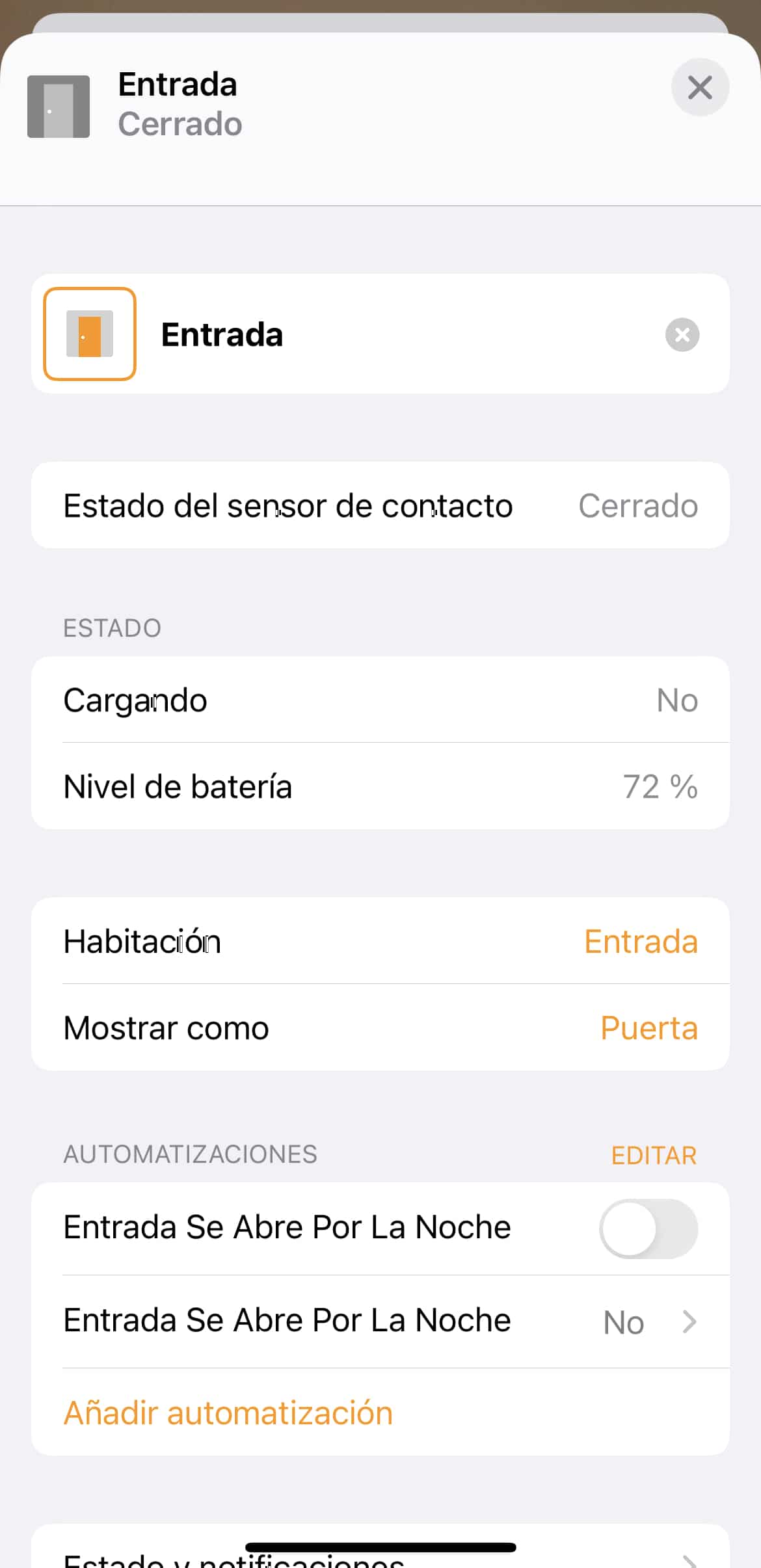
¿Necesitas ayuda con tu domótica?
Te ahorro tiempo, dinero y disgustos. Sesiones de consultoría desde 60€.
Carlos Sahuquillo
'Haga lo que haga en la vida, siempre compito' - Jacques Villeneuve Reserva una sesión →
Sigue leyendo
Ver todo el blog
Entradas relacionadas
1 octubre, 2026 · Domótica
Leer
How to spot issues in a Matter device
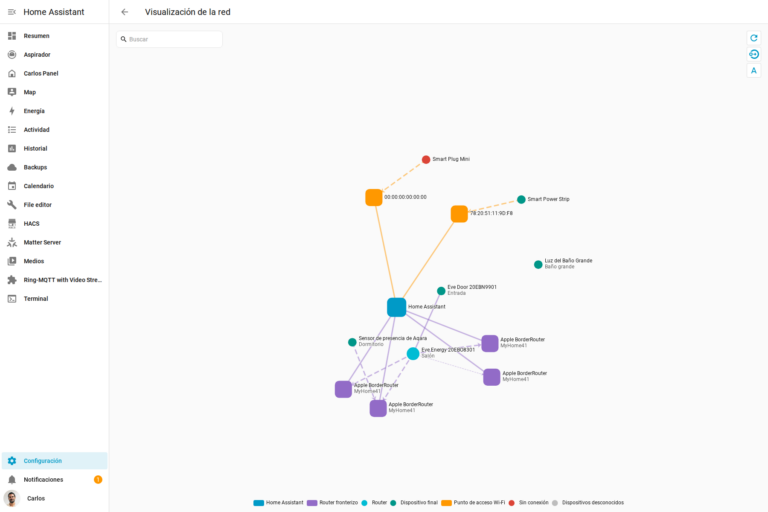
I opened Home Assistant's new Matter and Thread map to check which routes my devices are using and see just how useful…
Ep. 113 · escúchalo
0:00 / 14:08
17 septiembre, 2026 · Domótica
Leer
HomeKit with AI in iOS 27
Apple released iOS 27 on September 14th and, as it does every year, I'm going through what's changed in the Home app…
Ep. 112 · escúchalo
0:00 / 12:44
3 septiembre, 2026 · Domótica
Leer
Webhooks and workflows in Controller for HomeKit
Kicking off Season 4. I'm picking back up the automation for the sensor that kept running out of batteries that I told…
Ep. 111 · escúchalo
0:00 / 13:12
Hola Carlos, después de oir el podcast, he entrado con ganas para probar esto pero me he topado con lo que esperaba: se necesita una subscripción a Apple Music…
Es que no veo el gastarme 10€ al mes para algo que casi no uso, y más teniendo Amazon Music «gratis» (dentro del Amazon Prime).
Nada, seguiré con mi sirena externa que me costó menos de 10€, ¡pero de pago único!, no las malditas subscripciones.
¡Saludos!
Recuerda que de algunas «malditas suscripciones» viven algunos «malditos desarrolladores» que tienen que dar de comer a sus «malditas familias». No voy a defender TODAS las suscripciones, porque defender una suscripción a una app que te simula un perro (por ejemplo) no es lo mismo que una app que requiera de un mantenimiento, tanto de la propia app como de los servidores que necesite para su funcionamiento. No generalicemos que no es bueno.
Samsepi0l
Totalmente de acuerdo! Entiendo que haya gente que no quiera pagar por servicios más o menos equivalentes a otros que son gratuitos… pero qué queréis que os diga, yo hay cosas que pago muy a gusto: el almacenamiento de mis archivos y fotos y la gestión de mis contraseñas. Y sí, ambas cosas las podría hacer de forma gratuita… pero confío en los servicios que utilizo y me olvido de todo.